Lessons learned whilst working with Microsoft Fabric – Part 1: Data Engineering

Any time there is a big change in technology, there is a steep learning curve to go with it. Since Microsoft announced Fabric in May 2023 We have been working hard on getting up to speed with how Fabric works and how it changes the nature of what we do.

  • What new architectures are available for us to work with?
  • How it changes working with Power BI?
  • How we create our staging and reporting data before loading into Power BI?
  • How Pipelines differ from data Factory, and pipelines in Synapse?
  • Keeping  up with the monthly updates across Fabric

In my previous post “The Microsoft data Journey so far. From SQL Server, Azure to Fabric” I looked at my own journey working with on premises Microsoft services through to Fabric. Along with  identifying all the key fabric areas.

This post is about my initial discoveries whilst actively working with Fabric, specifically using the Lake house, and ways of developing your learning within the Microsoft Fabric space.

In Part 1, we explore various topics within the Fabric Data Engineering capabilities. In Part 2, we will delve into Fabric Power BI and semantic modelling resources.

Analytics Engineer

Analytics engineer is a new title to go along with Fabric (SaaS) end to end analytics and data platform. One of the first things to do was to go through Microsoft’s Analytics Engineering learning pathway, with the aim of taking the exam.

I personally took my time with this because I wanted to get as much out of it as possible and passed the exam on the 24th of June 2024. Making me a certified Fabric Analytics Engineer.

I highly recommend going through the learning pathway https://learn.microsoft.com/en-us/credentials/certifications/fabric-analytics-engineer-associate/?practice-assessment-type=certification to get equipped with the skills needed for being an Analytics Engineer,

You learn about Lakehouse, Data Warehouses. Notebooks. Pipelines. Semantic models and Reporting throughout the course.

But the main question is, What is Fabric Analytics Engineering, and how does it differ from Data Engineering and Data Analysis?

Data Engineering          

  • Designing and building data pipelines.
  • Focus on maintaining the infrastructure
  • Collecting data from multiple systems and data storage solutions
  • Skills in SQL, Python, Devops GIT, ETL tools, Database management etc

Analytics Engineering

  • Specialises in analytics solutions. Data engineers have a broader focus.
  • Collaborate closely with Data Engineers, business process knowledge owners. Analysts etc
  • Transforming data into reusable assets
  • Implementing best practices like version control and deployment
  • Works with lakehouses, Data Warehouses, Notebooks, Dataflows, Data pipelines, Semantic models and Reports
  • Skills in SQL, DAX, Pypark, ETL Tools etc

Analytics Specialist

  • Focuses on analysing data and data insights to support decision making
  • Creates reports and Dashboards and communicates findings
  • Identifies trends and patterns along with anomalies
  • Collaborates with stakeholders to understand their needs.
  • Skills in visualisation tools like power BI

As you can see, the Analytics Engineer is a bridge between Data Engineering and Analytics. The Analytics Specialist is sometimes seen as an end to end developer with knowledge across all of these specialties. But has a major focus on analytics solutions.

Architecture

With Fabric, we have numerous architectural options. By making strategic choices, we can eliminate the need for data copies across our architecture. Consider the standard architecture using Azure resources. A Data lake, SQL Database and Data Factory.

Here we have 2 copies of the original data. In the data Lake and the SQL Database (Because you copy the data across to transform, create your dimensions, facts etc).

And finally the same imported dims and facts created in SQL DB are imported and stored in Power BI.

This architecture works well, it allows for data scientists to use the data in the data lake and it allows for SQL Stored procedures to be put in place to process the data into the correct analytical (Star) Schemas for Power BI.

However, wouldn’t it be great if you could remove some of the data copies across the resources.

Fabric leverages the medallion architecture

  • Bronze layer – Our raw unprocessed data.
  • Silver – Cleaned and transformed data
  • Gold Layer – Enriched data optimised for analytics.

Even using Fabric, there are lots of opportunities to use specific resources to change your architecture dependent upon the project. For example, you could decide to use Fabrics next generation Data warehouse, designed for high performance and scalability. Excellent for big data solutions. And allows you to do cross database querying, using multiple data sources without data duplication.

However, at this point I have spent my time looking at how we can utilize the delta lake. Creating an architecture that uses Delta Parquet files. Can this be a viable solution for those projects that don’t have a need for the high level ‘big data’ performance of the Fabric Data Warehouse?

There are significant advantages here, as we are reducing the amount of duplicated data we hold.

And of course, Power BI can use Direct Lake connection, rather than Import mode. Allowing you to remove the imported model entirely from Power BI. Even better, with partitioned Delta Parquet files you can have bigger models, only using the files that you need.

This architecture has been used for some initial project work, and the Pyspark code, within Notebooks, has proved itself to be fast and reliable. As a fabric Engineer I would definitely say that if you are a SQL person its vital that you up your skills to include Pyspark.

However, with some provisos, The Data Warehouse can also utilise Direct Lake mode, so sometimes. Its literally the case of, what language do you prefer to work in. Pyspark or SQL?

Task Flows

The Fabric Task flows are a great Fabric feature, and incredibly helpful when setting up a new project.

  • You get to visualize your data processes
  • Create best practice task flows
  • Classify your tasks into Data Ingestion, Data Storage, Data Preparation etc
  • Standardise team work and are easy to navigate

Here, the Medallion flow was used, immediately giving us the architecture required to create our resources.

You can either select a previously created task to add to your task flow

Or create a new item. Fabric will recommend objects for the task

One tip from using the medallion task flow. As you can see. Bronze, Silver and Gold Data Lake houses are shown as separate activities. Currently, you can’t create one data lake and add it to each activity.

If you want to use one lake for all three areas, you need to customise the activity flow.  As a result, the decision was made to have three delta lake’s working together for the project. But it may not be something you wish to do. So customising the flow may be a better option.

GIT integration

The fabric workspace comes with GIT integration, which offers a lot of benefits.  With GIT, you can save your code base to your central repository, allowing for version control. Much better collaboration, better code and peer reviewing. And CI/DC automation.

There are some current issues however, especially with branching, as some branching capabilities are still in preview.  For an initial test project a very basic approach was used.

Azure Devops was used for this project

https://dev.azure.com

Here, a new Project has been added to Devops: Debbies Training

Visual Studio

Visual Studio was used to clone the repository, but there are lots of other ways you can do this next step, For example GIT Bash.

And connect to the repository that has been created (You need to log in to see your repos)

Click clone and you will then have a local copy of the code base. It doesn’t support everything at the moment but it does support Notebooks, Reports, Semantic Models and Pipelines, which is the focus of our current learning.  

Connect Devops to Fabric

Back in the Fabric Workspace go to Workspace Settings

You are now connected to Devops (Note the branch is main)

Later, we want to start using branches when the underlying Fabric logic is better, But for now, we have been using the main branch. Not ideal, but we should see this getting better a little further down the line.

You can now create your resources and be confident that your code is being stored centrally.

All you need to do is publish changes via the Fabric workspace (Source Control)

Click Commit to commit your changes and change Descriptor

Watch out for updates to this functionality. Especially branching

Pyspark and Notebooks

As a SQL developer, I have spent years writing code to create stored procedures to transform data in SQL databases.

SQL, for me is what I think of as my second language. I’m confident with it. Pyspark is fairly new to me. My biggest question was:

Using my SQL knowledge, can I think through a problem and implement that solution with Pyspark.

The answer is, yes.

As with anything. Learning new languages can be a steep learning curve. But there is lots of help out there to grips with the new language. For example, CoPilot has been incredibly useful with ideas and code. But, on the whole, you can apply what you know in SQL and use the same solutions in a Pyspark notebook.

Here are a few Tips

  • Pyspark, unlike SQL is CASE sensitive so you have to be much more rigorous when writing code in your notebooks.
  • When working with joins in Pyspark. You can significantly speed up the creation of the new data frame by using Broadcast on the smaller table.  Broadcast optimizes the performance of your spark job by reducing data shuffling.
  • With SQL, you work with temporary tables and CTE’s (common table expressions). Dataframes replace this functionality, but you can still think of them in terms of your temporary tables.
  • SQL, you load the data into tables, With the Lakehouse, you load your data into files. The most common type is Parquet. It’s worth understanding the difference between Parquet and Delta Parquet. We looked at this in detail in the last blog “The Microsoft data Journey so far. From SQL Server, Azure to Fabric”. But we will look at the practicalities of both, a little later.
  • Unlike a SQL Stored Procedure where, during development you can leave your development work for a while. Then come back to the same state. The spark session will stop at around 20 minutes so you can’t simply leave it mid notebook. Unless you are happy to run again.  
    • Start your session in your notebook.
    • Click on session status in the bottom left corner
  • See the session status in the bottom left corner

Here we can see the timeout period which can be reset.

Delta Parquet

When working with Parquet files. We can either save as Parquet (Saved in the files section of fabric) Or save as Delta Parquet. (Saved in the tables section of Fabric)

Always remember, if you do want to use the SQL Endpoint to run queries over your files, always save as Delta Parquet.

If you want to use the Direct Lake connector to your parquet files for Power BI Semantic Model, again, use Delta Parquet files.

One question was, if you are using a lake house and have the opportunity to create Delta Parquet. Why wouldn’t you save everything with the full Delta components of the parquet file?

There are a few reasons to still go with parquet only.

  1. Parquet is supported across various platforms.  If you share across other systems this may be the best choice.
  2. Parquet is simple, without the ACID transaction features. This may be sufficient.
  3. Plain parquet files can offer better performance.
  4. Parquet files are highly efficient for storage, as they don’t have the delta parquet overheads. A good choice for archiving data.

With this in mind. Our project has followed the following logic for file creation

Dims and Facts

Always use Delta Parquet for full ACID functionality and Direct Lake connectivity to Power BI.

Audit Tables

We always keep track of our loads. When the load took place? What file was loaded? How many records? etc. Again, these are held as Delta Parquet. We can use the SQL endpoint if we want to quickly analyse the data. We can also use the Direct Lake connector for Power BI to publish the results to a report.

Even better. Our audit reports contain an issue flag. We create the logic in the Pyspark Notebook to check if there are issues. And if the flag is 1 (Yes) Power BI can immediately notify someone that there may be a problem with the data using Alerts.

Staging tables

A lot of the basic changes are held in transformed tables. We may join lots of tables together. Rename columns. Add calculated columns etc. Before loading to dims and facts. Staging tables are held as Parquet only. Basically, we only use the staging tables to load dim and fact tables. No need for the Delta overheads.

Pipelines

When you create your notebooks, Just like SQL stored Procedures, you need a way of orchestrating their runs. This is where Data Factory came in working with Azure. Now we have Pipelines in Fabric, based on the pipelines from Azure Synapse.

I have used Data factory (and its predecessor Integration Services) for many years and have worked with API’s. The copy activity. Data Mappings etc. What I haven’t used before is the Notebook activity.

There are 5 notebooks, which need to be run consecutively. 

Iterate through Each Notebook

When creating pipelines, The aim is to reuse activities and objects. So, rather than having 5 activities in the pipeline. One for every notebook. We want to use 1 activity that will process all the notebooks.

In the first instance. We aren’t going to add series 5 into the Data Lake.

Create a csv file

Also get the IDs of the workspace and the notebooks. These were taken from the Fabric url’s. e.g.

The file is added into the bronze delta lake

Now we should be able to use this information in the pipeline

Create a lookup

In the pipeline we need a Lookup activity to get the information from the JSON file

Add a ForEach Activity

Drag and drop a ForEach activity onto your pipeline canvas and create an On Success Relationship between this and the Lookup.

Sequential is ticked because there are multiple rows for each notebook and we want to move through them sequentially.

Set the ‘Items’ in Settings by clicking to get to the pipeline expression builder

We are using the output.value of our lookup activity.

@activity(‘GetNotebookNames’).output.value

Configure the Notebook Activity Inside ForEach

Inside the Foreach. Add a Notebook activity

Again, click to use the Dynamic content expression builder to build

Workspace ID: @item().workspaceID

Notebook ID: @item().notebookID

Note, when you first set this up you see Workspace and Notebook Name. It changes to ID, I think this is because we are using the item() but it can be confusing.

This is the reason ID has been added into the csv file. But we still wanted the names in the file in order to better understand what is going on for error handling and testing.

  • @item(): This refers to the current item in the iteration which is a row. When you’re looping through a collection of items, @item() represents each individual item as the loop progresses.
  • .notebookID: This accesses the notebookID property of the current item. And the notebookID is a column in the csv file

Running the pipeline

You can check the inputs and outputs of each activity.

If it fails you can also click on the failure icon.

The above information can help you to create a simple pipeline that iterates through Notebooks.

There are other things to think about:

  • What happens if anything fails in the pipeline?
  • Can we audit the Pipeline Processes and collect information along the way?

Within the Notebooks, there is Pyspark code that creates auditing Delta Parquet files which contain information like: Date of Load, Number of rows, Name of activity etc. But you can also get Pipeline specific information that can also be recorded.

Currently this Pipeline can be run and it will process either 1 file or multiple files dependant upon what is added to the bronze lakehouse. The Pyspark can deal with either the very first load or subsequent loads.

With this in place, we can move forward to the Semantic Model and Power BI reporting

Conclusion

Most of the time so far has been spent learning how to use Pyspark Code to create Notebooks and our Delta Parquet files. There is so much more to do here, Data Warehousing, Delta parquet file partitioning. Real time data loading, Setting up off line development  for code creation etc.

The more you learn, the more questions you have.  But for the time being we are going to head off and see what we can do with our transformed data in Power BI.

In the Part 2, we will look at everything related to Power BI in Fabric.

Microsoft Fabric Part 17. Taskmaster Project. The Pipeline. Run multiple notebooks from one Notebook activity using the foreach activity

In Part 16 we processed Series 4 of Taskmaster. we had a lot of issues along the way to resolve.

Now we can create a pipeline to process all of the Notebooks we have created. We will start as simple as possible and try and build in better processes as we go along.

New Data Pipeline

Back in the Fabric workspace. Create the first Data Pipeline

Add activity: Notebook 1 Transformed

Click on Notebook to create the first Notebook

Its very simple at the moment. There are no parameters and nothing else to set.

Now for the next Notebook

Create an on Success connection between Transformed Silver and Dim Contestant.

Now we can set up the rest of the pipeline

This is as basic as it gets and it all goes well, this will be fine. However there are some things we haven’t dealt with

  • We have successes. But what happens if anything fails?
  • Each one of these is a Notebook. Imagine having lots of these here. Is there a way of having one Notebook that processes each notebook iteratively? This would clean up the pipeline
  • It would be super useful to record the metrics. What has been processed. How many rows etc. Can we get metrics from the run?

Iterate through Each Notebook

Lets create our first Pipeline post to process each notebook using just one Notebook activity.

In the first instance. We are going to add series 5 into the Data Lake. Technically, each Notebook should run and do nothing because there is no data to add

Create a csv file

Also get the IDs of the workspace and the notebooks. These were taken from the Fabric url’s. e.g.

And add this file into the bronze delta lake

Now we should be able to use this information in the pipeline

Create a lookup

In the pipeline we need a Lookup activity to get the information from the JSON file

And we can preview the data

Add a ForEach Activity

Drag and drop a ForEach activity onto your pipeline canvas and create an On Success Relationship between this and the Lookup.

Sequential is ticked because there are multiple rows for each notebook and we want to move through them sequentially.

Set the Items in Settings by clicking to get to the pipeline expression builder

We are using the output.value of our lookup activity.

@activity(‘GetNotebookNames’).output.value

  • @activity refers to the actual activity we are using. GetNotebookNames
  • .output accesses the output of the activity
  • .value gets the specific value of the output.

Configure the Notebook Activity Inside ForEach

Inside the Foreach. Add a Notebook

Again, click to use the Dynamic content expression builder to build

Workspace ID: @item().workspaceID

Notebook ID: @item().notebookID

Note, when you first set this up you see Workspace and Notebook Name. It changes to ID, I think because we are using the item() but this can be confusing.

This is the reason ID has been added into the csv file. But we still wanted the names in the file in order to better understand what is going on.

  • @item(): This refers to the current item in the iteration which is a row. When you’re looping through a collection of items, @item() represents each individual item as the loop progresses.
  • .notebookID: This accesses the notebookID property of the current item. And the notebookID is a column in the csv file

Running the pipeline

You can check the inputs and outputs of each activity.

If it fails you can also open the failure information.

Monitor

Click Monitor to get more information

Here you can see a run before certain issues were resolved.

Click on the failed text bubble to get to the details. I had added the wrong column name.

Go back to the Pipeline.

We ran with no new file. It would be useful at this point to create some SQL to quickly check the data manually. We also need to add this new Pipeline activity into our medallion architecture

Medallion Architecture task Flow

In the Fabric Workspace.

Check using SQL endpoint on the data

Technically, there should be only up to season 4 still. it would be nice to have some SQL that would quickly tell us what has happened to the data.

You can only use SQL on Delta Parquet files so we can’t look at our parquet Processedfile. this may be a reason to change this to a Delta parquet file in future so we can use SQL to check information easily.

From our Workspace, go into our gold lake.

We now want to work with the SQL analytics endpoint

Choose New SQL Query and name Check Dim and Facts.

these are the queries that have been created to check our data

--CONTESTANTS
--Make sure there are no duplicate contestants
SELECT ContestantID, ContestantName, COUNT(*)  As total FROM [GoldDebbiesTraininglh].[dbo].[dimcontestant]
Group BY ContestantID, ContestantName
Order by ContestantID
--Get the total of rows (Minus the default row) and divide by 5, which should tell you how manyseries of contestants we have
SELECT (Count(*)-1)/5 AS totalSeries FROM [GoldDebbiesTraininglh].[dbo].[dimcontestant]

4 Series. this is correct

--EPISODES
--Again, make sure we don't have duplicate records
Select Series, EpisodeName, Count(*) as Total 
from [GoldDebbiesTraininglh].[dbo].[dimepisode]
GROUP BY Series, EpisodeName
Order by Count(*) desc
--And get a distinct list of series
SELECT Distinct Series FROM [GoldDebbiesTraininglh].[dbo].[dimepisode]
Where Series <> '-1'
Order by Series
--TASKS
--Check we have no duplicates
SELECT Task, TaskOrder, COUNT(*) as Total FROM [GoldDebbiesTraininglh].[dbo].[dimtask]
GROUP BY Task, TaskOrder
Order by Count(*) Desc
--Check the number of rows per series via the fact table
SELECT e.Series, COUNT(*)AS Total FROM [GoldDebbiesTraininglh].[dbo].[facttaskmaster] f
INNER JOIN [GoldDebbiesTraininglh].[dbo].[dimepisode] e on f.EpisodeKey = e.EpisodeKey
GROUP BY e.Series
Order by COUNT(*) Desc

Now we can see a problem. Series one 2 and 3 are quite small. But here they have way more rows than S4. Something has gone wrong.

We need to add more into the scripts to ensure that we can identify specific issues. Like what were the original number of rows etc. It is only because we can remember that 240 was the original row number for S4 that we know S4 is correct. We need to identify this quickly and specifically.

Lets do more checking.

--And check the  duplicates with fact as the central table
SELECT d.date As SeriesStartDate, e.Series,e.EpisodeName, c.ContestantName, t.Task, t.TaskOrder, t.TaskType,  f.Points, COUNT(*) AS Total
FROM [GoldDebbiesTraininglh].[dbo].[facttaskmaster] f 
INNER JOIN [GoldDebbiesTraininglh].[dbo].[dimcontestant] c on f.ContestantKey = c.ContestantKey
INNER JOIN [GoldDebbiesTraininglh].[dbo].[dimepisode] e on f.EpisodeKey = e.EpisodeKey
INNER JOIN [GoldDebbiesTraininglh].[dbo].[dimdate] d on d.DateKey = f.SeriesStartDateKey
INNER JOIN [GoldDebbiesTraininglh].[dbo].[dimtask] t on t.TaskKey = f.TaskKey
Where  e.Series = 'S1'
GROUP BY d.date, e.Series,e.EpisodeName, c.ContestantName, t.Task, t.TaskOrder, t.TaskType,  f.Points
Order by COUNT(*) DESC

There should only be one row per Contestant,

But each has 4. the data has been added 4 times

Changing the Where criteria to S2, S3 and S4. There is 1 row for each for S4. S2 S3 have 4 rows. we know they were added along with S1. So now we have to understand why this is.

To do this we could do with some meta data in the Delta Parquet tables of the date and time the information was added.

Conclusion

We now have a pipeline that iterates through our Notebooks and we have discovered some issues along the way.

In the next blog post we are going to do some updates to the Notebooks and check why Season 1 has been added 4 times. then we can move on to our next Pipeline updates. recording more meta data about the runs

Azure Synapse – Creating a Type 1 Upload with Pipelines

Working through exercises and learning paths for Microsoft Synapse is a really good way of becoming familiar with concepts and tools. And whilst these are a fantastic source of learning. the more you do, the more questions you end up asking, Why use this option over this option for example?

SO, lets look at one of the initial Pipeline creation exercises for Azure Synapse in more detail and try and answer questions that arise.

https://microsoftlearning.github.io/dp-203-azure-data-engineer/Instructions/Labs/10-Synpase-pipeline.html

The end game is to take a file from the Serverless SQL Pool (Data Lake) and load it into the dedicated SQL Pool. The Synapse Data Warehouse.

But if the data is already there, we simply update it without adding it a duplicate record.

for this you need Azure Synapse and a Data Lake

Analytics Pools

In Synapse Studio, Go to Manage

Our starting points are the Built in, Serverless SQL Pool Connected to a datalake (storage account resource in Azure)

We also have a Dedicated SQL Pool which you can see in data

This DB can also be used as Serverless without having to un pause the dedicated capacity by adding External data source, External File Format and External Tables.

Back to Manage. We now know we have SQL Pools. Both Serverless and Dedicated. Serverless will be our source. Dedicated is the destination.

Linked Services

Default Linked Services

The following were already created. Its useful to understand what is used and not used for this dataflow

  • Name synapse*********-WorkspaceDefaultStorage
  • Type: Azure Data Lake Storage Gen 2

This is the default linked service to the Data Lake Storage Gen 2 in Azure. You can find this in Azure as your Storage account resource.

  • Name synapse********WorkspaceDefaultSqlServer
  • Type: Azure Synapse Analytics
  • Authentication Type :System Assigned managed Identity

This one isn’t used for this particular process. However what makes it different to the other Azure Synapse Analytics Linked Service that has been set up (Below)? We will answer that shortly

  • Name DataWarehouse_ls
  • Type: Azure Synapse Analytics
  • Authentication Type :System Assigned managed Identity
  • Database Name: TrainingDB

This was added for this project and is the Dedicated SQL Pool Database.

The answer seems to be that there is no difference, apart from the original is parameterised. Here are the differences.

  • Fully qualified Domain Name: In the one created it was called synapse*****.sql.azuresynapse,net . In the automated Linked Service its tcp:synapse*****.sql.azuresynapse,net,1433. This has more detail, like the transformation control protocol and the tcp port.
  • DatabaseName: In the one created it was called TrainingDB after the database in Synapse Workspace. In the automated Linked Service its @{linkedService<>.DBName)
  • Parameters: the created one doesnt have any parameters. The default ls has Name DBName type String.

It will be interesting to see if changing the linked service to the default one will change things for us.

Integrate

For this task we create a Pipeline Load Product Data Type 1 and, in Move and transform

We use a data flow.

Copy activity is the simpler process to load data. Specify the source, sink and data mapping. the data flow can also be used to transform the data as well as copy. At run time the data flow is executed in a Spark environment rather than the Data Factory Execution runtime

Copy Activity: is around £0.083 and hour. the orchestration is around £1.237 per 100b runs

Data Flows: starts a t£0.0228 an hour

The DataFlow is called LoadProductsData

Settings

Staging should only be configured when your data flow has Azure Synapse Analytics as a sink or source. Which it does with the Data Warehouse Destination (Sink)

Double click on the dataflow to get into the details

Source

Sources are the first to be created

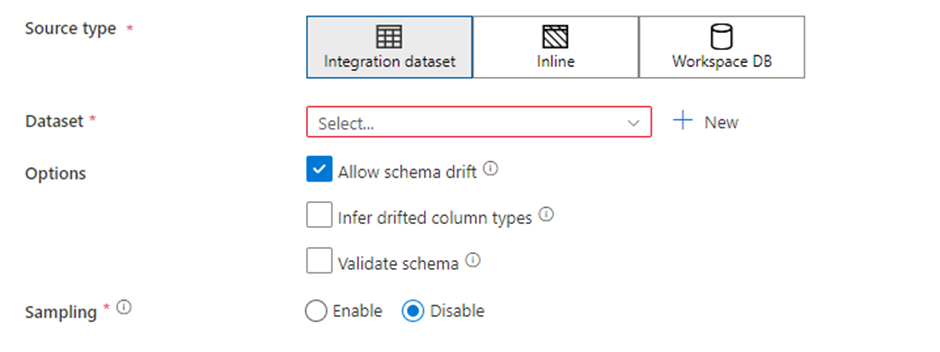
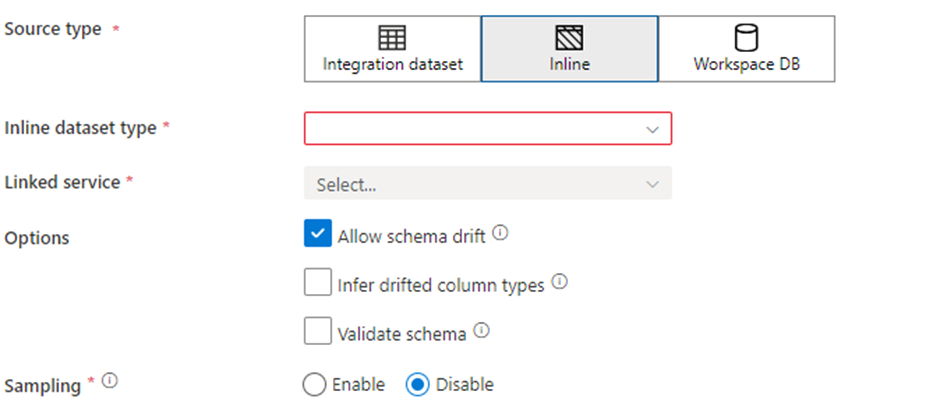
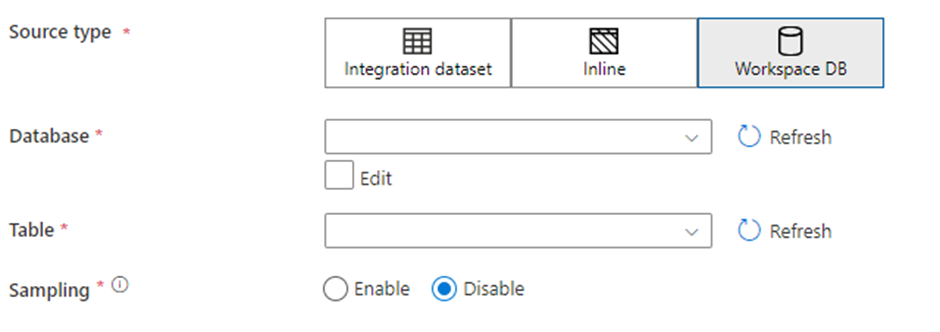
Source Type – Integration dataset, Inline, Workspace DB

There is no information in the dataflow as to what the source types are and what is best to choose. Looking at the documentation we can glean the following:

Some Formats can support both inline and dataset objects. Dataset objects are reusable and can be used in other data flow and copy activities. they are good for hard schemas. Datasets are NOT based on Spark.

Inline datasets are good for flexible schemas or one off instances. They are also good for parameterised sources. Inline datasets are based on Spark.

Integration Dataset
Inline data Set
Workspace Db

The integration dataset allows you to connect straight to the linked service object. Whereas inline connects to the linked service set up in Data Factory linked Services.

Basically. the integration Dataset bypasses an extra step. And Workspace DB allows you to do the same but its only available for Azure Synapse Analytics objects (Like the data warehouse)

So for this project. The integration data set has been used which is not based on spark.

Data set

A Data set needs to be created.

  • Type: Azure Datalake Storage Gen2
  • Format: Delimited text (Because we are working with csv files)
  • Name: Products_Csv
  • Linked service: synapsexxxxxxx-WorkspaceDefaultStorage (Find in Manage, Linked Services. this is the Azure Data Lake Storage Gen2 Linked Service)
  • File path: files/data/Product.csv (In the data lake we have a files collection. then a data folder)
  • First row as header: Selected (there is a header in the csv files)
  • Import schema: From connection/store (Take from the actual data source)
  • Allow schema drift: Selected

In Data Factory there is a dataset folder where you can find all your data sets. And of course, parameterise them so you can use for example, the same csv data set for all your csv file. However there is no data set folder within Integrate.

So where can you find your datasets one created in Synapse?

Schema Drift

What is Schema Drift? If you have a schema which changes. For example, new columns are added and old deleted. You would have to develop against this drift, making sure that you are capturing the right information. this could mean a lot of development work and affects your projects, from source, through to your Power BI Analytics models.

It would be really useful if we could remove some development work and allow the Pipeline to deal with this.

Schema Drift allows for schema remodelling without constant redevelopment of upstream schemas.

Projection

Here we see the projected columns from the data source. Hopefully in the flow we could also parameterise so a data flow with the same functionality could control multiple dataflows. e.g. 5 csv files being moved to 5 tables in a database.

Another source is also created

Data transformation – Lookup

from the + under the first source. Lookup is selected

Here we take the Products in the csv file and look them up against the destination table in the dedicated SQL Pool.

Match on

Why has last row been chosen? If we chose Any row. we just specify the lookup conditions. Which is from the csv files Product ID to the dedicated SQL pools ProductAltKey. So this is the only lookup required. Great when you know there are no duplicates.

Because last row has been chosen, a sort order is required to the data which is the AltProductKey.

Match on

Note that this is all that is being used in this instance. Does the business key already exist in the data warehouse?

Alter Row

From the lookup, a new activity is selected. Alter row

Now we are loading into the DW.

The incoming stream is the previous activity. Here we add Alter Row conditions.

In this example the join between the tables find two matches. Where it doesn’t match there is Null for both the ProductKey and ProductAltKey in the results set.

Therefore, If ProductKey in the warehouse is null in the results set. Insert the record. If its not null then UPSERT. (Update and Insert)

We could refine this with more logic where we check the actual data row and if its not changed we can do nothing. Only update and insert when the row has changed. This is better for larger data sets.

Debugging

Now we have a simple data flow its time to turn on the spark cluster and debug.

Once the spark pool has started, you can click on the end sink and go to Preview

The icons to the left show New and Upserted records. There were three ProductIDs that already existed in the data warehouse. Now we can also go back to the pipeline and trigger now

So what has happened?

In monitor you can check how the flow is doing. Once it shows as succeeded, go to the table and run a SQL statement

The first thing to note is that we now have all the records from the csv file in the dedicated SQL pool data warehouse. But what about the staging options in the dataflow settings?

If we now go into Data – Linked and to the Primary datalake store we can see we have a folder called Stage_Products. Its empty. So what does it do?

If you run it again and refresh, we can see a PARQUET file is created before being deleted.

Basically the source table is loaded into the staging table. Then the transformation process can work over the staging table, rather than using the actual source file. Once completed the staging file is removed.

So throughout the creation of the basic type 1 dataflow, a lot of questions have been asked and answered. And a lot of ideas for more complex load processes. How to use Parameterisation of objects where possible. How to create Reuseable content?

So lots more to come.

Power BI Pipeline Issues and Access requirements

In a previous blog we looked at setting up a Pipeline

However, we have found an issue, when you Deploy to Test or Production. the issue resulted in getting a better understanding of the permissions you need in order to create and control the process

This image has an empty alt attribute; its file name is image-47.png

The Deployment hangs and doesn’t continue on to creating a new Premium App Workspace. If you click refresh, a workspace gets created but it is none premium. In other cases nothing gets created at all.

This is due to the person who is setting up the Pipeline. They may be Admin in the initial Power BI App Workspace but they may not be able to continue on to actually create the Premium Workspaces

In our example, the Power BI Administrator set up the Premium App workspace and then assigned myself as admin. I didn’t set it up.

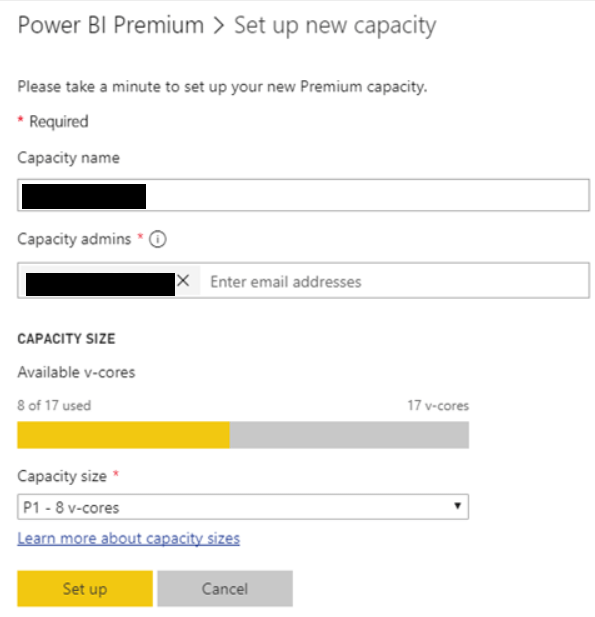
there are two ways of doing this, especially when working against Dev and Test. They can be set up as Power BI Embedded in an A SKU

Or you can have a Premium capacity Workspace (You must have this if you want the Production area)

Example using the A SKU

We are using Power BI Embedded created in Azure

I am able to create the Premium test and Premium Production environments. But after testing with a colleague, the issue happened.

Lets have a look at what we have set

Power BI App Workspace

We are both Admin

Azure Power BI Embedded

In Azure. Search for Power Bi Embedded. We already have this set up.

Go to Access Control (IAM)

We have User 2 (Rebecca) set as Owner. We also tried this at contributor level but the issue still occurred.

  • Contributor – Lets you manage everything except access to resources
  • Owner – Lets you manage everything including access to resources

You need to go to Power BI Capacity Administrator. I was previously set as the capacity administrator to the Power BI Embedded Capacity. Once Becka was added here we were able to successfully move through the Power Bi Pipeline steps without anything hanging.

Therefore, If you are a user in charge of setting up Power BI Pipelines, you must be a Power BI capacity Administrator

To Test. Do you have to be Owner or Contributor in order to use the Power BI Pipeline once it is set up?

Azure Power BI Premium capacity

Power BI Premium is not created as an Azure Service.

Power BI Premium is Managed by the Power BI administrator within Power BI service. Settings and Admin portal

You actually don’t have to be a Capacity Admin in Premium, but do need Capacity assignment privileges.

The Capacity or Power BI Service Admin can arrange for this to be sorted
And you need to be able to create new workspaces,

that’s also an Admin setting.


https://docs.microsoft.com/en-us/power-bi/create-reports/deployment-pipelines-troubleshooting#why-di…

Pipeline Access settings Matrix

Power BI ServicePower BI EmbeddedPower BI Premium
Set up the PipelineAdmin – Perform all other actions below. Assign and remove workspacesPower BI capacity Administrator
Use the Pipeline Dev to TestAdmin – Perform all other actions below. Assign and remove workspaces

Member – View Workspace Content, Compare Stages, Deploy reports and dashboards and remove workspaces.

Dataset Owners can be either Members or admins and can also Update Datasets and configure rules

Contributor – Consume content, Compare Stages and View Datasets.
Owner? Contributor?
Use the Pipeline Test to ProdAs aboveOwner, Contributor?

Power BI Deployment Pipelines

In May 2020 a new pipeline appeared. Deployment Pipelines

Having worked with Devops, It looks like it is identical to the Pipeline that allows you run builds, perform tests and release code to the various production environments.

Power BI deployment Pipelines are a new way for BI teams to manage the content lifecycle.

It is only available in Power BI Premium

Another current restriction is that it doesnt work with dataflows

There are some great reasons to use deployment pipelines

  • To Improve your productivity
  • Faster delivery of your updates
  • Reduction of manual work and errors

Lets see how it works with an example

Requirements

  • The Workspaces must be in Premium capacity (You can set up the Dev and test areas on an A SKU to save money)
  • The Developer must have a power BI Pro License
  • The developer must be an owner of the data sets in the target workspace

Setting up the pipeline Example

In this example, I want a development Test and Production area.

Each of these areas has a separate data source. One each for Dev Test and Prod (But this might not be the case for your own development)

The first instance we will create a dataset that contains the dataflow.

You need a workspace with a diamond against it (Which signifies its in Premium capacity)

You will need to be Admin in the workspace to carry out the task of creating the Pipeline

At some point I want to check against Member access

The Report

A test report is created over the development data (Which is a table in the Dev Azure Database)

You can set up power BI to move to different environments using the following guide Moving Power BI to different Environments (Dev Test Production etc)

I have parameters set for each environment

At this point, make sure you change the current value of the parameter to check they are all working. This report has been published up to the Premium workspace

You don’t have to do this. You can use Rules within the Pipeline if you wish.

Start a Power BI Deployment pipeline

The Look and feel of the Deployment Pipeline is great

Create a Pipeline

Now we are into the actual main Pipeline area. You can only assign one workspace to the pipeline. When we move through the pipeline it automatically creates the other workspaces for you.

Our Pipeline testing workspace is going to be set up as the development area

Assign a Workspace

You dont need to start with development. You can start with test or Production but in this case we are going straight to the Dev area. Also you don’t need to have all three environments. This now gets assigned to the Development pipeline

At this point you can see what will be part of the Dev Pipeline. Show more shows you the content within. At this point you can visibly select items that you want to deploy up to the next stage, but in this example all three of them is required.

Rename Pipeline Testing to Pipeline testing (Dev). Click on … and go to Workspace settings

Publish App

Your report consumers and testers will want to use your reports and dashboards as apps. You can create Apps at every stage. To do this click on … and Publish app

Deploy to test

Clicking Deploy to test creates a copy in your Test area

It will copy your Reports, Datasets and dashboards into the test area. If you have dataflows you should note that these currently don’t get included

Rename to Pipeline testing (Test) if required

At this point we may want the test area to be connected to a different data source than the development environment. Because we set up Parameters in the pbix file to change to different databases, we can use parameter rules. If if you dont have parameters set up you can create a data source rule.

Dataset Settings

At this point. go back to your New Test Premium Workspace.

Against the data set click … and Settings

I have changed the Parameter to the correct one

Now refresh the credentials

And repeat when you get to Production App Workspace

Deployment Settings (Back in the Pipeline)

Get to Deployment Settings when clicking on the lighting bolt

Parameters have been set in the pbix files so these should be used in this example.

You can use rules(Below) if you don’t have parameters but remember to check your Data set settings first.

Because the source is a database, the pipeline knows to ask for a server and a database. Make sure your Database is set up correctly first within Service.

Deploy to Production

Clean up and set up the same rules (Ensuring after deployment you check your Data set Settings before setting up the rules).

Updates to Development Area

You can also just deploy specified items that you have worked on

For this test, go back to the desktop and add a couple of visuals. Then Publish into the development workspace.

Look to compare the changes

The comparison shows that two items have changed. Deploying into test will copy the new information across

You will also see icons for new and deleted.

Now we can see that production is still using the previous datasets, reports and dashboards. we wont copy across until we are happy the changes are correct.

These are now three individual Workspaces with individual data sets and reports. You will need to set up scheduled refresh for each area.

You can also publish downstream if required by clicking … If the item is available

Limitations

  • Not for Dataflows or Excel items
  • Premium Only

The Production workspace must be in premium. You can use A SKU or Power BI Embedded to save money. (A Sku’s can be set up within Azure and are Test environments. they can be paused)

Buying and pausing a Power BI A SKU

It doesn’t currently plug into Azure Devops. Hopefully this will be coming soon.

Workspace using Dataflows

I’m moving across to another workspace now. lets have a look at the Lineage

There is an Adventureworks Dataflow which connects to a dataset and a report.

go to Pipelines. Create a Pipeline and then…..

In this instance, The Dataset and report that sits over the dataflow is specifically selected.

Power BI is really not happy about this

The two items are copied across.

If we want to set up rules for this workspace…..

No actions are available. Your dataflow is sat in the Development area. You cannot change it

Lets do the same for Production

If you go and look at your workspaces

There are now 3 workspaces. Lets have a look at Lineage to see how the dataflow is shown for test.

Your data cannot be viewed because your dataflow is not supported.

Considering we have spent a lot of time supporting people to move to dataflows, this is a real problem

https://community.powerbi.com/t5/Service/Dataflows-are-supported-in-Power-BI-Pipelines/m-p/1173609#M100117

Comparing Dev to Test

Still looking at the reports that use the dataflow. Lets see if it can compare. The pbix files is opened and amended. then published to the dev Workspace.

At least it tells you which items have changed

With the push to move to dataflows to separate transformation to the actual creation of DAX analytics, it seems like an urgent requirement.

Hopefully this will be resolved soon.

Best Practice

When this is all up and running it is recommended to separate the datasets from reports and dashboards. to do this use the selective deploy

Plan your Permissions model

  • Who should have access to the pipeline?
  • Which operations should users with pipeline access be able to perform in each stage?
  • Who’s reviewing content in the test stage and should they have access to the pipeline?
  • Who will oversee deployment to the production stage?
  • Which workspace are you assigning and where in the process are you assigning it to?
  • Do you need to make changes to the permissions of the workspace you’re assigning?

Microsoft Business Applications Summit 2020 and what is means for Power BI users

The Microsoft Business Applications Summit was held online this year on the 6th of May and as a UK user, that meant an entertaining evening of Power BI and Business applications learning and updates .

https://www.microsoft.com/en-us/businessapplicationssummit

The evening was incredibly well thought out with 30 minute sessions on each of the Power Platform areas.

  • Power BI
  • Power Apps
  • Power Automate
  • Power Virtual Agents

Our attendance was mostly based on the Power BI sessions that night. We wanted to focus on what to get excited about with Power BI and when to get excited about it. However there were also some great overviews of how to use all the applications together which helped us to understand the Power platform as a whole.

Power BI Is split into key area to drive data culture in your organisation

And each of these areas contain some fantastic new updates.

Each area is going to be looked at in a lot more detail in blog posts to follow but in the first instance, lets take a look at all the exciting updates.

Amazing Data Experiences

There are now over 2 million Power BI desktop users. 97% of all Future 500 businesses use Power BI. It is the Leader on the Gartner 2020 Magic Quadrant https://www.informatica.com/gb/magic-quadrant-MDM.html, and on the Forrester Wave https://info.microsoft.com/ww-landing-Forrester-Wave-Enterprise-BI-platforms-website.html?LCID=EN-US

All this comes from providing amazing data experiences to customers.

AI Infused Experiences

The very first AI visual for Power BI was the Key Influencer. Next came the Decomposition Tree and then the Q&A visual. All these visuals have proved big hits with report consumers who get the ability to understand all the factors that drive a metric, and can ask more and more questions against data in their own way.

Lets have a look at some of the Updates, and even more exciting is the new visual coming for Smart Narratives

Key Influencers Update

Key influencers are fantastic and we have been using them the moment they were added into Power BI as preview.

We have used it across lots of projects, For example, Social Media influencers. What influences a negative tweet. Customer Churn is another great use case for the Key influencer

April 2020

Key Influencers now supports continuous analysis for numeric targets

  • May 2020

Binning Support, Formatting options and Mobile Support

  • June 2020

More Visual Updates go into preview and will now be usable for Live Connect

  • July 2020

Counts will go into preview

  • August 2020

All the key Influences improvements should be moving to GA (General Availability)

Power BI Decomposition Trees Update

The Key influencer allows you to analyse a category within your data and discover influences and segments. The Decomposition tree allows a report consumer to analyse a business metric however they want.

  • May 2020

You will be able to conditionally format your visual very soon. Using the above visual, you might have the most engaged businesses in Nottingham, but conditional formatting could show the most percentages of meeting cancellations. We can do conditional formatting on another metric

You will also be able drill through from the decomposition tree visual to more detailed data.

There is a reason why people love this visual and we cannot wait to start implementing these updates into our reports.

  • June 2020

The Decomposition Tree will now be out of Preview and in General Availability

Q&A Visual

We can now include Q&A in the reports as well as just from the dashboards and there are some great new updates for this

  • April 2020

Add Terms within Q&A allow for better synonym matching and Suggest questions will allow you to tailor some ready made questions for your user

  • May 2020

New Q&A Visual Updates (TBA)

  • September 2020

Direct Query will be coming for Q&A Visuals.

New AI Visual – Smart Narratives

  • Available Later this year

We got a sneak peak of the New Smart Narratives visual and it looks so good.

Report authors will be able to add dynamic interactive narratives to reports and visuals. These narratives update when you slice and dice the data.

It automatically does trend analysis

The visual calculates the growth automatically with no user imput required

You can also add dynamic values as part of the narrative and even use Q&A to create the value

This is one development we are really looking forward to.

Power BI End User Personalisation

  • June 2020

Another development that is going to change things for report consumers in a really good way is personalisation


You may love a stacked area chart but Julie in HR May hate them. Consumers can now click on a visual, go to personalise and change the visual to suit their needs better. This visual is saved specifically for that user (As a modified view with a personal bookmark) and its easy to go back to the original visual.

This is currently in Preview so if you want to take advantage of it, make sure you go to Options and Settings > Options > Preview Features

PowerPoint for Data – Onboarding and Lessons Learned

Microsoft acknowledge that PowerPoint has really good on boarding features. Lots of people happily use Powerpoint. They should have the same experience with power BI

All the following updates come from lessons learned with PowerPoint:

  • April 2020

Lassoo Select of visuals and Datapoints. this is great. finally you can lasso (Drag a rectangle around) a number of visuals together in desktop. You can even do this with data points

  • May 2020

Drop Shadows. How to make a great report look even Nicer. Add Shadows to them. Another feature I cant wait to use

Power BI Templates Experience

  • September 2020

Report authors will get lots of help to create report pages with pre-made templates like PowerPoint layouts. Obviously Templates can already be created for Power BI but this will make everything much more intuitive and easy to use.

I’m a big fan of Story boarding in PowerPoint. I wonder if we will see this come into play in power BI?

Modern Enterprise BI

Power BI is no more a business led self service tool. Its can now be used right across your large scale business enterprise. We can now use Power BI as an enterprise scale analytics solution bringing together all our insights to drive actions and improve performance.

There are lots of key points to consider within this Microsoft strategy area. For example:

  • Admin and Governance
  • Lifecycle Management
  • Lineage and impact Analysis

The modern enterprise BI has the most impact when customers are using Power BI Premium capacity nodes. lets have a look at some of these areas in a little more detail, and specifically understand what Power BI License you need to have to make use of these new capabilities.

Power BI Lineage and Impact Analysis

  • April -2020

Lineage and Impact Analysis went into Public Preview in October 2019. We are very much looking forward to looking at this in more detail very soon.

the real excitement is, the ability to incorporate more services within Azure into the Lineage which will make it much more essential when looking at how your data is structured

Within the Power BI service, Change the view to Lineage View

You get little logos to show if your dataflows or data sets are promoted or certified.

Impact analysis is available from your data set. clicking Impact Analysis will allow you to assess the impact of a data set change. How will your changes impact downstream reports and dashboards?

You can also see your visitors and views and even notify people about upcoming changes.

It appears to be available for Pro as well as Premium but as yet, we aren’t aware of any differences between the two.

This will be explored in much more detail in a post coming soon.

Enterprise Semantic Models

Another big game changer for Power BI Users

Again, we are moving away from creating your data set within a power BI pbix file which is only available for the user. Just like Analysis Services Tabular Model, we can now create the model with Power BI, available for everyone to use, From business users, analysts, to Power Users.

The enterprise semantic model comes with some great updates:

Shared and certified Datasets

  • April 2020

When you certified a dataset in Power BI, You are stating that this data set is a single version of the truth. when we connect to a certified dataset the model may contain a large amount of data, and your specific reporting requirements may require you to only select a few tables from the central model.

XMLA Endpoint

  • May 2020

Power BI Premium Only

XMLA Endpoint allows 3rd parties to connect just like you can with Analysis Services models. This is yet another game changer as it allows organisations to create the one version of the truth using power BI.

Previously, this could have been done using Analysis Service, either in the cloud or on premise. Your own centralised Tabular model. this data model could be connected into from various data visualisation tools, and data management tools, e.g SQL Service Management Studio, DAX Studio, ALM tookit etc.

Now with XMLA endpoints open platform connectivity, the datasets you create in Power BI will be useable from a variety of other data visualisation tools, if your users don’t want to use Power BI.

This is excellent for IT Led self service. Your centralised Power BI Team can create the dataflows and models and business users can take those models and run with them. obviously Power BI is fantastic but you don’t lose out on users who absolutely want to stick with the visualisation tool that they know.

This is all about delivering a single one version of the truth semantic data model

Power BI Extensibility

  • Available later this year

This will enable external tool extensibility to unlock additional semantic modelling capabilities.

will all be able to get access to the Power BI Tabular model (data set) in the same way as they would an Analysis Services Tabular model.

This is due out later this year and as yet, its unsure if this is just for Premium or if it will be available to pro users too.

Translations (Available with Power BI Extensibility)

Translations allows you to create multi cultural datasets. These meta data translations are an offering of the analysis services semantic model, and previously locked away in the Analysis Services engine.

The extensibility model for Power BI will soon allow us to finally use Power BI translations within power BI Desktop

Clicking Tabular Editor allows you to connect to your Power BI dataset and use Analysis Services Features. Translations being one of the major draws to Analysis Services Tabular.

This should be available later this year, and will be looked at in much more detail within future posts

Deploy to Workspace Incremental Metadata only deployment

This is a Premium Only service. Imagine that you have implemented your translations and want to publish your new data set.

There are no data changes so you don’t want publish to involve the data. When you publish you will get impact analysis

However, you actually want to do an Incremental meta data only deployment. So instead of simply publish, go to the Settings within the Workspace in Power BI Service.

Go to your Premium tab

And copy the Workspace connection link. this Workspace connection can be used just like an Analysis Services Workspace. You can use this workspace name with the ALM toolkit (Under Extensibility) to look at comparisons and pick and choose what you want to update.

The Power BI Tabular model has been processed in the same way as you would an Analysis model. Thanks to these new External tools we can do so much more with the power BI Datasets.

Composite Report Models

  • September 2020

We have looked at the enterprise Semantic Model from the BI Developer. Now its time to look at what we can do for the data analysis.

Previously, there has been lots of talk about composite modelling

“Allows a report to have multiple data connections, including DirectQuery connections or import”

Composite models allow the developer to created an aggregated data set which allows you to reduce table sizes by having imported data at granular level (So you get the full suite of DAX to work with) and then you can drill down to granular data in direct query mode.

Composite report models are basically composite reports as opposed to composite models. I got a little confused between the two as they are both called composites but they are quite different.

As a data analyst you get data from a Certified data set. this is essentially a Live Query because you are connecting to a Power BI tabular model


these screen grabs are from the Conference. We will be researching this with our own data sets in due course

The analyst will now be able to combine data from multiple data sets and create relationships between them. Composite modelling can be mashed up with local data by the analyst. This will bring so much more power to the analyst.

It will be really interesting to see how this works over the next few months. Again its uncertain if this will be available for Pro users but we will be looking at this in much more detail soon.

Full Application Lifecycle Management

  • Public Preview May 2020

Power BI currently consists of the App Workspace (for collaboration) and Apps for consumers. this gives you your development, test and production environments.

Deployment Pipelines is the next level of lifecycle management. If you use DevOps you have seen and probably used Pipelines for other business requirements. For Premium capacity Workspaces, Pipelines can now be created to deploy to Develop, test and production Environments

This is a fantastic new development for modern enterprise BI. Each Workspace can be compared within Service and allows you to be more agile and responsive to users needs. We are really excited about this one.

Drive a Data Culture with pervasive BI throughout your Organisation

Automatic Performance optimisation with Azure Synapse Analytics

Relates to the Data Stack. Microsoft are working on deep integration with Azure Synape Analytics.

We will be looking at this in more detail later but there are big changes coming:

  • Materialised views to improve performance within the Synapse layer.
  • Useage based Optimisation against Synapse.

Common Data Service

This sits with the Action key point for driving data culture. this is another area that the Microsoft team were very excited about. As yet we are being cautious and want to do some more research around this topic.

You will now be able to direct query the Common Data Service. the CDS ties in with Power Apps and seems to be used very much within that domain. Its worth noting again at this point that Power BI Does not exist alone. It is part of the Power platform.

Internal data is stored in CDS. External data is brought in via connectors. there are 350+ connectors that can be used for External data. However data within the CDS is Smart, Secure, and Scalable.

We will be looking at CDS in much more detail in relation to Power BI

This is just a first high level look at some of the offerings from the Business Applications summit. There are so many great sessions to look at for more in depth details. It looks like an incredibly exciting time to be involved with Microsoft business Apps.

Introduction to Azure DevOps

What is Azure?

Taking the first part of Azure DevOps, Azure is Microsoft’s Cloud computing platform. It hosts hundreds of Services in over 58 regions (e.g. North Europe,West US, UK South) and available in over 140 countries.

As you can see, lots of Azure services have already been consumed throughout these blogs. Azure SQL Databases, Azure Data Lake gen2, Azure Blob Storage, Azure Data Factory, Azure Logic Apps, Cognitive Services etc.

Business Processes are split into Infrastructure as a Service Iaas (VMs etc) , Platform as a Service PaaS (See the services above) and Software as a Servie SaaS (Office 365, DropBox, etc)

You can save money by moving to this OpEx model (Operational Expenditure) from the CapEx model (Capital Expenditure) because you pay for what you need as you go, rather that having to spend money on your hardware, software, data centers etc

Cloud Services use Economies of Scale, in that Azure can do everything at a lower cost because its operating at such a large scale and these savings are passed to customers.

On Demand Provisioning

When there are suddenly more demands on your service you don’t have to buy in more hardware etc. You can simply provision extra resources very quickly

Scalability in Minutes

Once demand goes down you can easily scale down and reduce your costs. Unlike on Premises when you have to have maximum hardware requirements just in case.

Pay as you Consume

You only pay for what you use

Abstract Resources

You can focus on your business needs and not on the hardware specs (Networking, physical servers, patching etc)

Measurable

Every unit of usage is managed and measurable.

What is DevOps?

A set of practices intended to reduce the time between committing a change to a system and the change being placed into normal production, also ensuring high quality

Testing, Reviews, Moving to production. This is the place where developers and the Operations team meet and work together

Pre DevOps

If we dont work within a DevOps Framework. What do we do?

Developers will build their apps, etc and finally add it into Source Control

Source Control or Version Control allows you to track and manage code changes. Source Control Management Systems provide a history of development. They can help resolve conflicts when merging code from different sources

Once in Source Code the Testing team can take the source code and create their own builds to do testing

This will then be pushed back to the development team and will go back and forwards until everyone is happy. Here we can see that the environments we are using are Dev and Test

Once Complete, it is released into Production.

This is a very siloed approach. Everyone is working separately and things can take time and you will get bottlenecks

The DevOpsApproach

Everyone works together. You become a team and time to market becomes faster. Developers and Operations are working as a single team

DevOps Tools

Each stage uses specific tools from a variety of providers and here are a few examples

  • Code – Eclipse, Visual Studio, Team Foundation Services, Jira, Git
  • Build – Maven, Gradle, Apache Ant
  • Test – JUnit, Selenium
  • Release – Jenkins, Bamboo
  • Deploy – Puppet, Chef, Ansible, SaltStack
  • Monitor -New Relic, SENSU, Splunk, Nagios

We need all these tools to work together so we don’t need to do any manual intervention. This means that you can choose the ones that you have experience in.

Components of Azure DevOps

Azure Boards

People with a Scrum and Project Management background will know how to create the features within the Boards. Epics, Stories, Tasks etc

Developers create and work on tasks. Bugs can be logged here by the testers

Azure Repos

Push the development into Source Control to store your information. Check in your code within Azure Repos.

There are lots of repositories to choose from in Repos to suit your needs like GIT or TFS

Azure Pipelines

Developers build code and that code need to get to the Repos via a Pipeline. The code is built within the Pipeline.

The code is then released into Dev, Test, Prod, Q&A etc, And from, say the test or Dev environments we can……..

Azure Test Plans

Test, using Azure Test plans. For example, if you have deployed a web service, you want to make sure its behaving correctly. Once tested the code will go back to the pipeline to be built and pushed to another environment

Azure Artifacts

Collect dependencies and put them into Azure Artifacts

What are dependencies?

Dependencies are logical relationships between activities or tasks that means that the completion of one task is reliant on another.

Azure Boards

Work Items

The artifact that is used to track work on the Azure board.

  • Bug
  • Epic
  • Feature
  • Issue
  • Task
  • Test Case
  • User Story

So you create work items here and interact with them on the board

Boards

Work with Epics, Features, Tasks, Bugs etc.

Includes support for Scrum (agile process framework for managing complex work with an emphasis on software development) and Kanban (a method for managing and improving work across human systems. Balances demands with capacity)

Backlogs

How do you prioritise your work items?

Sprints

Say your Sprint is 20 days (2 weeks) What work can be accomplished within this sprint?

Dashboards

Overall picture of the particular sprint or release

Repos

We can use GIT or Team Foundation Server TFS. The example uses GIT

  • Files
  • Commits
  • Pushes
  • Branches
  • Tags
  • Pull Requests

You create your own branch from the master branch. Do your testing and changes and push back from your branch to the master branch.

Pipelines

Where is your Code? Its in GiT

Select the GiT source like Azure Repos GIT or GiTHub etc

Get the code from the master branch

How do you want to build the project?

Choose from lots of templates, Azure Web App, ASP.net , Mavern, Ant, ASP.NET, ASP.NET with containers, C# function, Python package, Andriod etc

Next provide the Solution path and the Azure Subscription that you want to deploy to

This takes the source code from the GiT repository and builds the source code.

The build will then give you logs to show you how the build of the project happened

Next time when you check in code, it will automatically trigger the pipeline to build the code

Then the build needs to be Released via a Release Pipeline

This is where you release to the correct Azure Subscription and the code will be deployed. You can also add in approvals to ensure you get the pre approval required to release the code.

Conclusion

This is just a whistle stop tour of Dev Ops. Test Plans and Artifacts haven’t been discussed in much detail but it gives you the basics of what is included in DevOps and how you can start to think about using it.

What do you create in Azure and can it be handled within DevOps?

Can we start using the Boards?

How do we can started with Azure Devops?

Which teams members have the right interests in the specific DevOps areas?

Design a site like this with WordPress.com
Get started