The Microsoft data Journey so far. From SQL Server, Azure to Fabric

Having lived and breathed Microsoft for over 20 years, it is important to sometimes stop and think about all the changes over those years and all the growth and learning gained from each change to the analytics space.

I started working with on premises Microsoft Products. We had a large room full of Microsoft 2000 servers and a long journey to finally upgrade to 2008 R2.

Integration Services was the orchestration tool of choice and Reporting services (SSRS) was the server based reporting tool.

We were starting to move from basic management reporting into business intelligence, especially with the introduction of SQL Server Analysis Services that became part of the environment when we finally pushed to 2008 R2.

We have come along way since those days.

On Premises Analytics

One of the biggest issues with On Premises was the upgrading to new Servers. We had a lot of servers and applications tied to those servers. Upgrading to the latest release was never easy and sometimes couldn’t be done because of the system it supported.

This led to a real disparity of servers. Some still at 2000. Some 2008 R2. A few lucky ones moving to later versions.

Another big issue specially for the analytics team was the use of the servers. Spinning up a new database needed a lot of work to make sure that whatever was required wouldn’t run out of space or memory. Because there was only a certain amount of these resources for all services.

There were examples of simply not being able to work on a project because of these restrictions.

There is nothing more frustrating as a developer to know there are later releases out there but you are stuck on an old version. Or knowing that you could do so much more with a bit more compute power or space allocation.  There was no room to grow. You had to understand your full limit and work from there. 

Reporting Services (SSRS)

Its interesting to look back on SSRS, Microsoft’s Paginated reporting original solution after using Power BI for so long now.

Yes it delivered fairly basic paginated reporting but it didn’t quite deliver the experience we really wanted to go with for our new Business Intelligence vision.

On Premises to Azure

A career move presented me with the opportunity to start using Azure and Power BI.

Finally, the floodgates seemed to open and new possibilities seemed to be endless. Here are just a few examples of the changes happening at this point

  • Azure allowing us to always be on the latest version. No more wishing that you could use SQL Server 2014 whilst stuck on 2008 R2.
  • Power Bi, interactive data visualisation. The complete gamechanger. We will look at that more later
  • Azure SQL Databases. Here we can now spin up small cheap solutions for development work. Scaling up as we go. Never needing to pay for more than we use. Even having the advantages of upping compute during peak loading times. Always being on the latest version, and so many possibilities of choice.  
  • Serverless SQL DB for example. Great for Dev and UAT. Only unpausing compute resources when you need them.
    • We can still work with our SQL Skills building stored procedures to transform data.
  • Azure Data Lake. Secure Cloud storage for structured and unstructured data. A landing area for our data that also creates opportunities for our Data Science experts.
  • Azure Data Warehouse (Which upgraded to Synapse in 2019) was the offering that allows for MPP Massively parallel processing for big scale data. Along with the serverless SQL Pools (Synapse) to finally give us the chance to do analysis and transformations on the data pre the SQL Database load.
  • Data Factory. The Azure Data Orchestration tool. Another big gamechanger, offering so much more flexibility than Integration Services. Having a solution that can access Cloud resources and on premises resources. So much connectivity.

Power BI

Power BI is Microsoft’s modern analytics platform that gives the user the opportunity to shape their own data experience.

  • To drill through to new detail.
  • Drill down into hierarchies.
  • Filter data.
  • Use AI visuals to gain more insight.
  • Better visuals

And at the heart of everything. The Power BI Tabular storage model. The Vertipaq engine, Creating reporting that can span over multiple users all interacting with these report pages. Each user sending queries to the engine at speed.

I have worked with Analysis Services in the past, along with SSRS. Creating Star Schemas sat in columnar storage without needing to set up Analysis Services was a huge win for me as it was a much easier process.

Of course, you can’t talk about Power BI without understanding how different each license experience is. From the Power BI Pro Self Service environment, through to Power BI Premium Enterprise Level License.

There has been a lot of changes and Premium continues to create fantastic additional functionality. Premium sits on top of the Gen 2 Capacity offering larger model sizes. More compute. Etc.

As a take away. When working with Pro, you should always work with additional Azure resources, like Azure SQL DB, Integration Services etc to get the best end product.

With Azure and Power BI we have worked with the recommended architectures and produced quality analytics services time and time again. But, there were still some issues and pain points along the way.

And this is where Fabric comes in.

Fabric

Fabric is the (SaaS) Software as a Service Solution, pulling together all the resources needed for analytics, data science and real time reporting.  Fabric concentrates on these key areas to provide an all in one solution.

On the whole, for an analytics project, working with customers, our (basic) architecture for analytics projects was as follows:

  • Extract data into a Data Lake using Integration Services on a Schedule
  • Load the data into SQL Server Database
  • Transform the data into STAR schema (Facts and Dimensions) for Power BI analytics
  • Load the data into Power BI (Import mode where ever possible. But obviously there are opportunities for Direct Query, and Composite modelling for larger data sets)

We can see here that the data is held in multiple areas.

Synapse starts to address this with the Serverless SQL Pools. We can now create Notebooks of code to transform our data on the file itself. Rather than in the SQL Database on the fully structured data.

Fabric has completely changed the game. Lets look into how in a little more detail.

Medallion architecture

First of all, we need to understand the architectures we are working with. The medallion architecture gives us specific layers

  • Gold –  Our landing area. The data is added to the lake. As is. No Processing
  • Silver – The Data is transformed and Processed
  • Gold – the data is structured in a way that can be used for Analytics. The Star schema for Power BI.

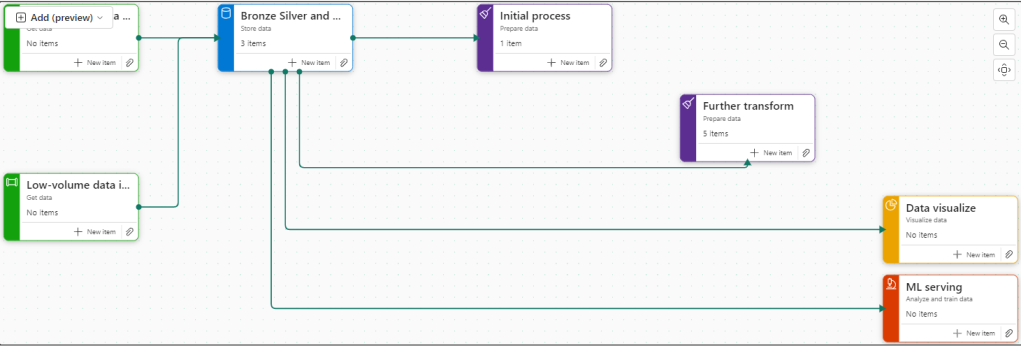
Fabric allows us to work with the medallion architecture seamlessly. And as announced at Microsoft build in May of this year. We now have Task Flows to organise and relate resources. The Medallion architecture is one of the Flows that you can immediately spin up to use.

Delta Lake

The Delta lake enhances Data Lake performance by providing ACID transactional processes.

A – Atomicity, transactions either succeed or fail completely.

C – Consistency, Ensuring that data remains valid during reads and writes

I – Isolation, running transactions don’t interfere with each other

D – Durability, committed changes are permanent. Uses cloud storage for files and transaction logs

Delta Lake is the perfect storage for our Parquet files.

Notebooks

Used to develop Apache Spark jobs so we can now utilise code such as Pyspark and transform the data before adding into a new file ready to load.

Delta Parquet

Here is where it gets really interesting. In the past our data has been held as CSV’s, txt etc. Now we can add in Parquet files into our architecture.

Parquet is an open source, columnar storage file format.

The Power BI data model is also a columnar data store. This creates really exciting opportunities to work with larger models and have the full suite of Power BI DAX and functionality available to us.

But Fabric also allows us to create our Parquet Files as Delta Parquet, adhering to the ACID guarantees.

The Delta is and additional layer over Parquet that allows us to do such things as time travel with the transaction log. We can hold versions of the data and run VACUUM to remove old historical files not required anymore.

Direct Lake Mode

Along with Parquet we get a new Power BI Import mode to work with. Direct Lake allows us to connect directly to Delta Parquet Files and use this columnar data store instead of the Power BI Import mode columnar model.

This gives us a few advantages:

  1. Removes an extra layer of data
  2. Our data can be partitioned into multiple files. And Power BI can use certain partitions. Meaning we can have a much bigger model.
  3. Direct Query, running on top of a SQL DB is only as quick as the SQL DB. And you can’t use some of the best Power BI Capabilities like DAX Time Intelligence. With Direct Lake you get all the functionality of an Import model.

SQL Analytics Endpoints

If you are a SQL obsessive, like myself you can analyse the data using the SQL analytics endpoint within a file. No need to process into a structured SQL Database

Data Warehouse

Another one for SQL obsessives and for Big Data reporting needs. There will be times when you still want to serve via a structured Data Warehouse.

Conclusion

Obviously this is just a very brief introduction to Fabric and there is so much more to understand and work with. However  using the Medallion architecture we can see a really substantial change in the amount of data layers we have to work with.

And the less we have of data copies, the better our architecture will be.  There are still a lot of uses for the Data Warehouse but for many smaller projects, this offers us so much more.

Its been a long journey and knowing Microsoft, there will be plenty more fantastic new updates coming. Along the way, I would say that these three ‘jumps’ were the biggest game changes for me, and I can’t wait to see what Fabric can offer.

And remember, always use a STAR schema.

*first published on TPXImpact Website

Microsoft Fabric Part 13. Changing Structure of Lakehouses

Before continuing on with this project, lets look at an amendment to the lake house structure. mostly because we decided we wanted to keep the structure of the Task Flow. Instead of having one Lakehouse for Gold Silver and Bronze. We want three lake houses. One each for Bronze Silver and Gold.

3 new lakehouses are created

And now, the Notebooks need updating

Taskmaster Transformed

In the notebook.

Bronze is the main lakehouse that we are pulling the data from. But you can also add another Lakehouse.

And use the arrows to switch between the two.

The only Code that needs to be changed is when we create the Silver PARQET file (Its not Delta PARQUET at this point.

From

To

To get the ABFS path to move from Default Data Lake to another Delta Lake, right click on the destination lake and Copy ABFS Path

dftm_cleaned.write.mode("overwrite").parquet('abfss://986472b4-7316-485c-aa22-128e1cb29544@onelake.dfs.fabric.microsoft.com/ee31b1a4-16bf-4aae-aaab-f130bd4d53c6/Files/Data/Silver/taskmasterTransformed.parquet')

And we can go further, by parameterising the workspace ID and the lakehouse ID

f has been added to allow us to add parameters into the location string.

So we can now use this when we want to create a PARQET file in a different Lakehouse to the default one.

And we have introduced parameters.

Now we want to know how to do with with a Delta Parquet file moving it into the Gold Lakehouse

Silver to Gold lakehouse Delta Parquet

To

from delta.tables import DeltaTable


#You can also add the none default data lake by clicking +Lakehouse
aliased_df.write.mode("overwrite").option("overwriteSchema", "true").format("delta").saveAsTable("GoldDebbiesTraininglh.dimContestant")

And again, we clicked + and Added the Gold Lakehouse as the none default.

How can you tell which is the default?

Hover over the Lakehouse Name to get the list.

Conclusion

We have now transformed the architecture of the Lakehouse to have three Lakehouses. gold. Silver and Bronze. instead of One Lakehouse with 3 folders for Gold Silver and Bronze,

This has allowed us to see how the code changes when creating files in none default Lakehouses. And has allowed us to set up our first parameters. and it also means we can use the medallion task flow as is without having to do any amendments.

It also feels right to have more separation of the three areas.

Microsoft Fabric Part 11. Taskmaster Project. New Fabric Feature, Task Flows

In Part 11 we created Power BI reporting and changed the usual PBIX to a PBIP Project file.

Before moving on, lets have a quick look at a new feature in Fabric. Task Flows

Back in the Fabric Workspace

We can now build a task flow. But what is it?

Its a new workspace feature to visualise the collection of processes for an end to end solution.

There are specific types of tasks that we will look at later

There are two ways of going about this.

  1. You have started a brand new project and you have your initial Task flow set up to start adding in tasks. This helps you work with your architecture,
  2. You have already created tasks (Like this project) and want to assign them to a task flow.

Lets begin

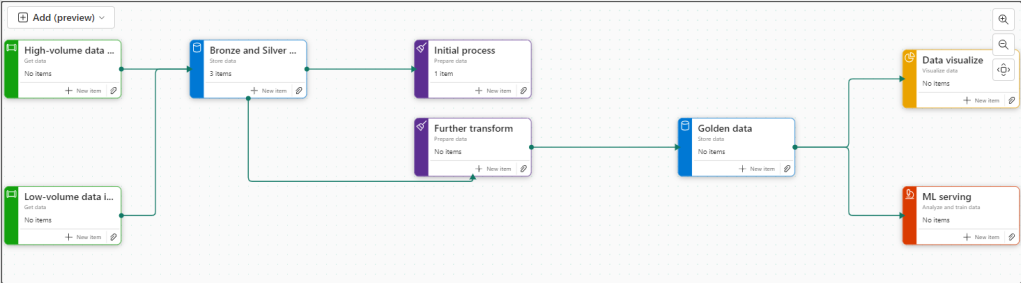
There are 8 flows available at the moment. Throughout the Fabric journey, the medallion architecture has been championed so lets go with this.

Colouring

  • Green Items are Get data
  • Blue Items are Store Data
  • Purple items are Prepare data
  • Yellow items are Visualise data
  • Red Items are Analyse and train Data

Creating new Tasks

If you haven’t yet started. When you set up your board. you need to assign items to each task.

There are no Data Engineering steps in this development project for getting data so lets start with the green tasks.

Click New Item

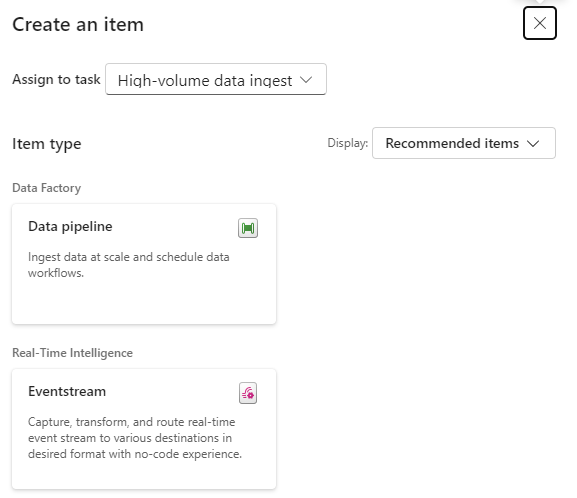
And we get options of what to create for Low Volume data. Great. We have recommended items (which we can change to all) So if you wanted to go Low code a Data Factory Dataflow Gen2 might be the way to go.

lets have a look at high volume data

Here, a Data Pipeline would probably be used for this project.

Data Factory was previously the go to for copying files across into the Data lake so as the data engineer, I would possibly pick pipelines for both types of data processing.

Already this is a great way of working. We know we need to do all these processes but the amount of possibilities can be bewildering. So let Fabric give you recommendations every step of the way.

Assigning Items to a Task

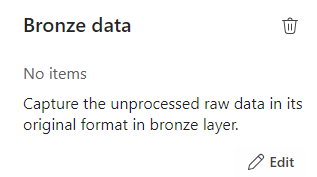
Bronze Data

If we quickly click new item to check the recommendations

We have already set up a Lakehouse for Taskmaster.

Click the little paper clip icon to attach a task

And Select the Lakehouse

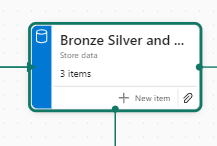
Now we have 3 items at Bronze Data Level

  • DebbiesFabricLakehouse Top Level
    • The SQL Analytics Endpoint
    • The semantic Model (default) This wasn’t used because there were issues with errors occurring whilst developing.

Selecting the Bronze data Task shows you the objects in that task.

Lets move on to

Initial process

We have a Data Engineering notebook set up that Creates our initial transformed Silver layer. This can be added here

One current real issue for me is the vertical bar on Fabric and Power BI

You have to go to the end to scroll down. And you can’t see your items. Extremely annoying when working on smaller screens. This is actually a large screen but you cant make the box any bigger. You have to manually make the columns smaller each time .

I hope they sort this out soon

What happens when you accidentally assign an item to the wrong task flow

I have added the Lake house to the initial Process accidentally.

Hover over the tasks and select the ones you want to remove

And Unassign from all Tasks which appears

Silver Data

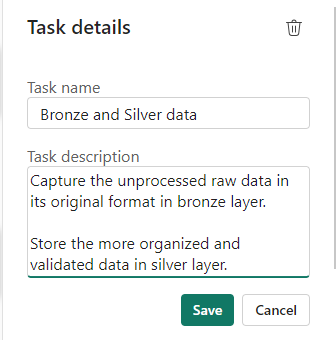
In this case the Lakehouse contains bronze and silver layer, so this is for both.

What happens when we assign the lakehouse to silver?

Well, you can’t do this. An item can only be for a single task. So how do we relate this to our medallion architecture above?

For the time being, go to Bronze Data and edit

Assign the Lakehouse

Click on Silver Data

Delete. We don’t need this

This leaves a gap in our flow

Connecting Tasks

Click the edge of the starting task and join to the end task

Further transformation

We have Notebooks that prep the dims and facts. Lets add them

Golden Data

Another Data Store and again our golden data is in Delta Parquet in the Lakehouse. Looks like we can edit the initial Store data again

Mini gripe. You can’t see all of the information so you cant tell its bronze silver and gold.

Delete Golden Data

Personally I would prefer to have all three on the pane and share the Data lake between all three tasks.

But where do we add the semantic model?

The Semantic model comes before visualising the data. But we have nowhere for this.

Creating paginated reports and semantic models from a task isn’t supported.

https://learn.microsoft.com/en-us/fabric/get-started/task-flow-overview

Well this is a real shame. it feels like this needs to be added before its a really usable solution.

Data Visualise

Our report is in a PBIX File.

We don’t have any Dashboards

Lets publish the Content from Pbix to the Fabric Workspace.

Then go back to the workspace

Interestingly these are now uncommitted items and show up in source control.

In Part 10 we did a lot of work getting the PBIX file into source control. What will this do? we will look at this later.

Back to Data Visualize

We add the reporting

The Semantic Model has also been added here, Hopefully a new task will be added soon specifically for the semantic model, there are currently no items types for semantic modelling.

There is no ML Service so we could get rid of this task.

Old Notebooks not being used (Filters).

There are a few Notebooks from the old version not part of this, can we see them?

Another issue. Selecting Not Specific for Task doesn’t filter the Tasks without a Task Specified. Something else that needs to be ironed out.

Conclusion.

There are currently a fair few issues with this but it is new and hopefully they will get ironed out.

I still don’t like scrolling in any of the Power BI / Fabric Service solutions because it doesn’t automatically resize to page size. This has been an annoyance for a long time now. I really wish it would get sorted.

Semantic modelling needs to be added. Filtering needs to be much better,

And I genuinely wish you could have an item in multiple tasks, especially store data. But overall I really love this feature and can’t wait to see if get some more development

Microsoft Fabric Part 5. Taskmaster Project. Creating and using Shortcuts from an Azure Data Lake and creating the first dimension

Parts 1 2 3 and 4 were attempting to transform data into a star schema for power BI using notebooks in fabric.

However there was missing data which meant we couldn’t go to the level of detail we wanted for the star (Episode level)

Now we have a new data set and the csv files have been transferred into a data lake manually.

We can attempt to set up a pipeline to import the data in another blog.

in Microsoft Fabric we go to data Engineering

And open up the Fabric Workspace.

We already have a Lakehouse and notebooks containing the work from the last few blog posts

Lets open the Lakehouse

Although we are using the medallion architecture, you may still wish to call your folders, for example raw and staging .

Create a Shortcut

For this exercise we are going to do something different and have the raw data in a datalake in Azure that we add a shortcut to.

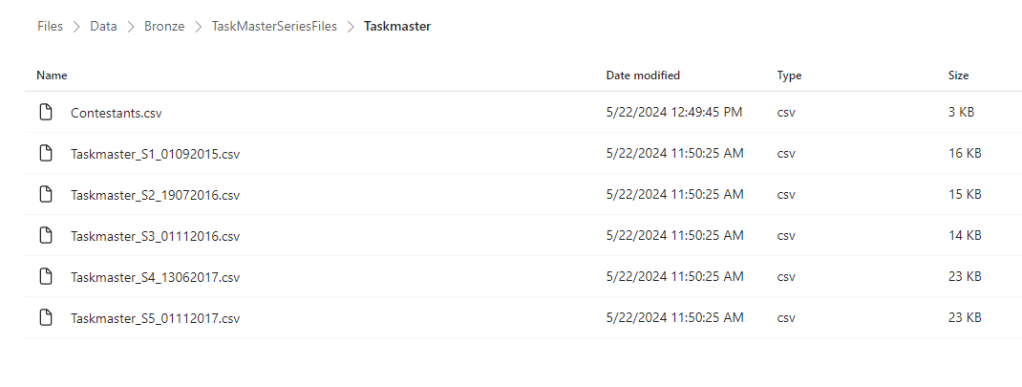
the Files have been placed in a datalake and we want to shortcut to these files. Imagine that the process is already in place pre Fabric and we have decided to stick with this process.

This will be added to every time a series finishes.

We also have a Lookup contestants file in this folder that will be updated by having data appended to it

This new exercise will work with partitioning by series for the fact table. Back in Fabric.

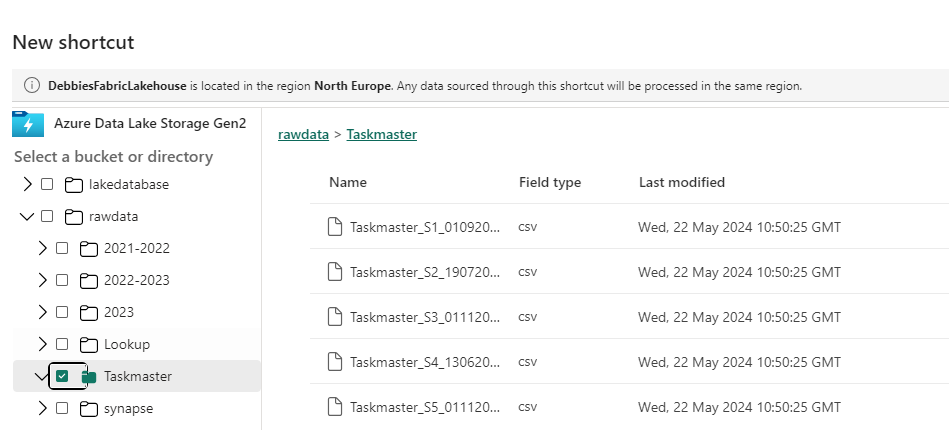
Lets add a Shortcut to our new Taskmaster folder in the Bronze raw data area.

https://learn.microsoft.com/en-us/fabric/onelake/onelake-shortcuts

We need the connection settings. get this from the Data Lake. Endpoints Data lake Storage, Primary endpoint data lake storage and sign in.

Tip Make sure you have Storage Blog Data Contributor Role

You want the URL with dfs (Distributed File System), not blob.

However, note that the Data Lake is in North Europe.

Creating a shortcut to a data lake in a different geographical area can result in Egress charges

So we need to check that our Data Lake and Lakehouse are in the same area.

Go back to the Workspace and Workspace Settings

Thankfully both are in North Europe so this should be fine.

Note. To keep down Egress charges you can set up caching which keeps the files for 24 hours without needing to access the data in the shortcut. but this is only available for

  • GCS (Google Cloud Storage)
  • S3 (Amazon S3 Simple Storage Service)
  • S3 compatible shortcuts (Any Services using Amazon Simple Storage Service)

Back to our Shortcut. Click Next.

We want to create a Shortcut to the Taskmaster Folder in the raw Folder. Click Next

Click Create

We now have a shortcut set up to the Azure Data Lake. Later on we can add another file and see what happens.

Create a Notebook

Lets Create a New Notebook

%%configure
{
    "defaultLakehouse": {  
        "name": "DebbiesFabricLakehouse"
    }
}

First of all I’m going to configure to the current Lakehouse

Load in all the files in the Shortcut Folder

from pyspark.sql.functions import input_file_name, regexp_extract

dftm = spark.read.format("csv").option("header","true").load("Files/Data/Bronze/TaskMasterSeriesFiles/Taskmaster/Taskmaster_*.csv")

dftm = dftm.withColumn("filename", regexp_extract(input_file_name(), r"([^/]+)$", 1))

display(dftm)
  • * alias has been used to get all series files and Series End Dates, and Only csv files.
  • input_file_name() brings us back the file name
  • regexp_extract(, r”([^/]+)$”, 1)) allows us to remove the URL and just keep the filename.

The File name may be important later.

Remove empty records

We have some null rows come through that we want to remove from the data set

how=’all’

This parameter is used with dropna() to drop rows where ALL values are NULL

Removing Special characters

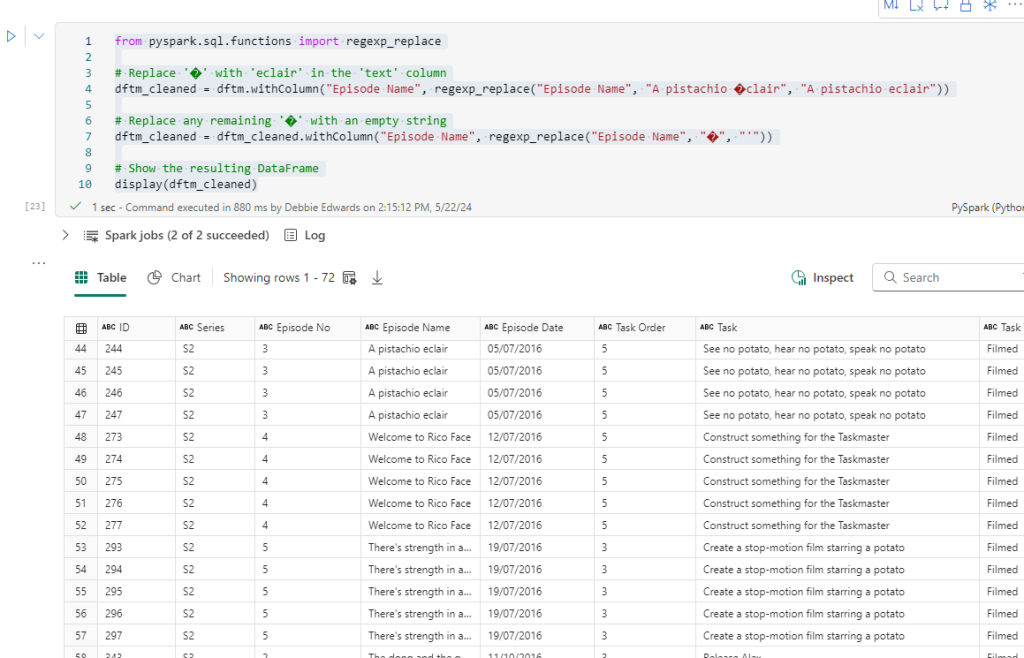
There are issues. We have some strange characters coming through in the data set.

We can use a filter function on the col Column episode name LIKE and bring through a distinct list.

from pyspark.sql.functions import regexp_replace

# Replace '�' with 'eclair' in the 'text' column
dftm_cleaned = dftm.withColumn("Episode Name", regexp_replace("Episode Name", "A pistachio �clair", "A pistachio eclair"))

# Replace any remaining '�' with an empty string
dftm_cleaned = dftm_cleaned.withColumn("Episode Name", regexp_replace("Episode Name", "�", "'"))

# Show the resulting DataFrame
display(dftm_cleaned)

We have two.

é in eclair and any item with ‘

So we actually need to update based on Logic:

from pyspark.sql.functions import regexp_replace

# Replace '�' with 'eclair' in the 'text' column
dftm_cleaned = dftm.withColumn("Episode Name", regexp_replace("Episode Name", "�", "eclair"))

# Replace any remaining '�' with an empty string
dftm_cleaned = dftm_cleaned.withColumn("Episode Name", regexp_replace("Episode Name", "�", ""))

# Show the resulting DataFrame
dftm_cleaned.show(1000)

regexp_replace

This function replaces all substrings of a string that matches a specified pattern with a replacement string. Good for cleaning and transformation.

it might be best to check task name too by repeating the above filter and changing Episode name to Task.

we have Greg says…

and the rest are ‘

We can also deal with this

from pyspark.sql.functions import regexp_replace

# Replace '�' with 'eclair' in the 'text' column
dftm_cleaned = dftm_cleaned.withColumn("Task", regexp_replace("Task", "Greg says�", "Greg says..."))

# Replace any remaining '�' with an empty string
dftm_cleaned = dftm_cleaned.withColumn("Task", regexp_replace("Task", "�", "'"))

# Show the resulting DataFrame
display(dftm_cleaned)

Create Dim episode Dimension

Lets have a look at just S1. Does it have all the Episodes?

Yes it looks good. So the episode Dimension consists of Series and Episode.

from pyspark.sql.functions import to_date

dftmEp = dftm_cleaned.select("Series","Episode No" ,"Episode Name").distinct()

dftmEpOrdered = dftmEp.orderBy(col("Series"),col("Episode No"))

display(dftmEpOrdered)

This is a Distinct List

And we have created an OrderBy Data Frame to display.

There is an empty row we need to remove

##drop all rows with null values

dftmEp = dftmEp.na.drop(how='all')

display(dftmEp)

We have used this code block before to remove the fully null rows.

Add A Default Row

from pyspark.sql import SparkSession
from pyspark.sql import Row

# Create a sample DataFrame
data = [(-1, -1,"Not Known")]
columns = ["series", "episode No", "Episode Name"]
new_row  = spark.createDataFrame(data, columns)

# Union the new row with the existing DataFrame
dftmEp = dftmEp.union(new_row)

# Show the updated DataFrame
dftmEp.show(1000)

Now we have the recommended Default row. It’s time to add a key

from pyspark.sql.functions import col

# Create a window specification partitioned by "Series" and ordered by "Episode No"
window_spec = Window.orderBy(col("Series"), col("Episode No"))

# Add a new column "EpisodeKey" using row_number() over the specified window
dftmEpKey = dftmEp.withColumn("EpisodeKey", row_number().over(window_spec) - 2)

# Show the result
dftmEpKey.show(1000)

Window.OrderBy

This function is used to define the ordering within a window specification. It allows you to specify the order in which rows are processed within a partition

row_number().over

The ROW_NUMBER() function, when used with the OVER() clause, assigns a sequential integer number to each row in the result set of an SQL query.

Create Delta PARQUET File

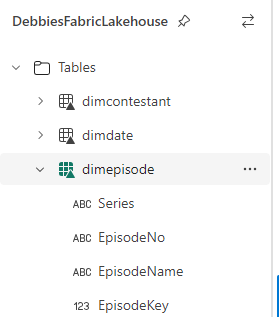
We have our first dimension. Lets add it to Silver folder in files as unmanaged and Tables as a managed Delta PARQUET table. that way we can see what we can do with both

We don’t want to partition the dimension. The Fact table will be partitioned

from delta.tables import DeltaTable

dftmEpKey.write.mode("overwrite").option("overwriteSchema", "true").format("delta").saveAsTable("dimEpisode")

However, There is an error coming up

AnalysisException: Found invalid character(s) among ‘ ,;{}()\n\t=’ in the column names of your schema. Please upgrade your Delta table to reader version 2 and writer version 5 and change the column mapping mode to ‘name’ mapping. You can use the following command:

Instead of upgrading. We want to remove the special characters. The columns are

|Series|Episode No| Episode Name|EpisodeKey|

Cleaning up Columns in a dataframe

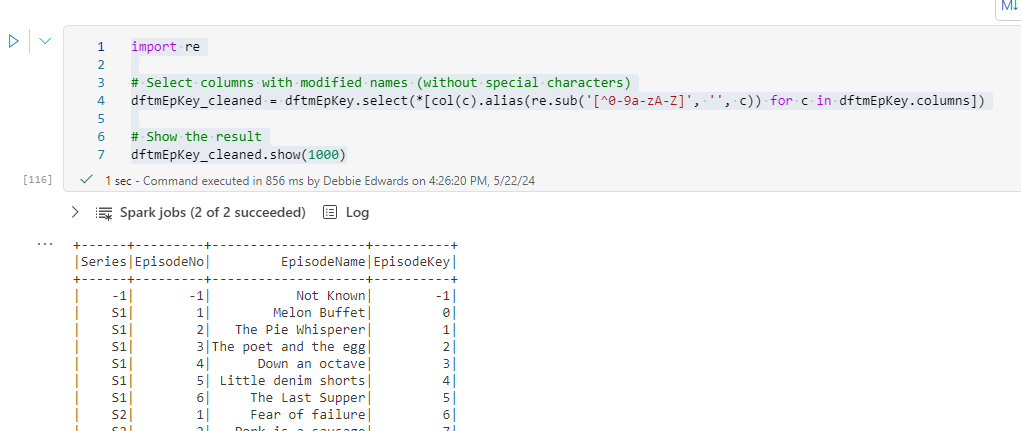
import re

# Select columns with modified names (without special characters)
dftmEpKey_cleaned = dftmEpKey.select(*[col(c).alias(re.sub('[^0-9a-zA-Z]', '', c)) for c in dftmEpKey.columns])

# Show the result
dftmEpKey_cleaned.show(1000)

It seems it may have been the spaces.

re.sub

In PySpark, the re.sub() function is used to replace substrings that match a specified regular expression pattern with a string of your choice.:

re.sub('[^0-9a-zA-Z]', '', c) removes any characters that are not alphanumeric (letters or digits) from the column name.

The expression [col(c).alias(re.sub('[^0-9a-zA-Z]', '', c)) for c in dftmEpKey.columns] is a list comprehension that performs the following steps for each column name (c):

  • col(c).alias(...) creates a new column with the modified name (without special characters) using the alias() method.
from delta.tables import DeltaTable

dftmEpKey_cleaned.write.mode("overwrite").option("overwriteSchema", "true").format("delta").saveAsTable("dimEpisode")

And we can save to delta PARQUET

from delta.tables import DeltaTable

So, we now have an episode dimension. lets save the Notebook as Dim Taskmaster Episode V2 (We already have the original one saved)

Remember to commit in Source Control.

We want to create Task and Contestant dimensions. We already have a date dimension to work with.

In the next post, these extra dimensions and fact table will be created. and then we can see how they can be used

Data Factory, Moving multiple lookup worksheets from Excel to one lookup table in SQL Server

A current project has an xlsx containing around 40 lookups in individual worksheets

Each worksheet consists of a code and a description

We decide that we want every single lookup in one lookups table in SQL Server.

This will have a Lookup Name, Code and Description that we can then use for the rest of the project

We want to do everything in one go in Data Factory.

For this Im going to use a simple example with just 3 worksheets

Azure Data Lake Gen 2

We are going to store the source data within a data lake.

The Source data looks like this

Lookup B worksheet

Lookup C Worksheet

SQL Server

I have an Azure SQL Database and on it I create the one table that all the reference lookups will go into

GO
CREATE TABLE [staging].[Lookups](
[LabelKey] [int] IDENTITY(1,1) NOT NULL,
[LabelName] varchar NULL,
[Code] [int] NULL,
[LabelDescr] varchar NULL,
[Importdate] [datetime] NULL
) ON [PRIMARY]
GO
ALTER TABLE [staging].[Lookups] ADD DEFAULT (getdate()) FOR [Importdate]
GO

LabelKey has been added just to create a valid key for the table. LabelName has also been added which will be the name of the worksheet.

Finally ImportDate is added because we want to know exactly what time this data was imported into the table

Now we need to provide Data Factory with a list of worksheets

CREATE TABLE [staging].[LookupNames](
[LabelKey] [int] IDENTITY(1,1) NOT NULL,
[Labels] varchar NULL,
[Importdate] [datetime] NULL
) ON [PRIMARY]
GO
ALTER TABLE [staging].[LookupNames] ADD DEFAULT (getdate()) FOR [Importdate]
GO

Lookup Names is our seed table and will provide us with the worksheet names

we have populated it like this

SELECT 'Lookup A' UNION
SELECT 'Lookup B' UNION
SELECT 'Lookup C' 

Data Factory

Linked Services

Firstly we need to provide our linked services. Source and destination

go to Linked services via

and choose new.

call it ADLS_LS and select your Azure Subscription and Storage account.

At this point the connection was tested and was successful so we didn’t need to do anything further

Next, create your Azure SQL Database Linked Service

And call is SQLDB_LS (Or what ever you feel is the right naming convention. _LS is good because you can see exactly what are the linked services in the JSON script created

Again add in your details (We used a role that we created in SQL Server DB specifically for data factory with GRANT EXEC, SELECT, INSERT, UPDATE, DELETE on all the schemas)

Ensure the connection is successful

Data Sets

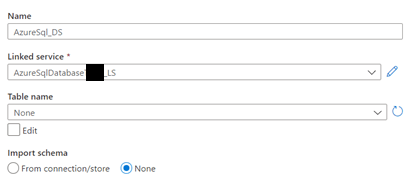
Now to come up with the actual source and destination datasets. If we parameterise them then we can reuse a single data set for lots of other activities within the pipeline

Click on the and choose New dataset

Choose the Format. In this case its Excel

We don’t want to specify any of the location values until we get to the pipeline, including the worksheet

Make sure First row as header is ticked (Unless you don’t have a header in Excel)

And create parameters

This means we can use this one Data set for all the SQL data sources

Pipelines

Now to create the pipeline specifically for the lookup

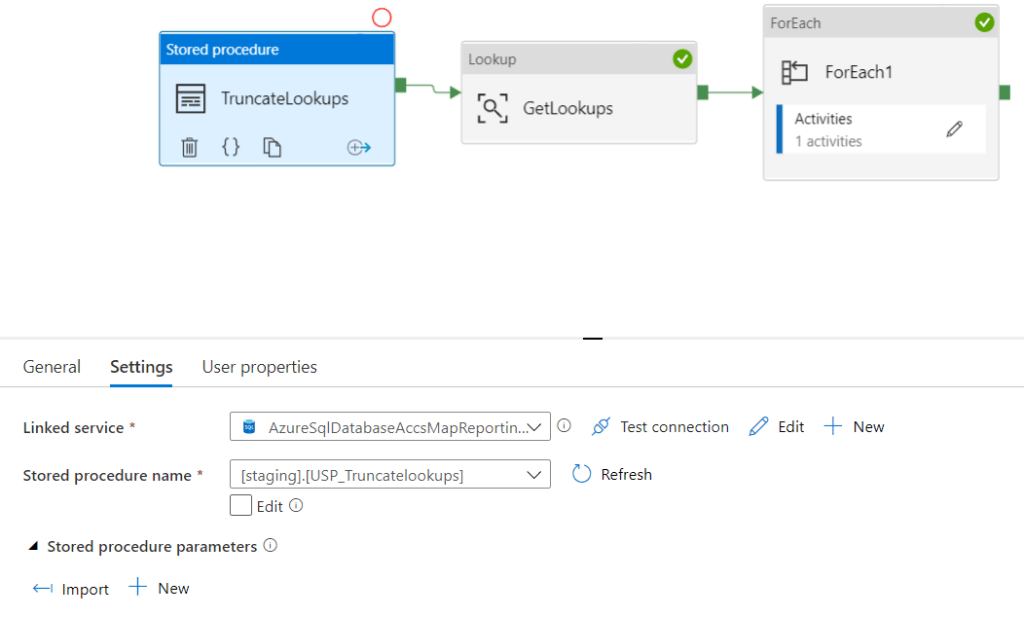
This is the basic pipeline we are going to add.

Lookup

First of all In Activities search for lookup and drag this into the pane

This uses the SQL dataset because we are going to use our SQL table that contains all the names of the worksheets.

Note that first row only is not ticked because we are bringing all the information through

ForEach

@activity(‘GetLookups’).output.Value

We are going to get the entire data set (Value) fed into the GetLookups Lookup.

Sequential is ticked because we are going to move through all the worksheets names in the table (Ensure that your Worksheets have exactly the same name as what is specified in your table)

Click on the Activities (1) to get to the activity

Copy Activity within the Foreach

We now set up the source of the copy activity

We use all the parameters within the dataset and add in the information from our Azure data Lake Gen 2 in the Storage Resource.

Within our Lookups table there is a column called labelname and we are going to populate this with the Labels column from our item. Out Item in the foreach loop and was created via the Lookup. And that lookup contained all the columns from our LookupNames SQL Table

The data will go into the Lookups table

Thats everything. You should be able to test your Pipeline by clicking debug and the Foreach should move through worksheet specified within your lookupnames table and add your information into SQL

Truncating lookup tables before re adding data

we want to be able to repeat this process and unless we add a truncate statement into our process we will keep readding the same information

We can add the following Stored procedure into SQL

/*
05/10/2020 Debbie Edwards - Peak - Truncate lookups
EXEC [staging].[USP_Truncatelookups]
*/
Create PROCEDURE [staging].[USP_Truncatelookups]
AS
BEGIN
IF EXISTS(SELECT * FROM [dbo].[sysobjects] WHERE Name = 'lookups')
TRUNCATE TABLE [staging].[Lookups]
DBCC CHECKIDENT ('Staging.Lookups', RESEED, 1)
END

And this can be added to the the Pipeline before the foreach loop and Lookup with a Stored Procedure Activity

You wont be able to see the Stored procedure if you havent granted EXEC access to the specific Database Role name and schema

Always give the least amount of privileges and them move up if you need to

--Bring back information about the members in your roles
SELECT DP1.name AS DatabaseRoleName,
isnull (DP2.name, 'No members') AS DatabaseUserName
FROM sys.database_role_members AS DRM
RIGHT OUTER JOIN sys.database_principals AS DP1
ON DRM.role_principal_id = DP1.principal_id
LEFT OUTER JOIN sys.database_principals AS DP2
ON DRM.member_principal_id = DP2.principal_id
WHERE DP1.type = 'R'
ORDER BY DP1.name;
SELECT DISTINCT rp.name,
ObjectType = rp.type_desc,
PermissionType = pm.class_desc,
pm.permission_name,
pm.state_desc,
ObjectType = CASE
WHEN obj.type_desc IS NULL
OR obj.type_desc = 'SYSTEM_TABLE' THEN
pm.class_desc
ELSE obj.type_desc
END,
s.Name as SchemaName,
[ObjectName] = Isnull(ss.name, Object_name(pm.major_id))
FROM sys.database_principals rp
INNER JOIN sys.database_permissions pm
ON pm.grantee_principal_id = rp.principal_id
LEFT JOIN sys.schemas ss
ON pm.major_id = ss.schema_id
LEFT JOIN sys.objects obj
ON pm.[major_id] = obj.[object_id]
LEFT JOIN sys.schemas s
ON s.schema_id = obj.schema_id
WHERE rp.type_desc = 'DATABASE_ROLE'
AND pm.class_desc <> 'DATABASE'
AND rp.name = 'db_NameofRole'

you should hopefully have a good pipeline to run in your lookup information into one lookup table and truncate that table when ever you run the process

Azure Built In Tagging Policy. Update Resource by Inheriting Subscription Tag

Ensure your Azure Resources are tagged with the Tag from Subscription

In this example we have the following requirements

  • The costCentre tag has been manually added to the Subscription
  • Every resource must be created with a costCentre
  • The CostCentre tag must exist on the resources
  • The Resources inherit from the container they are in, but can be manually overridden

Costcentre Tag Configuration

  • Modify Resources to add the CostCentre tag from the parent Subscription where missing

Time to assign a new Policy

No Need to select a Resource group because they haven’t been created yet and this applies to all resource groups that have yet to be created

Choose Inherit a tag from the subscription if missing

The Assignment Name has been changed to include the tag

And the tab name is added as a parameter

We need a Managed Identity because this has a modify effect

Then go to Review + Create and Create

Test the New Modify Policy

This is the tag on the Subscription

Create a New Resource Group (And remember to apply any tags of Policies you have already set

Within this Resource Group, Create a New Resource (Dont add the tag)

Once created, the Resource will inherit the Tag from the Subscription

Azure Built in Tagging Policy. Deny the Creation of a Resource group

Deny the creation of a resource group without applicationName Tag

Every resource group should have an application name because Resource Groups should be Application Related. However you cant get the applicationName from the Above Subscription.

As a Example, the Resource Group is for HR Performance.

applicationName Tag Configuration

  • Deny the resource group if its missing the applicationName tag

Steps to apply this policy in Azure

Search for policy and Assign

Go to Assignments. This shows you all the policies or Initiatives that are in place. The Scope for this shows that the all subscriptions are being shown in this list.

Click Assign Policy

Set Scope of Policy

First thing you need to do is set the Scope. We have Management groups in place and as a test, a Personal Subscription is being used

The Resource Group isn’t set because this is just being set at Subscription level

Exclude Resource

You can also exclude resource, and in this case resources from the above Policy. However for this policy we don’t need to do this.

Set the Policy Definition.

There are two types of definitions. Custom and built in

If you look for ‘Tag’ you get a list of the Built in Definitions for tags.

We know that we want to ‘Require a tag on resource groups’ so this built in policy can be selected

Choose the Built in policy and Select

The Assignment Name has been slightly changed to include the tag this will be set for

We are in the Basics tab at the moment

Parameters

Go to the Parameters Tab.

Remediation

Click the Remediation Tab

In order to understand the Remediation tab there are a few specific concepts to Understand

Managed Identity

Managed identities is a more secure authentication method for Azure cloud services that allows only authorized managedidentity-enabled virtual machines to access your Azure subscription.

This means that any service that ‘does something’ to another service can do so automatically using a Managed Identity

DeployIfNotExists and Modify effects

Every single Policy in Azure Policy has a single effect. Effects behave differently if they are for a new, updated or existing resource. The Effects supported are:

  • Append
  • Audit
  • AuditIfNotExists
  • Deny
  • DeployIfNotExists
  • Disabled
  • EnforceOPAConstraint (preview)
  • EnforceRegoPolicy (preview)
  • Modify

The question is. What is the effect of Require a tag on resource groups

Definitions

Go to Definitions in Policy and Search for the Built in Policy.

The effect of your chosen built in Policy the effect is to deny .

You can also see the JSON Definition of the chosen Policy

Because the Policy is deny we don’t need to set up a Managed Identity

Click Review + Create

And Click Create

Definitions

Going back to the policy Definition

You can see that this Policy has been assigned to a Subscription

Checking your Policy has worked

To test the policy create a new resource Group within the selected Subscription without adding any tags

Resource ‘Test-RG’ was disallowed by policy. Policy identifiers: ‘[{“policyAssignment”:{“name”:”Require tag applicationName on resource groups”,”id”:”/subscriptions/7e7aeec9-7cb0-4963-a029-128c29530b5f/providers/Microsoft.Authorization/policyAssignments/febb7d3199864e4ab84411f5″},”policyDefinition”:{“name”:”Require a tag on resource groups”,”id”:”/providers/Microsoft.Authorization/policyDefinitions/96670d01-0a4d-4649-9c89-2d3abc0a5025″}}]’.

Because the Name of the required tag was added into the Policy name, the warning lets you know which tag you need to set.

You can Implement this on any resource group that needs a tag setting when it cant inherit from anything above (Like Subscriptions)

Azure Use Policies for Tagging Introduction

When you get started with Azure, you want to ensure that your resource groups and resources are tagged. this is great for Management of your Azure Subscriptions/

You can categorise all your resources with tags. You can also view Billing by Tags.


When you add a tag into the Portal (Or programatically) you can add in any tag name as you go. Once created they come up in a list and you can choose from them again.

You can use Azure Policies to try and Enforce some Tagging Logic

Azure Policies

Policies allow you to use the built in or custom definitions. the Policies can then be assigned to a Management group, Resource Group or Subscription

Policies are executed when new resources are created. old resources may not be compliant

You can use built in tagging Policies that are already defined within definitions in JSON (Built in)

Or you can add a new definition by adding your own JSON or copying and amending a built in Policy (Custom)

We are going to have a look at some specific examples of how to use Policies for Tagging.

aedhttps://debbiesmspowerbiazureblog.home.blog/2020/05/05/azure-built-in-tagging-policy-deny-the-creation-of-a-resource-group/

https://debbiesmspowerbiazureblog.home.blog/2020/05/05/azure-built-in-tagging-policy-resource-group-to-inherit-subscription-tags/

https://debbiesmspowerbiazureblog.home.blog/2020/05/05/azure-built-in-tagging-policy-update-resource-by-inheriting-subscription-tag/

Azure Tagging with Powershell Example

Azure uses Tagging for easier management. Tagging is done with Key value pairs. You can create the manually in the Azure Portal but you can also do it programatically via Powershell (For Example)

For this example Log onto the Azure Portal, Open Cloud Shell (This is the new Azure Portal, Not classic)

And set it to run with powershell

Just to get warmed up, lets list all our Resource groups

Get-AzResourceGroup

You can right click in powershell and paste the code above. then click Enter

This gives you a list of all your resource Groups


You even get a list of tags for each resource group with the above command

However, the resource groups that are available to me currently are the ones on my personal visual studio subscription. the Current Subscription

Lets see what subscriptions we have available

Get-AzureRMSubscription

You get the Subscription Name, ID and TenantID

Lets find out the current Subscription Context

Get-AzureRmContext

You can also use the following command to get subscription details

(Get-AzureRmContext).Subscription

Now we want to change the current Subscription context. this example is going to look at a resource group and a resource in our Proof Of Concept Subscription

Set-AzContext -SubscriptionId "xxxx-xxxx-xxxx-xxxx"

The ID can be generated by using Get-AzureRMSubscription

And running Get-AzureRmContext again, provides you with confirmation that you have changed subscriptions

Now lets have a look at all the resource groups within this subscription with Get-AzResourceGroup again


These are the two resource groups we are interested in. POC has no tags and training Resources have a couple of tags at resource group Level.

Get-AzureRmResource | ft

This scrips allows you to get a list of all the resources and Resource groups within the current subscription

What I want to do now is check all the tags on the resource Group

(Get-AzResource -ResourceGroupName POC_Resource_Group).Tags

This function allows us to see every tag at resource level against the Resource group. So this script doesnt quite give us what we want. We know that there are no tags at resource group level. How do we establish this with Powershell?

$resourceGroup = Get-AzResourceGroup -Name POC_Resource_Group  
Get-AzTag -ResourceId $resourceGroup.ResourceId

This script allows us so see the tags on the Resource Group.

It would now be useful to get a list of Resources in the resource Group

Get-AzureRmResource -ResourceGroupName POC_Resource_Group | ft

So now we can see every resource in the Resource group

Next step is to have a look at tags per resource

(Get-AzureRmResource -Name "AdventureWorksDW").Tags

We know what our Resources are called now (See Above) so we can get specific tags of a resource group

Scripts to Add tags to a Resource Group

It would be really good to have the following tag at resource group level

  • businessProcess, Proof of Concept
  • environmentType, Dev
  • client, na
  • billingCategory, Internal Analytics

Lets have a go with powershell

$tags = @{"businessProcesst"="Proof of Concept"; "environmentType"="Dev"; "client"="na"; "billingCategory"="Internal Analytics"}
$resourceGroup = Get-AzResourceGroup -Name POC_Resource_GroupNew-AzTag -ResourceId 
$resourceGroup.ResourceId -tag $tags

The resource group now has Tags

Scripts to add tags to a resource

Completely update the List of Tags

We also want to add a tag to a resource.

If you were to use the following script

$tags = @{"costCentre"="000000"} $resource = Get-AzResource -Name AdventureWorksDW -ResourceGroup POC_Resource_Group  
New-AzTag -ResourceId $resource.id -Tag $tags 

And then run (Get-AzureRmResource -Name “AdventureWorksDW”).Tags to look at the tags, this script deletes all the tags and inserts just the one, this isn’t the logic we want to use. We want to Add tags to a Resource that already has tags

Add Tags to a resource that already has tags

$resource = Get-AzResource -Name AdventureWorksDW -ResourceGroup POC_Resource_Group 
$tags = @{"costCentre"="000000"} 
Update-AzTag -ResourceId $resource.id -Tag $tags -Operation Merge

Instead of New, Update has been used. and we gave the script a resource name and a resource group

(Get-AzureRmResource -Name “AdventureWorksDW”).Tags shows that the new tag has been added to the previous tags

Amend a Tag

After running (Get-AzureRmResource -Name “AdventureWorksDW”).Tags, adventureworkks is a value that has been inputted incorrectly and needs amending.

$resource = Get-AzResource -Name AdventureWorksDW -ResourceGroup POC_Resource_Group 
$tags = @{"applicationName"="adventureworks"} 
Update-AzTag -ResourceId $resource.id -Tag $tags -Operation Merge

Great. The incorrect value has been updated

Get Tags

a couple more really useful Scripts in regards to tags

Get-AzureRmTag

This script allows you to see all your tags and how many times they are used within the subscription

From the above script we can see that businessProcesst is a tag that has been added which needs amending to businessProcess (Its been incorrectly typed in)

Get more information about the Tag (Tag Values and Count of Use)

Get-AzureRmTag -Name "environmentType"

This script is great for looking at the values in a specific tag. And in this case we want to know more about businessProcesst

Get-AzureRmTag -Name "businessProcesst"

And to really tie it down we want to know what resource or resource Group it belongs too?

You can run the following Script to get the Specific resource Group for the tag

(Get-AzResourcegroup -Tag @{ “businessProcesst"="Proof of Concept"}).ResourceGroupName

Its in the Proof of Concept Resource group so all that is needed is to delete and recreate

And this Script checks if its against any resources

(Get-AzResource -Tag @{ “businessProcesst"="Proof of Concept"}).Name

In this case No

Remove-AzureRmTag -Name "businessProcesst"

Although we have checked, the error message stills says that the Tag is being referenced by resources.

It may be easier to update the Tag in Azure rather than using Code. there doesnt appear to be a way of changing the tag name in poweshell (Or at least I haven’t found it yet)

You can go to tags. Click on the Tag. Then click on … at the end of the tag Row and choose Edit tags.

Then Save

This just gives a flavor of how to use powershell to manage tags. This information can be saved into Scripts so we can reproduce the creation of tags if required.

Tags applied to resource Groups don’t get added to the Resources below. Powershell gives you move control over making sure the Resources and resources Groups have the correct tags applied

Introduction to Azure Tagging

Tagging is a feature that has been introduced into the Azure Resource Manager model (ARM). They can be used to Logically group and track resources. The old (Classic) version of Azure was Azure Service Manager.

Azure tagging can be done using Azure Portal, Azure Powershell, CLI (Command Line User Interface) or ARM (Azure Resource Manager) JSON templates

Tags can then be used to select resources or Resource Groups and are useful when you need to organize resources for billing or management

You apply tags to your Azure resources giving metadata to logically organize them into a taxonomy.

Each tag consists of a name and a value pair. For example, you can apply the name “Environment” and the value “Production” to all the resources in production.

Key Points

  • You can only apply tags to resources that support Resource Manager operations
    • VMs, Virtual Networks and Storage created through the classic deployment model must be re-deployed through Resource Manager to support tagging
    • A good way around this is to tag the resource group they belong to instead.
  • All ARM resources support tagging
  • Each resource or resource group can have a maximum of 15 tags.
  • Tags are key/value pairs, name is limited to 512 characters, value is limited to 256 characters
  • Tags are free-form text so consistent correct spelling is very important
  • Tags defined on Resource Groups exist only on the group object and do not flow down to the resources under them
    • Through the relationship you can easily find resource by filtering by tagged resource group Its recommended keeping the tags to the resource group unless they are resource specific.
  • Each tag is automatically added to the subscription-wide taxonomy
    • Application or resource specific tags will “pollute” the tag list for the entire subscription.

Issues with Tags

Using the recommended Tag procedure of tagging at resource group level causes issues because the Tags dont get inherited at Resource level.

The hope was that any tags that you apply at one level of the hierarchy will be inherited by the lower levels within the hierarchy and this doesnt happen.

You need to be careful that your tags stay Logical and don’t differ from higher levels. It may well be preferable to do this via Powershell Scrips that manually to ensure correct logic is maintained between resources and Resource Groups.

Resource Groups

  • The underlying technology that powers resource groups is the Azure Resource Manager (ARM).
  • ARM was built by Microsoft in response to the shortcomings of the old Azure Service Manager (ASM)
  • ARM requires that resources be placed in resource groups, which allows for logical grouping of related resources.
  • Although creating a resource group requires specifying a region for it to be stored in, the resources in that resource group could span multiple regions.
  • In the ARM architecture, resource groups not only become units of deployment, but also units of management of related resources.
  • It allows role-based access control (RBAC) at the resource group level, making it much easier to manage user access to the resources in the group.
  • When users log into the Azure Portal, they will only see resource groups they have access to and not others within the subscription. u Administrators will still be able to assign access control for users to individual resources within the resource group based on their roles. This is great to see costs associated with Each Resource Group

Successful Azure Resource Groups

If an application requires different resources that need to be updated together, such as having a SQL database, a web app, a mobile app, etc. then it makes sense to group these resource in the same resource group.

Use different resource groups for dev/test, staging, or production, as the resources in these groups have different lifecycles.

All the resources in the group should share the same environment (Dev, Test etc) because you deploy, update and delete together

If you have for example the marketing analytics database in one Resource Group and a demo database in another resource group, Each resource group needs its own server

You cant Rename a resource Group

A good naming convention to use is rg-projectorapp-subprojectorapp-dev or projectorapp-subprojectorapp-dev-rg

Examples of Resource groups

Adding Tags to a VM resource within a Resource Group

Tagging Examples

Now you have logical resource Groups set up we can set up tags which are good for larger organisations. 

Business Tags:

  • Cost centre
  • Responsible Person or Party
  • Application Name
  • Environment
    • Development
    • Testing
    • Staging
    • Production

Security Tags:

  • Data Profile

Automation Tags

  • Power Off
  • Maintenance Window
KeyExampleCommentType
costCenter12345This is your internal billing codeBusiness
managedBydebbie@peak.co.ukName or email addressBusiness
applicationNamemyappname of the Project Business
environment<production, Staging, QA>Identifies the environmentBusiness
dataProfile<Public, Confidential, Restricted, Internal>Data Sensitivity. Public: This information is public information, and can be openly shared on your website
Internal: Internal information is company-wide and should be protected with limited controls.
Confidential: Confidential information is team-wide and its use should be contained within the business.
Restricted: Restricted information is highly sensitive and its use should be limited on a need-to-know basis.
Security
powerOffyes, noCan this resource be shut down at 7pmAutomation
Example of a Subscription with Tags on the Resource groups.

Looking at this example, the Tagging has been added to the resource Groups. However if you look at a resource, you wont see the tags.

We need to look at a way of ensuring that the Tags applied to the resource group are also applied for each resource.

Adding tags to a resource in Azure Portal

Policies for Tags

  • Azure Policy is a service in Azure that you use to create, assign and, manage policies.
  • These policies enforce different rules and effects over your resources, so those resources stay compliant with your corporate standards and service level agreements https://docs.microsoft.com/en-us/azure/governance/policy/samples/apply-tag-default-value
  • Microsoft provides sample JSON scripts to create the tagging policies
  • JSON scripts can be deployed in the Azure Portal, Azure Powershell, Azure CLI or REST API.
  • When you create resource groups and Resources you should always apply tags and the default value for that tag.
  • There are Billing tags policy initiatives you can apply
  • You can also enforce tags and value via Policies on resource groups or Resources

https://github.com/Azure/azure-policy/tree/master/samples/built-in-policy/apply-default-tag-value

https://github.com/Azure/azure-policy/tree/master/samples/built-in-policy/enforce-tag-value

Locks

As an administrator, you may need to lock a subscription, resource group, or resource to prevent other users in your organization from accidentally deleting or modifying critical resources.

You can set the lock level to CanNotDelete or ReadOnly. In the portal, the locks are called Delete and Read-only respectively. it may be useful to add a tag for this

LockLevel <CanNotDelete, ReadOnly, NA>

Conclusion

We will look at tagging in more detail in other posts. What Policies you can apply. tagging via Powershell, CLI and ARM JSON Templates. How to manage and enforce good Tagging Logic.

We will also look at ways to use your tags

Links

Design a site like this with WordPress.com
Get started