After 14 years using Microsoft On Premise BI Tools (SQL Server, Reporting Services, Integration Services and Analysis Services) Its time to embrace Business Intelligence in the cloud.
I have had quite a lot of issues in regards to the whole dev to prod process with the SQL database. my last attempt which I wrote in this blog worked well until I shut the project down. Then once reopened I would always lose my Project or GIT, so I went back to the drawing board and did a lot more research and here are my new findings.
There is a Data Factory part to this but I have already made a blog about this and it has consistently worked ever since setting up the dev to prod process
Resources used
Azure SQL Database and Server
Visual Studio (Enterprise)
Azure DevOps
Azure Devops Repository
First of all you need to have an Azure Devops set up (I wont go into detail on this here)
In the Devops repos I have a Folder for Data Factory in the repository. The Folder for SQLDB will be created later.
In Devops Ensure you have a GIT repos Created Then Click CLONE to copy the GIT location URL
In this example I am cloning right at the top of the repository
Click the Copy Button
Visual Studio
You cannot do this as yet in Visual Studio code. It has to be Visual Studio and I have Visual Studio Enterprise 2019
Go to visual Studio and In Get Started select Clone Repository
You can Copy the Repository Location from the Clone Copy (Or Browse a Repository – Azure DevOps or GitHub)
make sure you are happy with the path for the Local Copy
Click Clone. Your Local repository is then shows in Solution Explorer
This has added the folder on your C Drive (It added the top level and the dataFactory and SQL DB Folders)
And You can see this project in Solution Explorer
Copy path of C Drive (And the folder for example SQLDB)
Visual Studio – In the top bar choose create File – New – Project
Choose SQL Server Database Project – Next
The Project with be SQLDB and will contain the SQL Objects
Click Create
In Visual Studio SOLUTION EXPLORER: You can see your empty database objects.
On the C Drive, Note you now have a SQLDB folder along with the Data Factory Folder
Right click on the database name in Solution Explorer and go to properties
Its important to be in the right version for the target platform
Right click on database name and Import – database
Select the Connection location of the development database (and Show connection properties to make sure your username and password are ok and the database connects.
Import objects into the Local Project (No need to Select it in the above box)
then Click Finish Note that all your objects are now in Solution Explorer and on the C: Drive (Your local copy)
Is the project Complete? – Build – Rebuild solution which checks and validates the objects
Any time anything changes you need to rebuild your solution to update the code.
Warnings and Errors
For Warning and errors you can see all the issues by clicking on them. The build may fail because of errors. These always need resolving before you send to the target DB e.g. Production
Error Example Warning: SQL71558: The object reference [staging].[].[KEY] differs only by case from the object definition [staging].[ST2].[Key].
Click click on the database in Solution Explorer and go to Properties.
In project Settings untick validate casing on identities
Error Example Warning SQL71502: Procedure: [dim].[USP_Date] has an unresolved reference to object [sys].[all_objects].
You can add the master database as a reference (Right Click on references)
Add Database Reference
Rebuild your codebase. Its important here to make sure your warnings and errors have been dealt with
Rebuild updates your project locally after updating – I will look at how making changes with for example SQL Server Management Studio changes the process in a later blog.
Publish to Git Repository – GIT Changes and make a note of your change Commit All
Then click the arrow to Push changes to the GIT repository
We now have the code in the repository in DevOps
It seems annoyingly easy to slightly mess your folder structure up. Here I have a SQL DB Folder and another SQLDB Folder inside.
I only wanted the one. This does keep happening to me and its very frustrating. Any pointers to where I went wrong would be really appreciated
Create your CI (Continuous Integration) Pipeline in Azure Devops
Now we have the Code in GIT we can create our artifacts for the release pipeline.
In Azure Devops go to Pipelines and Release Pipelines
Click New Pipeline
And choose your repository
Select a template
Right click on tasks and remove selected tasks until you are left with the following
You don’t really have to do much with these three jobs
At the Pipeline level ensure you use the right Agent. For example Windows -2019. We had errors because we use an OpenJson function in the SQL code but setting the right agent resolved this issue
All the other jobs are parameterised. This should now be all set
Save and Queue and you can then run the pipeline to create your artifacts Save and Run
There may be warnings here. For some reason the warnings you clear in Visual Studio seem to show in Devops. I would like to do a bit more research on this.
But If a warning hasn’t failed the process you should now have your Continuous Integration artifacts.
Create your CD (Continuous Delivery) Release Pipeline in Azure Devops
Now we are onto Continuous Delivery. Moving the new code into Azure SQL DB
In Azure Devops to to Pipelines – Releases – New release
So for Artifacts click Add
We want to use the latest build
now Add a Stage. In our case we are using Prod so its a simple release
Start with an Empty Job
Add a task to the job
Here we chose the production Subscription
And we link to the DACPAC file that was created with the build from visual Studio. The DACPAC contains all the objects in SQL
The database uses variables and you can set these up in the variables tab
You can create a release to update your Production database
Once pushed, check your SQL database in Production to make sure you are happy that your changes have gone through.
And you can save your visual studio project and reopen. the next stage is to update some objects and go through the process again so watch this space
I wanted to have a look at a specific set up we have in regards to our Power BI Workspaces and apps
We have Power BI Premium P1 Node
We use dataflows
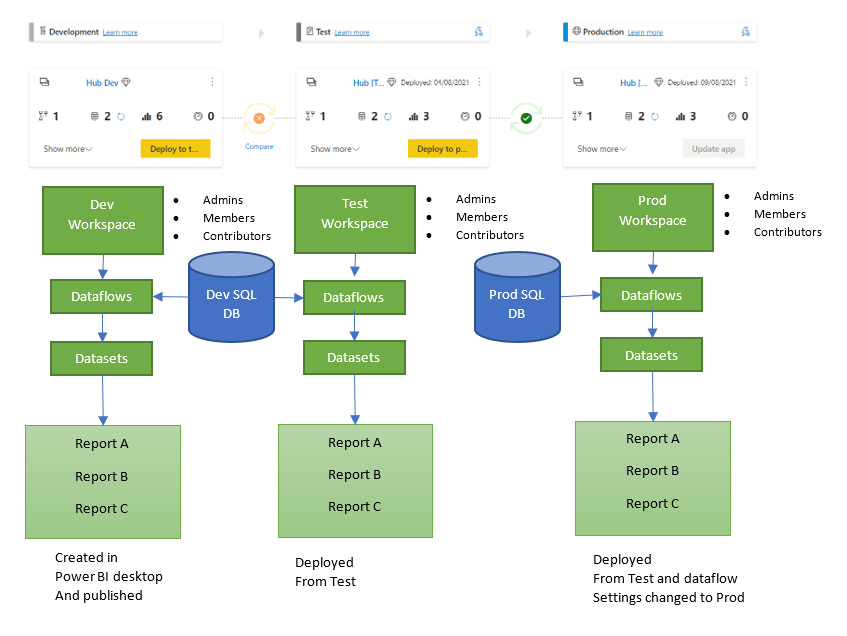
We use a Deployment Pipeline for Dev Test and Production Premium Workspaces
We have a scenario where we have a sub workspace with a smaller number of reports than the main reports
Deployment Pipelines
Lets have a look at the master Workspace that contains all our dataflows, datasets and reports live connected to the dataset
And for all three areas there is also an app to test usability for Viewers (and for the viewers of all the reports in Prod
Current issues with Deployment Pipelines and dataflows
The great thing about pipelines is that we don’t have to keep copies of Test and Prod reports. There are just Dev Pbix files. However, for Production. How do you know that your Production reports are using the dataflows connected to the Production SQL database?
The issue at the moment is that there is a bug that leaves the development data source in with the Production data source for the data flow. You can see this if you go into Lineage View
In the Prod Pipeline we have set the reports to use Prod dataflow and updated the user and password but from here how do you know that this has worked?
The best way I have found to do this is to export the dataflow Json … Export to Json
And look at the file in Notepad and check the source Source = Sql.Database(\”prd-
Its showing as production so I can be happy that the production reports are against the production database
The Sub Workspace
So we have a model for a production app to sit on where users can view all the reports.
However we have another cohort who can only see the reports B and not report A or C.
We can only have one app per workspace so we cant create another app with just one report.
The answer here is to create a sub workspace and republish the Production report across to this new workspace.
The question here is….. Can the sub workspace be a none premium workspace if we are live connected to a dataset in a Premium workspace?
Lets find out by first assessing the situation we want to set up
Process to move the production reports in the deployment pipeline to another workspace
We want to publish the production report to a new workspace (With just the one report in it)
And as a further complication, We want to live connect to a dataset in a Premium workspace and recreate a report in a Pro Workspace.
Not only that, but the Pbix file is set to dev not Prod and there is no production pbix file.
First of all in your Production Workspace go to your report (content) Click … and Save a copy
And Here is the Lineage in Power BI
So how do we check that this report is connected to Dev data flow not prod dataflow
At this point I would probably recommend having something in SQL to connect to like a view or a table containing the datasource name to test with. This would be really handy.
We have to assume that this is the case because it comes from Production workspace which is definitely connected to Prod its good. Also, You could check the data between dev and Prod at this point too.
To test, an app was published and the data was exactly the same as the report in the master workspace.
The good thing about this set up, you only have one copy of the data in master. You don’t have to have the same data duplicated in another workspace, taking up more space in the Power BI Premium Node.
And because its such a small workspace, we don’t have to create it in Premium so we don’t need our Power BI Admin to set it up as a Premium workspace
Licensing
Now you have to think about Licensing. Everyone who needs access to the report in the Pro workspace now needs a Pro account themselves. Great if you have a P3 License which gives everyone free Pro accounts.
But what if you don’t have everyone on Power BI Pro licenses. Or you have external users and you haven’t given them a Pro license?
Lots to think about here with this Mix of Premium and Pro. this might then be a case of going to your Power BI Admin and asking them to switch the Workspace to Premium simply due to the Licenses against the report viewers.
Imagine the scenario. You are dealing with two dates. date A and B. You create an active and an inactive relationship to your date table.
You can create Dax with USERELATIONSHIP for any measures that use the inactive join. Great for the bar charts, line charts etc.
But what if you have a slicer for Year on the report? At the moment that slicer is connected to Date A because you simple drag year from the date table.
This report needs to be sliced against Date B. Is there a way to do this?
Lets look at one of our measures that uses USERELATIONSHIP
YTD Measure =
CALCULATE(TOTALYTD([Number of Records],’Date'[Date]), USERELATIONSHIP(Metrics[DateKeyB],’Date'[DateKey]))
The USERELATIONSHIP can only be used with CALCULATE,CALCULATETABLE, CLOSINGBALANCEMONTH, CLOSINGBALANCEQUARTER, CLOSINGBALANCEYEAR, OPENINGBALANCEMONTH, OPENINGBALANCEQUARTER, OPENINGBALANCEYEAR, TOTALMTD, TOTALQTD and TOTALYTD
From this it is clear you can only use it in a measure with a metric.
And you cannot use a Measure in a slicer. Slicers have to be created from a column.
Which means that our inactive dates can’t be used in a slicer. And this is problematic because if you have a page of time based visuals all using the USERELATIONSHIP then its a fair shout that you are going to have a slicer too for example ‘Year’
So can we come up with a workaround?
Workaround 1. Adding date information to the fact table
Out model rules are
DateKeys in the Fact table. I also hold the dates hidden just in case
The dateKey Joins to the date Dimension which contains Year, Day, Month etc
So what I am going to do in this case is add my relationship B details into the fact table just for the time being.
s.[DateB] AS [Date B],
--Workaround 1
DATEPART(Year,s.[DateB]) AS [Year B],
DATENAME(Month,s.[DateB]) AS [Month B],
DATEPart(Month,s.[DateB]) AS [Month No B],
[staging].[fnQuarter](s.[DateB]) AS [Quarter B],
I have created a Quarter function with the specific quarter logic which is use for every Quarter period.
This is then refreshed into the Power BI Dataflow
And then refreshed into my data set.
All ready to work with. What I decided to do in Power BI was create a table containing those values.
Support End Date (For Slicers) =
SUMMARIZE ( 'GrowthHubMetrics',
GrowthHubMetrics[SupportDateKey],
'GrowthHubMetrics'[Support End Quarter],
'GrowthHubMetrics'[Support End Month],
'GrowthHubMetrics'[Support End Month No],
'GrowthHubMetrics'[Support End Year],
'GrowthHubMetrics'[Support End Date])
The dates in the fact table were then hidden leaving the above Slicer table.
And then I remembered that Date time Measures don’t work without a continuous date table and DateB isn’t continuous.
But then I remembered that I had already put in a lot of work creating all the date time measures on the inactive join to the date table using USERELATIONSHIP so actually all the date time measure are fine.
Would I go back and create a date table for dateA and a date table for DateB so I can have slicers and drill down to the date. Its very possible but that renders the use of USERELATIONSHIP Pretty null and void, unless you still want to slice these visuals against DateA.
Connect the DAX table to the model.
the date Table for Slicers is connected up to Dimdate in the model and we are ready to go
So all the measures are still connected to the date table through the inactive join
But the slicer can be set up over the new DAX table
I’m hoping to get a better way of doing this as we go because it seems that you should be able to do this without having to create another table.
Update
In the end, this became so complex and issue heavy (Drill throughs not working properly etc) I gave up. Created a reference of the date table for Date B. Connected this up. removed the DAX table and changed all my measures to get rid of USERRELATIONSHIP.
So Pages 1 to2 use DateA and Pages 3 and 4 use DATEB.
As a conclusion, if you are wanting to use Drill through and Drill down I think I would recommend role playing dimensions. the complexity of the USERELATIONSHIP with just seems incredibly complex at the moment.
Its a shame because I love the idea of switching to a none active join but in practice its proved unworkable.
The recommended approach to Power BI as an enterprise solution is to have your ‘shared data set in a pbix file where you can just create test visuals to check everything is ok.
Then create the real reports in a separate pbix file live connected to the dataset.
But what happens if you create great reports, including Bookmarks etc in the shared data set before deciding to move everything?
Changing the data source
Instead of creating a new pbix file and copying all the visuals in (this wont really work if you have bookmarks and more complex reporting set up)
First, save your ‘Shared pbix’ file with another name which will becomes the reporting pbix file. The original pbix file complete with the original reports can be left as is.
You could change the data sources over to the ones in the data set. However this creates an issue.
The Data set pbix file sits on dataflows.
If you currently try and change to data sets, Data sets aren’t offered.
So what do you do?
Remove Queries
In this example all the M Code for the Query should be done in the Dataflow within service. the only M Code in the shared data set should be the connection to the data flow.
All the Queries should be deleted. If you make sure your dataflow queries have the name you want in the dataflow, Re adding them back will be fairly straight forward
Close and Apply your Query
Back in Power BI all your visuals show as having issues. There is no data.
Go to Get Data and now you can choose datasets
Find the data set and select. This should then load in Live data from the data set and your visuals will be displayed again.
Publish this back up to service.
At this point you can look at Lineage to view that you are using the power BI recommended approach
The App
When I create the app for Viewing I simply hide the Dev reports from the users.
This appears to be the speediest way of moving your reports to their own file, if you have already done a lot of reporting work in the ‘shared data set’
This is the 6th year of Power BI. Power BI has always been about driving data culture and has been rapidly evolving throughout its data journey.
Power BI is top of the Gartner Magic Quadrant and growing exponentially across users and business. Lets have a look at where we have come from and where we are going.
The Power BI Journey
Power BI started by wanting to empower Business Analysts. The next step was to empower IT departments
At the beginning of the journey the two targeted user groups wanted different things.
Business Analysis want quick BI with no red tape. IT wants governance, control and repeatability. By 2018 Microsoft was starting to think about both of these user groups and how Power Bi could work with each use case.
These use cases split into Enterprise and Self Service BI.
Microsoft moved to bring both Enterprise and Self Service together. Power BI was proving so popular it seems the best development was to bring enterprise reporting and semantic models into power BI
The following licensing was created to allow for this economic disruption
Built on Azure and deployed in over 50 data centers. Power BI used the cloud to bring about economic disruption
The cloud also offers a great economic model (Economies of Scale). Originally we had free and Pro for our business analysts. Premium became available in 2017 as an enterprise solution.
Enterprise And Self Service Converged
By 2018 with power BI, Microsoft aimed to
Empower every individual
Empower every team
Empower every organisation
Moving on to 2019 and 2020
Power BI increases its market share considerably and with every month of development comes huge changes to the product. Its now becoming a game changer for both self service and enterprise use.
AI Capabilities
Information workers need more, and power BI gave us more with inbuilt AI capabilities.
Key Driver Analysis
Key influences Visual
A great visual to look at the influences on your data. I have used this, for example to look at what drives negative tweets for a company. It also segments your data into understandable groupings
Smart Narratives
This visual provides textual analysis of your whole report or specific visuals. It will update the narrative dependant upon what the user selects.
This is a great visual for users who need to see descriptions along with the visuals to get a better understanding of the narrative.
Root cause Analysis
This is fantastic for users who want to create their own journey through the data. Select a metric and then allow the user to choose how they want to slice and dice the information. AI will find you categories with the lowest and highest values against the metric
Q&A
Q&A allows users to ask natural language questions, and Power BI will bring back the best visual that answers that question. developers can put together lists of possible questions for the user to choose from.
Powerpoint for Data
To make Power BI easy to use Microsoft decided to match experiences where ever possible to Powerpoint and Excel. This leads to massive adoption because people find it easy to use. they have already seen and used the ribbon in lots of other Microsoft products, take up is therefor a good option.
Moving to 2021
2021 brings to the table a new licence that gives smaller businesses the ability to buy in Premium licenses at a user level rather than pay for a Premium node.
This can work out much cheaper for smaller companies so you don’t have to miss out on Premium services.
AI Capabilities for Business Analysts
Again, our information workers require more from the service
Power BI has the most complete AI capabilities in any BI product. Along with the visuals mentioned above, the Business Application Summit introduced us to Sentiment Analysis and Key phrase extraction in more detail.
Sentiment Analysis
Azure has given us cognitive services for a while. For example, I used Azure to get tweets via Logic Apps and assign sentiment scores to each tweet.
With Premium, we can do this within Power BI. You will now be able to run data items in Power BI through sentiment analysis and assign scores. Are those reviews coming through from your customers positive, negative or neutral?
Key Phrase Extraction
Another fantastic cognitive service that I used to do pre moving the data into Power BI. Now you can get a list of key phrases from your data, and put them into a word cloud. All available within power BI
Automated Insights (Coming Soon)
Brand new Automated Insights are coming…
Automate insights will give you Anomalies, KPI Analysis and Trends out of the box.
Anomaly Detection will automatically find anomalies in time series data and also attempt to explain these anomalies. Along with this you can also see trends in your data and get explanations on these trends. Trends and anomality’s gives you a holistic overview of your data
And KPIS look at our Goals which is new in Premium. We will look at this new feature later.
Automated insights proactively prompt us for time critical information, but you can get insights without being prompted by clicking the Automated insights button.
It works without any set up or configuration (Apart from KPIs because this needs Goals to work with.
AI for Data Scientists
Extend with Azure ML
Create ML Models
Python and R Integration
Explore Predictions
Going beyond on the power BI Journey (What is coming)
Insight to Action through Power Platform
Power Apps has been available for some time to embed into a Power BI Report but there has been a lot of work done in this area to make it work better within the power BI suite.
I have used a Power Apps Visual to allow users to send data back to a database, which would then display within Power BI as it was a direct connection.
New features include Power Automate within Power BI. You can now add a button in Power BI that will trigger Power Automate. I cant wait to look at some use cases for this new service.
One question I have is regarding Logic Apps within Azure. Logic Apps is the same service as Power Automate and I want to know why the decision has been made to call the same product two different things. And if Logic Apps can stand in for Power Automate in this situation.
Performance management
Power BI Goals is in Public Preview and available for Premium users
Goals is a new Power BI artefact that you can set up on your metrics that matter the most to you. You can assign data from reports to update your goals and users can drill through into your reports for further analysis.
Another fantastic new service, its a shame its only offered to Premium users. Thankfully Premium per user allows buy in to these new services for smaller companies.
My one concern is if you are using Premium Pipelines to host Development, Test and Production workspaces.
We are still waiting for dataflows to be added to this feature, its doubtful whether goals will be included when introduced.
This would mean that you cant move your goals from dev through to production so hopefully I am wrong about this.
Real Time Analytics
Power BI Streaming Dataflows
Streaming dataflows should be coming later in 2021 as preview.
Streaming dataflows is a brand new concept in power BI, and for the first time will offer the ability to combine multiple data sources into a streaming dataflow.
This is again another Premium feature
Front line workers
Insights on the Move
There have been significant improvements to the mobile apps which are getting great reviews from both Apple and Google stores.
Empowering Every Team with Teams
Great Teams use data and we can embed Power reports in teams channels so we can add Power BI reports to meetings and provide links within chat.
Microsoft have put a lot of work into bringing the Power BI Service into Teams for much better collaboration. They want Power BI to be as fundamental to what you do as your calendar, meetings or chat.
It’s recommended to make sure that you make sure the Power BI App is always available in your tools panel
One issue I have with Power BI in teams is having to navigate away when you are using chat. If I am looking at a document in Teams and I see that someone is chatting to me, it can be annoying to have to leave the document to see what else is happening. Hopefully they sort this functionality out.
Power BI In the real world with HoloLens
Straight out of science fiction. The HoloLens 2 allows you to augment Power BI Analytics over your real life journeys. This gives you Analytics where ever you go.
I would need to think about how and when you would need this but they gave a great example of walking through an office and having virtual tv points up on the walls.
New Announcements for Power BI analytics
In part two there was lots of exciting announcements of new features coming to Power BI
Drill down and drill through on the tooltip
Power BI has given us a few ways to do drill down and drill through.
For drill through, You could right click on a visual or even create a button to click to drill through on the highlighted item.
Drill down was available as an icon at the top of a visual
But very soon it should be even easier to establish that these options are available. Power BI Will soon have both Drill through and Drill down available on the tooltip.
Paginated report within your Power BI reports. Vertical Headers. etc
Build a Paginated report table in report builder with vertical headers, grouping, nesting etc and then add this visual to your Power BI report
New Standard Table visual in Power BI
These new options will be added to the table visual. This is the current experience
But soon we will be able to add sparklines within the table, both column and line sparklines.
This is one of the biggest requested additions so its great to see that we will soon have sparklines on the standard table visual.
Buttons Bookmarks and Navigations
I have been using Power BI for a few years now and the one thing I have always disliked is the workaround feel of creating button navigation. Having to layer buttons or visuals over the top of other eachother and hiding and unhiding where appropriate. It was time consuming and overly complex.
Microsoft are working on new navigator features to set up new custom navigation. This is one of my favourite new features.
Have a few bookmarks on a page and want to switch to different bookmarks. Then use Bookmark navigation. Just drag it in and you will get configurable navigation on all your bookmarks.
How about Page Navigation. Same again. Simply drag page navigation onto your pages.
This is fantastic and you can even use custom navigation so users can only navigate to specific pages . It would be great if you could add images to these buttons too but lets see how things develop.
Other Announcements
Paginated reports inside Power BI.
Smart Narratives going into General Availability
Anomaly Detection going into General Availability
Automated Insights is shipping later this year
Data set hub to recommend promoted and certified datasets
Excel – Connect to data sets using Get Data in Excel
Coming soon, the ability to create Power BI Apps and turn it into a Teams App, bringing Teams and Power BI together
Quick Create from Sharepoint lists
Live connected to the datasets in order to connect to multiple datasets being updated.
Governance and Scalability
Microsoft Information Protection
MIP is becoming an even more important part of security in Power BI and across all Microsoft services. This is a complex area and requires much more research. Including what Information protection service is best for you. We will look at this in more detail in another post.
Its important to note that there are additional costs per month to this service.
Scalability
No matter what the data volume is, your queries should always run fast
Automatic Aggregations
Based on the existing aggregations feature. If a user happens to drill down to detailed reports the system will automatically reverts to direct query, rather than the imported data.
Previously, this had to be set up by the developer but moving forwards the aggregations will be created for you.
Coming later this year and brings together Power BI and Azure Synapse Analytics (If using the Azure Warehouse as the underlying database)
Large Models Feature
Another Premium feature. Used with incremental refresh a dataset can grow up to 80% of the premium capacities total memory.
Hybrid Tables
Used for fast real time analysis.
Partitions are created by year and your current year will be set against real time data. This is such an exciting announcement. I cant wait to get started with it. (Premium only)
Streaming Dataflows
Azure Stream Analytics is used for this. (See Power BI Streaming Dataflows)
(Premium only)
Conclusion
The Microsoft Business Applications summit was again, full of really exciting new innovations.
However, Its becoming really clear that those on pro licenses are now really missing out on features like Goals, streaming dataflows, machine learning, etc.
At the beginning of this journey, the big factor for moving to Premium was simply to give viewing access to many more people, along with the security that power BI provides. This is simply not the case any more.
Thankfully Premium per user licenses gives smaller companies a way to move to Premium at lower cost. the barrier to entry has been significantly lowered and it seems that Microsoft expect us to move to those licenses if we don’t want to get left behind.
it should also be noted that those that have Power BI Premium through their E5 licences can simply pay the difference and move up to the Premium per user licenses.
Another slight negative was the fact that there are issues with features already available that were not dealt with at the conference. The big one for us at the moment is the fact that Premium Pipelines simply don’t work with dataflows.
When the recommendation has been to use dataflows to separate this job out from the pbix file, it seems a real shame that they have not acted accordingly to get this into Pipelines (Maintain Development, Test and Production areas)
Another feature of Power BI that is lacking is source control. there are hopefully some new features coming to configure with DevOps. It is to be assumed that any changes to this will be Premium only.
With this in mind, its still exciting to see all the new updates, and the fact that they are tying Power BI in much more strongly with the other Power Platform offerings.
What was your favourite announcement from the Microsoft Business Applications Summit this year. I would love to hear your thoughts.
We have been working with Power BI Premium for a few weeks. Simply switching it on and seeing how it goes.
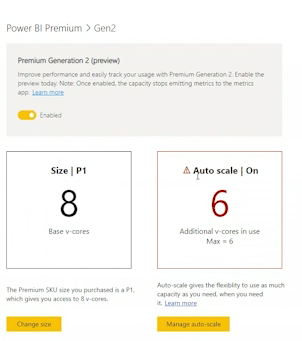
However, Its worth paying some attention to Autoscaling that you can get with Premium Gen 2 (Preview)
Auto Scaling
Previously our Power BI Premium capacity could struggle when there was high capacity. For example If we reached full capacity, someone’s automatic refreshes would fail. Or if too many things were happening on the server, report users would find that reports were taking longer to render.
There are lots of use cases where this could happen so Auto scaling is definitely something that can help with these issues.
You can now scale and autoscale using Azure Pay as you go, which is around £62 per vCore for a 24 hour period
We use the DTU Pricing structure in Azure for SQL DBs. What is the difference between the DTU and the vCore pricing structure?
Autoscaling is an opt in feature and can be charged to an Azure Subscription
Once the spike is over, scale down happens and you stop paying for the scale up.
Autoscale Notifications
Toasts pop up in Admin Portals Capacity Settings to let your admin know when autoscale is running.
It would be good to be able to tell everyone working with Power BI when this is happening simply for reference
Get Started with setting up Autoscaling in Azure
Go into Azure and Select Subscriptions. You need to have made the decision before hand on which subscription can be used for Autoscaling billing.
Next create an auto scaling resource group
Enable Autoscale in Power BI Admin Portal
To do this you need to be the Power BI Admin (Or Global Admin)
Another addition is that the person needs to be at least a contributor on the Azure Subscription to go through all the steps succesfully
Go to Capacity Settings
Make sure Premium Generation 2 is already enabled
Then Select Manage Auto Scale
Enable auto scale and then select your Azure Subscription
And then assign the number of vCores to the Autoscale
Here we have set the max of 2.
How many vCores does a Premium P1 capacity have?
8 virtual Cores
Once completed you are all set. There are some questions. Apart from the Toast pop ups are there other ways to monitor and log the usage of Autoscaling?
The big takeaway from all this is that we should never be in a situation where we are surprised that we have reached capacity. Or, if we do set up Auto Scaling it should not be used on a day to day basis.
More investigation is needed on how to set up proper monitoring so we have full knowledge about what is going on in Premium Capacity. And we must never forget that there will be Pro workspaces already set up and these shouldn’t go under the radar either.
We will have a look at these issues in future posts
It can be quite infuriating to be a Power BI Pro user and constantly be on the verge of doing something, before realising that its only available with Premium.
Thank goodness for Power BI Premium Per User for smaller companies. At just double the price per user licence, all these enterprise level goodies can be available. I wanted to do a whistle stop tour of each one, and some others I have found along the way
Automated Machine Learning
No code machine learning is great if you arent a data scientist and you want to try out some basic machine learning.
For this example I have gone to my dataflow in Power BI Service
I am going to use my date dataflow just as an example, but obviously this isn’t the datasource you would want to use
I wont go any further with this example as its not a great one but I just wanted you to get a feel of the first few screens. This is an incredibly powerful feature. once set up you can use this dataflow in Power BI.
You can also integrate Azure ML models that your data scientists have created in Azure with the Azure ML API
Cognitive Services
I have previously used Cognitive Services in Azure to add sentiment analysis and key phrases onto tweets as they come in via an Azure Logic App trigger.
This information is then loaded into Power BI Pre prepared.
I have struggled to access this functionality within Power BI previously but hopefully this will allow Power BI users proper access to this fantastic Azure Service
Within Power BI Query Editor (Dataflows in Service)
If you are in Pro you will see the following
With Premium however you can use the following functions
Just a couple of examples, you can take descriptive data and score it with ScoreSentiment. Then you can take these scores and add a new column for Sentiment (Positive, Negative, Neutral)
You can add a language field that will tell you if your test item is for example, English, German, French etc.
And you can extract key phrases from descriptive text to add a cool word cloud to your power BI report.
No code data prep and scale
Visual Data Prep is another area that needs looking at in more detail but this is available in Premium dataflows
You now get a great diagram view of all the actions done on your queries.
This will make things much easier for users who can now interact with the diagram view.
Deployment pipelines
Assign your development App Workspace and Pipelines will then let you create Test and Production App Workspaces. Each workspace can be pointed to different data sources.
You can then very easily work in development. move your work to test and then to production when its ready to use.
As at April 2021 Dataflows haven’t yet been added but once this is in, I think this is really the only way to go with Power BI.
Having done some research on Dev Test and Prod in Power BI Pro this makes a huge difference as its practically unworkable in Pro
Integration with Azure Synapse
Azure Synapse is the new Azure Data Warehouse.
You can now create Power BI reports over big data in Azure Synapse.
And Azure Synapse gives you even bigger wins with performance
Pixel-perfect paginated reports
Report Builder is free. You can download it and even use a model previously created in Power BI.
Here you can build your Pixel Perfect reporting, invoices are a good example. Reports that require page numbers and headers and footers that are most likely to be printed out.
Without Premium you cant publish the rdl files to the Power BI Service.
With Premium, you can publish your pixel perfect report to service along with your other Power BI objects
XMLS read/write
These Endpoints allow other providers access to your Analysis Services Engine within the Power BI Service. This means that you will be able to use even more tools for governance, monitoring, debugging, modelling etc, rather than only being able to use Power BI Desktop.
Your admin does need to allow this within the Admin Portal
Trillions of rows
With Premium, you can query and analyse 1 trillion rows of data. which is part of the ‘query performance over big data’ feature. In fact any large data set can make use of this feature to make refreshes and response times quicker
This is worthy of a more deep dive feature in future but its certainly exciting.
Advanced Security
Here are some of the advanced security features that can be used for your most sensitive data
Compute isolation
Double Encryption at Rest
Double Encryption in transit
Private links
Zero egress
Immutable logs
TLS 1.2
Customer Managed Keys
VNet Network isolation
Immutable storage logs
FedRAMP high & DISA IL4
DISA IL5, DISA IL6 + IDC503
Vulnerability management
Automatic Certs rotation
End to End protection
Sensitivity labelsand Microsoft Information Protection (MIP)
Sensitivity labels allows you to classify your data across all Microsoft products like power BI, Excel etc.
Its an extra cost and can be purchased standalone or through a Licensing suite like the Microsoft 365 Compliance Plan, Microsoft 365 Business etc.
For pricing you need to contact Microsoft at this time.
Other findings
If you are using dataflows in Pro, you cant create computed entities such as referencing tables. Merging tables.
This means that dataflows in Pro need to be quite simple. you only get the full functionality in Premium.
This is why most people in Pro prefer to do the data prep in Power BI desktop.
Its becoming more and more difficult for business users to remain with Power BI Pro, all these above features are an absolute must for enterprise level reporting.
It is really worth that switch to either Power BI Premium per user or a Premium node if you are a large enough company
Direct Query for Power BI datasets and Analysis Services feature has currently been in preview for a couple of months
Switching this feature to on, should hopefully allow us to create reports over multiple data sets, which will allow use to have smaller datasets, maybe just over a single model. These can then be connected together in the report
And we couldn’t wait to try it out.
We had two data sets. And for one report we wanted to connect to both datasets so we could create reports over the two, without having to create an entirely new larger data set.
However we ran into issues which ended up rendering this unfit for purpose
None of the formatting was remembered from the original datasets
All the folders had disappeared that had been set up in model view
All the Sort by items had gone.
Both models connected to a data dimension, but actually removing one of the date dimensions (from the second model) and connecting the second model to the first models data dimension didn’t seem to work very well.
We have lots of use cases where this would be perfect. so in the March update, it is mentioned that the team have been working on this. Lets have a look at see if this is now a viable option for us.
The source data sets
Data set 1
We have some folders for the measures
In the date dimension, month has the sort order of Month No
Seasons has the sort order of Seasons order
And we have a measure set as a Percentage (An example of formatting)
Data set 2
We have again, Folders, Sort orders and Formatting.
Both datasets have a date dimension
lets look and see what happens if we use Direct Query for Power BI datasets and Analysis Services
Remember to turn it on as a preview feature in options and settings
Get data
Choose a dataset (That has been published to an app workspace
Go to model view and remember to upgrade the model view
Issue with layout views
At this point, one of the key issues is that in the shared dataset pbix file, the developer has created multiple layouts in model view to make it easier to work with.
In the report pbix file all the layouts are lost and we are left with the All tables layout.
Not good because the report developer has to redo this work again in this report file
So here is the first model
Import data set 2
we can now get data from another Power BI dataset even though we are connected up to a dataset. Previously you could only connect to one data set.
What does this mean?
With one data set its a live connection, in the same way as you would live connect to analysis services. with Live connection there is no local model.
Direct Query. Direct Query needs a local model adding into the report so in this case, a dataset also gets published to Power BI Service, along with the report.
From this in Power BI Service
To this
Select Add a Local Model
And select the next data set
In this case we are happy with the security because both data sources are within the same workspace and we trust the owners and admins in this workspace.
Click OK
As the report developer I am now looking at quite a complex model in all tables.
The colours denote the two data sets.
Now we need to establish which tables are in twice.
Immediately we can see date and date 2 and these need conforming
You cant delete a table. All you can do is hide it in report view.
In this case date 2 is being hidden (Hide in report View)
And a join is being created between the metrics table in data set 2 and the date table in dataset 1
Remember that you will need to go over your model. Find every table that is being used across the models. Hide duplicates and create relationships
Check for issues
The date table in data set 1 has the above Sorts applied and they are still working in the report
The measures folders are still available in both dataset 1 and 2
However Formatting has been lost on the Percentage measure.
So this leaves us with one major issue across datasets, and we can’t reset all the formatting within the reporting pbix file
As it stands then this is currently not fit for purpose and just needs another extra tweak. Its a real shame because we were really hoping to use this very soon. Hopefully Power BI Sorts it out in the next release.
How do you do schema changes to your model without refreshing the entire model?
This is especially applicable for large models using incremental refresh where refreshing the entire data set takes a long time to process.
The ALM toolkit really helps with this process
The examples I am going to use aren’t incremental refresh but it will hopefully give some idea on how to use the ALM toolkit
And a big proviso here. You can only do this with Premium workspaces
Source
Open your model in Power BI desktop. From here go to External tools and open the ALM Toolkit (Ensure you have the latest version of the AML toolkit downloaded)
The source has already been populated against the open model. We now need to set the target
Target
Go to the service. Workspace Settings.
At this point the workspace needs to be in Premium
You need to copy the workspace Connection which is only available in Premium. Once copied, add into Workspace
We can see that the pbix file and the data set in service are identical. ‘Same Definition‘
Lets make some changes
Adding a new measure
add a new measure in your desktp pbix dataset.
Total Product Standard Cost = SUM(FactResellerSales[ProductStandardCost])
And back to ALM toolkit.
Before continuing, go into Options
Make sure that the Processing Option is default and that we are only going to process affected tables
For table updates, retain partitions should be checked, This is very specific to Power BI Incremental loading. Incremental loading works with partitions and we don’t want ALM toolkit to go to the database and affect any of the partitions ‘For example you could have a partition for every year’
Click Compare
And then Select Actions
Hide Skip objects will get rid of everything that hasn’t changed.
Now we can see the one new measure
We want to add the new measure without completely refreshing the data set
Then go to Update
Are you sure? message is returned
Quick note on XMLA Endpoints
At this point you need to have Read Write enabled on the XMLA endpoint
“XMLA endpoints enable open-platform connectivity to Power BI datasets. With these capabilities, customers can leverage a single one-version-of-the-truth semantic model across a range of data-visualization tools”
To do this you need to be the Power BI Admin or global Admin. In Admin Portal > Capacity settings > Workloads > XMLA Endpoint = read Write
If the next step doesn’t work you may need to speak to your Admin about the above. this is because we are using an external tool to update the schema.
When I tried this, I didn’t notice errors but the changes started to add up as I went along the process.
Back to the Update
Click OK to are you sure? and the measure is quickly updated. the database wasn’t read or updated. All that happened was a quick schema update.
Why would you want to run an upload, full or Incremental for new measures? this is the perfect way of introducing those new measures as quickly as possible.
Adding a calculated Column
Adding calculated columns aren’t advised because they don’t get compressed in the tabular database, Its always worth doing this in Power Query Editor or ideally in your source reporting database.
Back in the desktop file
A simple calculated column is created.
In ALM toolkit go back to Options
Again, the following options should be set
Then go to Compare. Select Actions and Hide Skipped Objects
And here is the new calculated Column.
Next click Validate Selection
If we were working with Incremental refresh and partitions you would see all your partitions here along with the above information.
If you have these partitions when you update you will see a process message, but don’t worry, it hasn’t done any data processing at the source, its simply added the new column and processed only within the model.
You can go into Power BI Service and do a quick Edit on a report,
drag the new column in to see that there is data for that column, but nothing else has been processed.
Adding new tables or new columns at source or in Power Query Editor
In this case we actually need the data to process.
The measure just needed the DAX to be added to the model.
The calculated column simply used the data already within the data model without doing a process.
For this new logic we do need to process the data.
Back in the ALM toolkit you need to untick, for table updates retain partitions because we now need to pull the data in for all the partitions and process all that data.
Process only affected tables is an important option here, We don’t want to process anything but the new table or column.
Once you have the settings set above you can go on to validate and update. And importantly this time the new data will be processed into the model, rather than just a schema change.
And every partition will be processed on an incremental load because of the change to the settings.
This is an excellent way of dealing with updates on large models but its important to note
Only available for Premium
Ensure Admin Settings – Read Write enabled on the XMLA endpoint
The analysis is performed at the record level of the ‘table’ A field in explain by is not on the ” table or a table from the same data source and related to it by a many to one relationship. Try Summarising it
This model is all about behaviour and attitudes for an event company who put on IT events for companies who want to learn more about cloud based solutions.
The stakeholders are all the people who go on the courses, and those people who arrange the courses.
Its important for the company to know how their customers are reacting to their cloud based events and training. Which ones are doing well or not in terms of reactions.
The trainer or presenter sends out a questionnaire after ever event / course. they also send in their own questionnaire about how they felt the course was engaged with.
I have a Star Schema and in one of the dimensions I have a behaviours table. We want to know what influences behaviour from all the other attributes from around the star schema
There can only be a certain number of behaviour types so this dimension is set as a junk dimension. Each Type of behaviour is joined to the other using a cartesian Join
Every behaviour type is matched to every other behaviour type and then we can simply assign the correct row to the person event and theme
So a stakeholder can go to many events
A stakeholder can hold different behaviours for every event
We want to see what effects behaviour, so the Key Influences visual is the one we really want to use in this project
In this visual we are analysing by Explain by.
Add in a measure from the fact table and it works fine
But this isn’t telling us anything. We need descriptive information from the other dimensions
So lets go for something from Events
And here is where we get the error
The analysis is performed at the record level of the ‘table’
Obviously this part of the error makes sense because we want to understand the behaviour
A field in explain by is not on the ” table
That is correct. we are explaining by a field in another dimension
or a table from the same data source and related to it by a many to one relationship.
Try Summarising it
How to deal with this issue
the error doesn’t give much away but the solution lies in the model.
The recommended single direction join has been used on every single relationship. Therefore, the dimension can filter the fact but the fact cant filter the dimension.
And specific to this model, Another dimension cant filter another dimension
Events and behaviour cant filter eachother.
Unfortunately setting all the relationships to both didn’t resolve the issue either. Maybe the answer lies with DAX
Lets look at that error again
the Keyword in the error is SUMMARISE.
Now we know exactly what we want to use as the ‘Explain by’ Lets see if we can set up a Summary table using DAX










 Debbies Microsoft Power BI, SQL Fabric and Azure Blog