After 14 years using Microsoft On Premise BI Tools (SQL Server, Reporting Services, Integration Services and Analysis Services) Its time to embrace Business Intelligence in the cloud.
We recently had a requirement for a visual for a stacked column chart with a grand total
Our stacked chart contains:
Axis – Month year
Legend – Category
Values – Metric
To get this working we had to create a line and stacked column chart.
The line was hidden so we just had the data points and we just about got away with it. it did look a little messy though.
For the Line we went to Format
And set the stroke width to 0 so the line wasn’t visible. Only the data points and labels are visible.
Now there is a fix for this specific issue so we can try it on this specific report visual
First the report gets changed back to a stacked column chart
In format there is a new Total labels Option
Total labels are now on and a background colour of grey has been used.
The visual now looks much simpler. This small change will make a great deal of difference. time to find all those work arounds in the reports we have already created
To get an understanding of this new feature lets have a quick look at a chiclet
it currently has a rectangle shape behind it. If you click on the rectangle and it becomes highlighted, the shape is brought to the front so we cant see the chiclet
So every time you hover over the report with the rectangle selected it pops up which is quite annoying
With the rectangle still selected, go to its format and switch maintain layer order off.
Now even with the rectangle selected it wont pop up over the chiclet.
This is great if you have more complex reports with bookmarks and underlying shapes to create a nice report structure. You can set this so your backgrounds wont obscure your visuals when you are using the reports.
its a pity this doesn’t do the same within Desktop. When you are developer you are still hit with the same issue. So this only applies to service.
We have been hearing so much about this, I am very excited for Smart narratives
Smart narratives offer insights into your visuals which are also customisable
Lets use the Adventureworks demo report to try it out
Because its still in preview you will need to turn it on in Options and settings > Options
Add Smart narratives to a visual
I have a report than contains a scatter chart. I always find these a bit difficult to read
You can right click on the visual and choose summarize and this will add a smart narrative for that specific visual
We can now immediately see that 2010 was our best year. we are also told what our best selling product was and our highest earning product.
If I click on a bar in the bar chart for year smart narratives doesn’t change. Neither does it change if I click on Europe in the treemap.
It does change if you select a point in the scatter chart
I have selected a point in 2014 which also cross filters the other two visuals.
The smart narrative is actually not that helpful now ‘2014 had the highest total sales’
this isn’t true. Because we have selected 2014 this shouldn’t really be in the text.
The smarter version would be to tell us which month had the highest sales in the calendar year but I only have year in the visual.
Add Smart narratives to a Report
Here is a report created earlier for Sales.
Select Smart narratives from visualisations
we now have some great insights into the report as a whole.
Again there is a problem when, for example you select a year. for 2009 we get
‘Sales Amount and Order Quantity diverged the most when the calendar year was 2009’ This isn’t actually true again, its simply because the selection of 2009 means smart narratives only has 2009 data to go on. I suspect this may need tweaking for the next release for users who are selecting data points
Edit Existing text
We wanted to know the maximum discount applied so a sentence was added to the end, then + Value was selected to add in the new value
You can also use Q&A to add information into the smart narrative
Here we want to add the year to the maximum discount
Each value has a name and we can now find that value and format it
In this instance its worth making sure you name your values properly so you can get back to them.
Here I set the Maximum discount to English pounds
We can also make our text bold
So far, really good, I cant wait to use this on reports. However some work needs to be done when a user selects a value on a visual because the narrative only works on the selected item and therefore assumes it the highest value.
It would also be great if the smart narrative set things in bold automatically like values and years
Other than that great start. it would be interesting to see how it does against other tools like Oracle and Tableau’s offering.
When you create a dataflow in Power BI Service without using Premium capacity you may hit issues Like ‘cant refresh dataflow
Linked Entities are when you link objects from different dataflows within Power Query Editor. to create transformations over a linked entity you need to create a computed entity that references the linked entity. There are none of these in this particular project but I do have…..
Computed entities are entities that reference linked entities, and which rely on in-storage calculations for performance and scale. Unlike “normal” entities which use the Power Query M engine to extract data from external data sources, and to load it into CDM Folders in Azure Data Lake Storage gen2
Data had been duplicated from the original table in the dataflow, but it had accidentally been created as a reference so it couldn’t be done.
As soon as you reference another query in a dataflow a Computed Entity is created.
This led to a bit of research on differences between Query Editor in Desktop and Service and how you can avoid the above issues.
Its also very possible that the dataflow in Service is slower than in desktop. After advocating the use of dataflows when creating solutions within teams and large scale organisations I wanted to get more information.
To get more understanding on what is going on in the Dataflow:
The dataflow is stored as csv data. It may be partitioned into multiple physical files.
Power BI service ingests the contents of all of these files and loads them into memory.
It then performs a table-scan on each set of data to do the join or other transformations
It doesn’t use indexing of data typing because its schema-less (without the benefit of any indexing or data typing because schema-less.)
This is inefficient, and slow.
There are possibilities of moving your dataflows into your own Gen2 DataLake to extend capabilities over the data with Azure machine learning
Lets have a look at some Computed entity Examples
Referencing tables
Right click on customer and create reference to create additional the reference table
Note that the new table shows an icon of ⚡
Merging tables
Merging also created computed entities too which means that there will be no way to merge keys into fact tables when doing star schema modelling.
Append
Computed entities also occur with appended queries
So far it would seem that in order for dataflows to be the best option you should be in Premium capacity to make use of computed entities OR your transformations should be done at source.
Dataflows and Query Folding
There are also other things to consider when working with dataflows
It would seem that if you use the dataflow in Service, Power BI Query Editor cant use Query Folding at all.
Query Folding
This happens in Power Query editor to help increase performance. Query folding takes your edits and transformations which are also tracked as native queries in SQL (For example)
This ensures that the queries can done on the original data source without taking up Power BI resources
There are benefits like faster refresh and automatic compatibility with Direct query. This is because the transformations in Power Query Editor are done at source and uses the results to load into power BI tabular model.
You achieve best data refresh performance by ensuring that query folding occurs
Before we have a look at Query Folding in a Desktop File lets get some answers on what does and doesn’t support Query Folding. there is no definitive guidance on this so these are only a few examples
What does support Query Folding
Filtering (on rows or columns)
Aggregates and GROUP BY
Joins
Pivot and unpivot
Duplicating columns
Numeric calculations
Simple transformations, such as UPPER, LOWER etc
Removing columns.
Renaming columns
Filtering rows
Merging queries
Appending queries
Custom columns with simple logic
Pivot and Unpivot
What doesn’t support Query Folding
Merge columns
Indexes
Changing Date to Year, Month name etc
Merging queries based on different sources.
Appending queries based on different sources.
Adding custom columns with complex logic.
Changing a column data type.
Desktop Power Query Editor
To look at query folding, the source can’t be a Power BI report over a data file because only a database can support Query folding like Azure SQL DB for example.
Right click on your step. If View Native Query is enabled, the SQL can track the M Query
You can also look at the SQL that has been created
select [].[DateKey] as [DateKey], [].[FullDateAlternateKey] as [FullDateAlternateKey],
[].[DayNumberOfWeek] as [DayNumberOfWeek], [].[EnglishDayNameOfWeek] as [EnglishDayNameOfWeek],
[].[SpanishDayNameOfWeek] as [SpanishDayNameOfWeek], [].[FrenchDayNameOfWeek] as [FrenchDayNameOfWeek],
[].[DayNumberOfMonth] as [DayNumberOfMonth], [].[DayNumberOfYear] as [DayNumberOfYear],
[].[WeekNumberOfYear] as [WeekNumberOfYear], [].[EnglishMonthName] as [EnglishMonthName],
[].[SpanishMonthName] as [SpanishMonthName], [].[FrenchMonthName] as [FrenchMonthName],
[].[MonthNumberOfYear] as [MonthNumberOfYear], [].[CalendarQuarter] as [CalendarQuarter],
[].[CalendarYear] as [CalendarYear], [].[CalendarSemester] as [CalendarSemester],
[].[FiscalQuarter] as [FiscalQuarter], [].[FiscalYear] as [FiscalYear],
[].[FiscalSemester] as [FiscalSemester], [].[FullDateAlternateKey] as [FullDateAlternateKey - Copy]
from [dbo].[DimDate] as [_]
Moving onto the next step. Creating month name from date
Query folding is greyed out. You cant query fold on this step because SQL cant be created to represent creating the month name from a date.
And If the date is duplicated again after this, View Native Query is also greyed out. Once you have done a step that prevents query folding, no more query folding can happen.
This represents quite a complex problem. If you want to use Query folding for faster refresh you need a very in-depth understanding on what you can and cant do with Query folding (Like creating an Index etc) and attempt to do everything first before you introduce steps that will stop query folding.
After developing lots of Power BI reports, I cant even imagine being able to think at this level.
Merge
lets have a look at a step you can do that works with Query folding
Merging your Query allows you to keep Native Query
from [dbo].[DimProduct] as [_]
) as [$Outer]
left outer join [dbo].[DimProductSubcategory] as [$Inner] on ([$Outer].[ProductSubcategoryKey2] = [$Inner].[ProductSubcategoryKey])
So, its really worth doing, especially if you are working with a large data set. However its a difficult one to achieve.
Service Power Query Editor
We have looked at Query folding in Desktop. Now lets look at Query Editor in Service, which is the recommended way to go at enterprise level (dataflows).
When you right click on a Step in Service, the option is not available.
You cant query fold in the dataflow and there currently doesn’t seem to be any plans to do so.
Tips
Anything that cant be query folded would be better off created within your SQL Database reporting area
Look through all your applied steps. find where Native query option is disabled. Are there any steps after this that could use Query folding. It may be worth trying to restructure the order of steps
If you use dataflows you cant do any Query folding which needs to be an accepted negative for going the dataflow route
If you cant query fold there is a possibility of using Native Queries. However be aware that once you do this, no query folding can happen if you are in Desktop.
.xlsx, .csv, .txt files (etc) cant use query folding but don’t tend to be large data sets
Do as much transformational processing as you can at source. for example a SQL Reporting database
Currently, if your dataflow fails the only person who will be notified is the owner of the dataflow.
We want all our developers within the team to know. There doesn’t appear to be any way to do this at the moment but there is a workaround that was suggested to me by on the Power BI Forums by collinq as an idea starter and I thought I would run with it and see what happens.
It all relies on a Refresh date
Refresh date
In my main dataflow I have the following Query
This was created from a blank query
let Source = #table(type table[LastRefresh=datetime], {{DateTime.LocalNow()}})in Source
This gets updated every time there is a refresh on the main dataflow
Create a New Report in Power BI Desktop
Go to Power BI desktop and Get Data
Dataflow is the source of the data
And we only need this object
I am going to edit the Query in Power Query Editor
Last Refresh date has been split into Date and time.
Then a custom column was created for todays date
DateTime.LocalNow()
This was split into Date and Time. It is very likely that we may decide to use time later so this is why it has been added for now.
Now we find the number of days between the last refresh and today
0- is added to remove the minus at the start of the number so -1 becomes 1
Close and Apply and a card is added
Publish to Service
Power BI Service
Go to the report that has just been created
And Pin the card to a dashboard. In this case, an Issues dashboard has been created
The idea at this point is. If the Refresh date isn’t refreshed the number of days between will become 2 because todays date will change and we can be notified
This will need testing
Power BI Dashboard (Create Alerts)
Go to the dashboard
Choose Manage Alerts
We want to know if it goes above 1. this means that last nights refresh has failed to happen.
(But if it fails to happen, will the Current date refresh?)
At present, an alert will only be sent to the owner of the report and it will be seen within Power BI but we want everyone to know.
This is why we are going to use Power Automate / Logic Apps
We have an Azure Subscription so I can add a Logic App within our subscription
Instead of clicking the above link we are going to go into Azure, but the principal will be the same
Save the Alert
Schedule a refresh
The new report has created a dataset
go to Settings and Scheduled refresh to keep this up to date
Azure Logic Apps
Create a new Logic App in Azure
Search for Power BI. We want the trigger ‘When a data driven alert is triggered(Preview)
I am signing in with my own credentials (Note that my password is updated every month so if these credentials are used it will need adding into the governance.
Our alert has been saved and added to the alert list
Just for the time being its being left at 3 times a day
We have our trigger, now we need to know what will happen on the trigger
New Step
for the time being chose a fairly easy option of sending an email
You can search for the dynamic content as you create the body and subject. Here we want to bring to attention the value in the tile and the alert threshold.
The HTML <li> element is used to represent an item in a list
The <strong> tag is used to separate the text from the rest of the content. Browsers traditionally bold the text found within the <strong> tag
The <big> tag is used to make the text one size bigger
The <ul> tag defines an unordered (bulleted) list
The <a> tag defines a hyperlink, which is used to link from one page to another. The most important attribute of the <a> element is the href attribute, which indicates the link’s destination.
I have added two users to the email so they can both be notified
Save your logic app. Its ready
Testing the New Process
The dataflow is schedule to refresh at 11 PM
Dataflow issues data flow is scheduled at 12 AM
On the night of the 28th of September, everything failed. I got the emails because I am the dataflow owner but no email from the actual set up.
Testing has failed
lets have a look to see whats happened.
We have two fails, and one on the dataflow we have set up
It looks like the refresh token expired. Please go to this dataset’s settings page, and reenter the OAuth2 credentials for the Extension data source.
Going into the report and we still see this
Which is incorrect.
We would get more of an understanding if we could match up the dates to what is happening.
However its clearly not updated
Dataflow Settings
Scheduled refresh is on and set to run at 12 midnight. The errors were emailed through just after 11.
The alert is there.
lets go back to desktop and add some more information.
After a refresh in Desktop we can now see this information
Which is correct. this says to me that even though we have a refresh going on, it didn’t refresh in Service possibly. The new report is published up to Service.
Back in Service
This is interesting. Our new multi row card shows the correct information. However our card still says 1 day which isn’t correct.
A quick refresh of the data set and we can still see one on the card so we have a difference in between Service and Desktop.
Refresh of the report and now its worked and we can see 2 days difference
So there are a few issues here. Why did it not refresh the card on the data set refresh but it did when the actual report was refreshed?
Its actually the dashboard that is doing the work here. the new multi card is pinned to the dashboard. lets go and have a look at it.
The dashboard only updated once the new visual was pinned to it
So the failure has been that the report and dashboard didn’t refresh, even though it is set to refresh.
You can get to the data set refresh history in Data sets and then Refresh History
And you can get to the Dataflow refresh history via Dataflows
Data Set Issues Refresh History
Dataflow Issues Refresh History
The actual Schedule seems to be fine. All I can think of is that possibly at 12 it is still 1 day so I could possibly introduce more data refreshes to the dataflow issues data set
Test 2 Adding more refreshes on the Dataflow issues data set
Its a very quick refresh because its just two dates. Lets see if this changes things.
Since starting to use Power BI we have been advocating the following ‘basic’ model
However. You can also create reports within Power BI Service. This is mentioned within the certification route for DA 100 Analysing Data with Power BI. Which makes things a little more confusing and I have been asked on lots of occasions. “If you can do everything in Service, what is the point of using Desktop?”
This post will hopefully answer that question.
Creating Reports in Service
First of all lets have a look at how creating a report would work in Service.
Within the Adventureworks Workspace, Click on New and go to Report
Now Select a dataset to create a report
You are shown your list of datasets that are available to you so immediately its clear what this route could be used for:
The Report Analyst. the DAX and Data model have been built and the analyst can simply add visuals over the dataset created
Within service, a very basic report is created.
As the analyst I realise that I want more DAX
If you click on … to get to the options against a table, You cant create DAX.
So if you create your reports in Service you cant create DAX.
You also cant do anything with the data model if required
And you cant go to the data pane like you can in Desktop
Data and Model aren’t available like they are within desktop.
When you are dealing with a larger model, its always useful to be able to flick across to the model area to view your model, to get a good idea of what you are working with. Because of this, its not recommended to work with the Reports in Service if you look at the data model as a guide whilst creating reports.
Saving your reports in Service
Continuing on with the process. Click Save
The Adventureworks report is now added as content. Lets have a look at Lineage by changing the View to Lineage.
The new report is now up but this leaves some confusion. Which reports are maintained within Desktop and which reports aren’t? There is no way of knowing. Both the above reports look the same.
Within the Adventureworks report which was created in desktop, you can go to Edit
and Download report (which is currently still in Preview)
Obviously you would want to get the current file from the owner of that file but this is one way of generating pbix file is behind the report.
You can do the process above with the Service created report. This increases complexity and possible confusion. How do we know as users what reports have a pbix file and which do not?
The only answer is to go to the Lineage and find the contact to ask
Editing a Report in Service
Before looking at editing a report, lets get a quick overview of Roles in Power BI
Viewer
The viewer role isn’t set in the Workspace anymore. This is best done within the App to allow report readers to view content
It seems the only reason we have viewer if you wanted to test what your report users can do within the workspace.
They can only view content and set their own personal bookmarks. Create comments etc. they cant edit the content.
Contributor
the contributor role is the developer role.
Publish your report into the workspace
Edit the content in the workspace if required by building dashboards
Delete any content within the workspace
You get access to all the workspace objects and can analyse in Excel etc
At contributor level you cant publish into an app. Only the Member or Admin can do this.
Member
Members can do all the actions of Contributors but they can also publish and update apps. this essentially allows the member to push content into the production area. (Bearing in mind that Premium Power BI Pipelines allow you to fully manage your Lifecycle with Dev Test and production workspaces)
Admin
The Admin has full access to the workspace. In addition to Member actions they can add more admins and more users and delete the workspace.
Issues with Editing Content
For this example, I am a Contributor within someone else’s App Workspace
Contributor allows you to Edit, So without letting the owner of the report know, I add a new page with a visual and Save.
In the meantime, the report creator decides to update and republish their report from the pbix file.
Once republished by the pbix owner all my work is gone.
This is another reason to be very careful when editing reports in Service. If you intend to continue to update your pbix file, anything created in Service should be moved into the pbix before republishing, which relies on your business governance.
Final notes
The only data set that cant be added to a pbix file is a real time streaming data set. data is added to a temporary cache so it expires and you can only use streaming visuals for this type of streaming data set.
Otherwise, with all other data sets, the recommendation is to create a file within Power BI desktop.
This is a great visual to check if you are thinking of editing in Service
Even then you need to think about usage and if the report has a pbix file underneath it.
Personally, it creates too much added complexity when creating and editing reports in service. if you have contributor access you should have Power BI desktop.
lets have a final look at types of Power BI User
Your central BI dev team should be working with Power BI Dataflows in Service where possible to separate the transformations into Service away from the model and the DAX. they should be creating reports in desktop
Your Power users will also be using Desktop and may also be taking advantage of promoted dataflows
Consumers should be accessing from an App only.
The only use case of the edit could be at analyst level, where the analyst is taking advantage of a promoted or certified data set and building out from what is there (With contributor role)
At this point, its recommended to come up with some governance here. Is this use case ok within your company, OR should all reports have an underlying file created in Desktop?
The choice is at individual company level but we prefer to ensure that desktop is used and reports are not created or edited at Service Level. That we we can put governance in place on the pbix files themselves and be in a better position at managing the full scope of Power BI.
Personalised visuals have been out for a while (The ability for report consumers to change the visual to more suit their needs), but we need to make sure that users aren’t over whelmed by field options.
Lets look at a quick demo using Adventureworks data.
First of all, you need to make sure Personalised Views are enabled in Options
Enable Personalised views
Its not enough to turn the preview feature on. You have to enable it. for this example its going to be done in Power BI Desktop
Personalised visuals has been set up at current file level because there may be other reports that you don’t want to enable this on.
First of all create a simple visual
Note the new icon which denotes that it can be personalised.
This visual gets published up to your App Workspace. Then published to the Power BI App for your report consumers
If you have a lot of fields you might not want to overwhelm the users with them in Axis and Legend as above.
Tabular Editor
Back to Desktop and we can open up Tabular Editor (Ensure you have the latest version downloaded)
You are immediately connected to the tabular data model and can see the tables and the empty Perspectives folder.
Right click on Perspectives and choose New Perspective and name the perspective
Go to tables and fields then right click and add to perspective
When you Show an item in perspectives, it doesnt change the perspective. Which is a little annoying because you cant see what you have added. If you try adding the item again it will be greyed out which is the only way of knowing at this point.
It would be helpful to see the list of items that you have added
Save in Tabular Editor and also in your Power BI desktop file
Back to Power BI Desktop
Without selecting a visual click on Format for the entire report
There is a new Personalize Visual menu item which can now be set to the perspective Created in Tabular Editor
Hopefully soon we will be able to select visuals to personalise and select perspectives at visual level rather than at report level to further lock down what should be seen per visual. This would be most helpful.
Save and Publish to Service and your user will only be able to work with those items in the perspective
Power BI Service
Now only items available in the perspective are available to the user
Future hopes for Personalised Visuals
make it easier to see the list of items in the perspective in Tabular Editor
Set Personalised at Visual level rather than report level
It would be even better to have them set at Axis, Legend and Values level. You could make all measures available to the Values Perspective only which would be really helpful.
So a great start but I hope they introduce the functionality above to make this new functionality even better for our users
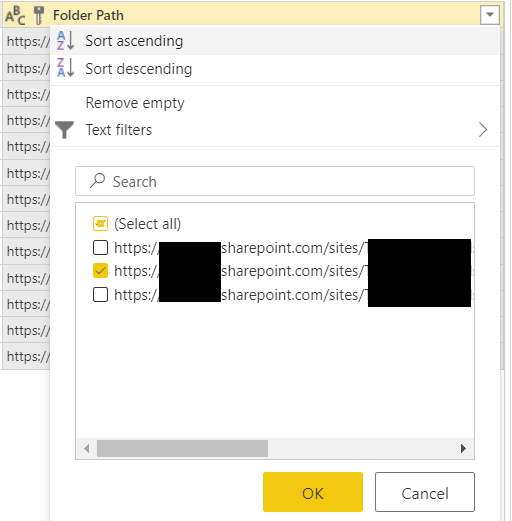
the Source file Contains the Sharepoint side and the folder that we have filtered on
Parameter
let
Parameter = #"Sample file" meta [IsParameterQuery = true, IsParameterQueryRequired = true, Type = type binary]in  Parameter
This is taking the Sample File(s) as the parameter
Parameters allow us to pass information or instructions into functions and procedures
Function
let
Source = (Parameter as binary) => let  Source = Excel.Workbook(Parameter, null, true),  Navigation = Source{[Item = "IDB", Kind = "Sheet"]}[Data],  #"Promoted headers" = Table.PromoteHeaders(Navigation, [PromoteAllScalars = true]),
#"Changed column type" = Table.TransformColumnTypes(#"Promoted headers", {All the columns})
in  #"Changed column type"in  Source
And the function applies the parameter as the source and then does all of our transformation steps
A function is a block of organized, reusable code that is used to perform a single, related action
Power BI has done some of the hard work for us. We can continue to add steps to our transformation processes and so long as the format of all the files are the same we should be able to refresh the data and continue to combine new files from the Sharepoint folder








 Debbies Microsoft Power BI, SQL Fabric and Azure Blog