After 14 years using Microsoft On Premise BI Tools (SQL Server, Reporting Services, Integration Services and Analysis Services) Its time to embrace Business Intelligence in the cloud.
We have been working with Power BI Premium for a few weeks. Simply switching it on and seeing how it goes.
However, Its worth paying some attention to Autoscaling that you can get with Premium Gen 2 (Preview)
Auto Scaling
Previously our Power BI Premium capacity could struggle when there was high capacity. For example If we reached full capacity, someone’s automatic refreshes would fail. Or if too many things were happening on the server, report users would find that reports were taking longer to render.
There are lots of use cases where this could happen so Auto scaling is definitely something that can help with these issues.
You can now scale and autoscale using Azure Pay as you go, which is around £62 per vCore for a 24 hour period
We use the DTU Pricing structure in Azure for SQL DBs. What is the difference between the DTU and the vCore pricing structure?
Autoscaling is an opt in feature and can be charged to an Azure Subscription
Once the spike is over, scale down happens and you stop paying for the scale up.
Autoscale Notifications
Toasts pop up in Admin Portals Capacity Settings to let your admin know when autoscale is running.
It would be good to be able to tell everyone working with Power BI when this is happening simply for reference
Get Started with setting up Autoscaling in Azure
Go into Azure and Select Subscriptions. You need to have made the decision before hand on which subscription can be used for Autoscaling billing.
Next create an auto scaling resource group
Enable Autoscale in Power BI Admin Portal
To do this you need to be the Power BI Admin (Or Global Admin)
Another addition is that the person needs to be at least a contributor on the Azure Subscription to go through all the steps succesfully
Go to Capacity Settings
Make sure Premium Generation 2 is already enabled
Then Select Manage Auto Scale
Enable auto scale and then select your Azure Subscription
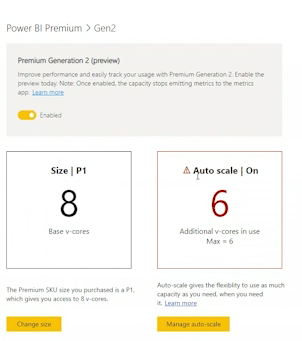
And then assign the number of vCores to the Autoscale
Here we have set the max of 2.
How many vCores does a Premium P1 capacity have?
8 virtual Cores
Once completed you are all set. There are some questions. Apart from the Toast pop ups are there other ways to monitor and log the usage of Autoscaling?
The big takeaway from all this is that we should never be in a situation where we are surprised that we have reached capacity. Or, if we do set up Auto Scaling it should not be used on a day to day basis.
More investigation is needed on how to set up proper monitoring so we have full knowledge about what is going on in Premium Capacity. And we must never forget that there will be Pro workspaces already set up and these shouldn’t go under the radar either.
We will have a look at these issues in future posts
It can be quite infuriating to be a Power BI Pro user and constantly be on the verge of doing something, before realising that its only available with Premium.
Thank goodness for Power BI Premium Per User for smaller companies. At just double the price per user licence, all these enterprise level goodies can be available. I wanted to do a whistle stop tour of each one, and some others I have found along the way
Automated Machine Learning
No code machine learning is great if you arent a data scientist and you want to try out some basic machine learning.
For this example I have gone to my dataflow in Power BI Service
I am going to use my date dataflow just as an example, but obviously this isn’t the datasource you would want to use
I wont go any further with this example as its not a great one but I just wanted you to get a feel of the first few screens. This is an incredibly powerful feature. once set up you can use this dataflow in Power BI.
You can also integrate Azure ML models that your data scientists have created in Azure with the Azure ML API
Cognitive Services
I have previously used Cognitive Services in Azure to add sentiment analysis and key phrases onto tweets as they come in via an Azure Logic App trigger.
This information is then loaded into Power BI Pre prepared.
I have struggled to access this functionality within Power BI previously but hopefully this will allow Power BI users proper access to this fantastic Azure Service
Within Power BI Query Editor (Dataflows in Service)
If you are in Pro you will see the following
With Premium however you can use the following functions
Just a couple of examples, you can take descriptive data and score it with ScoreSentiment. Then you can take these scores and add a new column for Sentiment (Positive, Negative, Neutral)
You can add a language field that will tell you if your test item is for example, English, German, French etc.
And you can extract key phrases from descriptive text to add a cool word cloud to your power BI report.
No code data prep and scale
Visual Data Prep is another area that needs looking at in more detail but this is available in Premium dataflows
You now get a great diagram view of all the actions done on your queries.
This will make things much easier for users who can now interact with the diagram view.
Deployment pipelines
Assign your development App Workspace and Pipelines will then let you create Test and Production App Workspaces. Each workspace can be pointed to different data sources.
You can then very easily work in development. move your work to test and then to production when its ready to use.
As at April 2021 Dataflows haven’t yet been added but once this is in, I think this is really the only way to go with Power BI.
Having done some research on Dev Test and Prod in Power BI Pro this makes a huge difference as its practically unworkable in Pro
Integration with Azure Synapse
Azure Synapse is the new Azure Data Warehouse.
You can now create Power BI reports over big data in Azure Synapse.
And Azure Synapse gives you even bigger wins with performance
Pixel-perfect paginated reports
Report Builder is free. You can download it and even use a model previously created in Power BI.
Here you can build your Pixel Perfect reporting, invoices are a good example. Reports that require page numbers and headers and footers that are most likely to be printed out.
Without Premium you cant publish the rdl files to the Power BI Service.
With Premium, you can publish your pixel perfect report to service along with your other Power BI objects
XMLS read/write
These Endpoints allow other providers access to your Analysis Services Engine within the Power BI Service. This means that you will be able to use even more tools for governance, monitoring, debugging, modelling etc, rather than only being able to use Power BI Desktop.
Your admin does need to allow this within the Admin Portal
Trillions of rows
With Premium, you can query and analyse 1 trillion rows of data. which is part of the ‘query performance over big data’ feature. In fact any large data set can make use of this feature to make refreshes and response times quicker
This is worthy of a more deep dive feature in future but its certainly exciting.
Advanced Security
Here are some of the advanced security features that can be used for your most sensitive data
Compute isolation
Double Encryption at Rest
Double Encryption in transit
Private links
Zero egress
Immutable logs
TLS 1.2
Customer Managed Keys
VNet Network isolation
Immutable storage logs
FedRAMP high & DISA IL4
DISA IL5, DISA IL6 + IDC503
Vulnerability management
Automatic Certs rotation
End to End protection
Sensitivity labelsand Microsoft Information Protection (MIP)
Sensitivity labels allows you to classify your data across all Microsoft products like power BI, Excel etc.
Its an extra cost and can be purchased standalone or through a Licensing suite like the Microsoft 365 Compliance Plan, Microsoft 365 Business etc.
For pricing you need to contact Microsoft at this time.
Other findings
If you are using dataflows in Pro, you cant create computed entities such as referencing tables. Merging tables.
This means that dataflows in Pro need to be quite simple. you only get the full functionality in Premium.
This is why most people in Pro prefer to do the data prep in Power BI desktop.
Its becoming more and more difficult for business users to remain with Power BI Pro, all these above features are an absolute must for enterprise level reporting.
It is really worth that switch to either Power BI Premium per user or a Premium node if you are a large enough company




 Debbies Microsoft Power BI, SQL Fabric and Azure Blog