
We have a current use case where we have a Sharepoint folder that will contain monthly files.
We want to create a dataflow that contains everything that we need to pull into a shared data set
The point of this is to have one data set filtered to the correct folder you wish to use.
Then bring in all the data into one data flow. This means that each file should have an identical spec or you will get errors
Step 1 is to open up a Power BI Service and create a dataflow
Ensure you know where your files are in Sharepoint
There are two example files and we have the base Sharepoint URL
In Power BI Desktop get Data

We want Sharepoint online folder

Add in the base address of your Sharepoint site as above and click Next

At this point you can see all your files in all the folders in Sharepoint

Just click OK. we don’t want to combine all the files from all the folders.

What you want to see now is just one applies step (source)
and we can see the two files that we want to merge. Scroll to folders and then filter on the folder
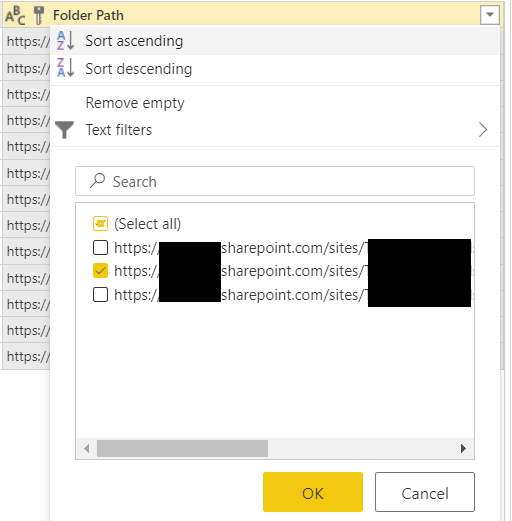
Click on OK

We are left with the two files in the selected folder
click on the arrows against Content


Its using Example File as the first file. In this example click on IDB to continue and OK

The Data is now in Power Query Editor. We have a Source name column which contains the files. Here we can see our two files.
Notice that you have additional Queries. along with your query

- There is a Sample file
- A Parameter
- and a function
Sample File
let
Source = SharePoint.Files("https://Co.sharepoint.com/sites/TeamDataStore/",
[ApiVersion = 15]),
#"Filtered rows" = Table.SelectRows(Source, each [Folder Path] = "https://Co.sharepoint.com/sites/teamDataStore/Shared Documents/General/Submissions/"),
#"Filtered hidden files" = Table.SelectRows(#"Filtered rows",
each [Attributes]?[Hidden]? <> true),
Navigation = #"Filtered hidden files"{0}[Content]in  Navigation
the Source file Contains the Sharepoint side and the folder that we have filtered on
Parameter
let
Parameter = #"Sample file" meta [IsParameterQuery = true, IsParameterQueryRequired = true, Type = type binary]in  Parameter
This is taking the Sample File(s) as the parameter
Parameters allow us to pass information or instructions into functions and procedures
Function
let
Source = (Parameter as binary) => let  Source = Excel.Workbook(Parameter, null, true),  Navigation = Source{[Item = "IDB", Kind = "Sheet"]}[Data],  #"Promoted headers" = Table.PromoteHeaders(Navigation, [PromoteAllScalars = true]),
#"Changed column type" = Table.TransformColumnTypes(#"Promoted headers", {All the columns})
in  #"Changed column type"in  Source
And the function applies the parameter as the source and then does all of our transformation steps
A function is a block of organized, reusable code that is used to perform a single, related action
Power BI has done some of the hard work for us. We can continue to add steps to our transformation processes and so long as the format of all the files are the same we should be able to refresh the data and continue to combine new files from the Sharepoint folder
 Debbies Microsoft Power BI, SQL Fabric and Azure Blog
I want you to thank for your time of this wonderful read!!! I definately enjoy every little bit of it and I have you bookmarked to check out new stuff of your blog a must read blog!
360DigiTMG
LikeLiked by 1 person
Thank you so much. I started it just to keep my own thoughts together so it’s great to know people are getting something out of my posts
LikeLike
Hello! Im Benyamin Ebrahimi. Nice post. Thanks for sharing!
LikeLike
Hello! Im Benyamin Ebrahimi. Nice post. Thanks for sharing!
LikeLike
I am glad to discover this page. I have to thank you for the time I spent on this especially great reading !! I really liked each part and also bookmarked you for new information on your site. hope you will also like this national tree of pakistan
LikeLike
Nice blog thanks for sharing your knowledge with us
Java course in Hyderabad
LikeLiked by 1 person
nice post,
data science course in Bangalore
LikeLike
Thanks for the amazing information. please continue to share . Data scientist course in Delhi
LikeLike
Thanks for the amazing information. please continue to share . Data scientist course in Delhi | Data Science training in Kolkata | Data Science course in Mumbai
LikeLike
NICE POSTReact
LikeLike
A nice post has been shared. Thanks for that from React Masters
LikeLike
thanks for valuable info
gcp data engineer training
LikeLike
niceReact
LikeLike
Nice Blog
LikeLike
Nicely presented by your side. Home loans in Hyderabad
LikeLiked by 1 person
Thank you so much for your time and effort in creating this amazing content! I truly enjoyed every bit of it and can’t wait to explore more. I’ve bookmarked your blog as it’s definitely a must-read for everyone. Keep up the great work!
Data Analytics Masters
LikeLiked by 1 person
I always find the information I need here. Great job!”
LikeLiked by 1 person
Great post, Debbie! This guide is super helpful for anyone looking to streamline their Power BI workflow with SharePoint. The idea of creating a dataflow to consolidate multiple files into a single dataset is a game-changer. It’s crucial to ensure that each file follows the same spec to avoid errors, as you mentioned. For those seeking advanced training in Power BI and data analytics, Brolly Academy offers a comprehensive <a href=”https://brollyacademy.com/”>Data Science Course In Hyderabad</a>.that can help you master tools like Power BI and more. Keep up the great work
LikeLiked by 1 person
Your post is valuable to us. thank you. <a href=”https://teamtut.com/contact-us/f/online-teacher-training-courses-with-certificate”>Montessori Training Near Me</a>
LikeLike
Great post, Debbie! 👏
This guide offers a very clear, step-by-step walkthrough for setting up a Power BI dataflow to ingest multiple files from a SharePoint folder. I particularly liked how you explained the use of the “Sample file + Parameter + Function” pattern to combine the files.
One suggestion: it might help readers even more if you include a note about error handling when file schemas differ (e.g. if a new file has a missing column or extra column) and how to make the transformations more robust.
For folks working with Power BI and analytics: my institute, Brolly Academy, offers an advanced Data Science & BI training where we dive deep into tools like Power BI, Azure, and data engineering. If you’d like, I’d be happy to send over the curriculum for your feedback.
Thanks for sharing this — really helpful for anyone building scalable BI workflows!https://brollyacademy.com/data-science-course-in-hyderabad
LikeLike