The Microsoft data Journey so far. From SQL Server, Azure to Fabric

Having lived and breathed Microsoft for over 20 years, it is important to sometimes stop and think about all the changes over those years and all the growth and learning gained from each change to the analytics space.

I started working with on premises Microsoft Products. We had a large room full of Microsoft 2000 servers and a long journey to finally upgrade to 2008 R2.

Integration Services was the orchestration tool of choice and Reporting services (SSRS) was the server based reporting tool.

We were starting to move from basic management reporting into business intelligence, especially with the introduction of SQL Server Analysis Services that became part of the environment when we finally pushed to 2008 R2.

We have come along way since those days.

On Premises Analytics

One of the biggest issues with On Premises was the upgrading to new Servers. We had a lot of servers and applications tied to those servers. Upgrading to the latest release was never easy and sometimes couldn’t be done because of the system it supported.

This led to a real disparity of servers. Some still at 2000. Some 2008 R2. A few lucky ones moving to later versions.

Another big issue specially for the analytics team was the use of the servers. Spinning up a new database needed a lot of work to make sure that whatever was required wouldn’t run out of space or memory. Because there was only a certain amount of these resources for all services.

There were examples of simply not being able to work on a project because of these restrictions.

There is nothing more frustrating as a developer to know there are later releases out there but you are stuck on an old version. Or knowing that you could do so much more with a bit more compute power or space allocation.  There was no room to grow. You had to understand your full limit and work from there. 

Reporting Services (SSRS)

Its interesting to look back on SSRS, Microsoft’s Paginated reporting original solution after using Power BI for so long now.

Yes it delivered fairly basic paginated reporting but it didn’t quite deliver the experience we really wanted to go with for our new Business Intelligence vision.

On Premises to Azure

A career move presented me with the opportunity to start using Azure and Power BI.

Finally, the floodgates seemed to open and new possibilities seemed to be endless. Here are just a few examples of the changes happening at this point

  • Azure allowing us to always be on the latest version. No more wishing that you could use SQL Server 2014 whilst stuck on 2008 R2.
  • Power Bi, interactive data visualisation. The complete gamechanger. We will look at that more later
  • Azure SQL Databases. Here we can now spin up small cheap solutions for development work. Scaling up as we go. Never needing to pay for more than we use. Even having the advantages of upping compute during peak loading times. Always being on the latest version, and so many possibilities of choice.  
  • Serverless SQL DB for example. Great for Dev and UAT. Only unpausing compute resources when you need them.
    • We can still work with our SQL Skills building stored procedures to transform data.
  • Azure Data Lake. Secure Cloud storage for structured and unstructured data. A landing area for our data that also creates opportunities for our Data Science experts.
  • Azure Data Warehouse (Which upgraded to Synapse in 2019) was the offering that allows for MPP Massively parallel processing for big scale data. Along with the serverless SQL Pools (Synapse) to finally give us the chance to do analysis and transformations on the data pre the SQL Database load.
  • Data Factory. The Azure Data Orchestration tool. Another big gamechanger, offering so much more flexibility than Integration Services. Having a solution that can access Cloud resources and on premises resources. So much connectivity.

Power BI

Power BI is Microsoft’s modern analytics platform that gives the user the opportunity to shape their own data experience.

  • To drill through to new detail.
  • Drill down into hierarchies.
  • Filter data.
  • Use AI visuals to gain more insight.
  • Better visuals

And at the heart of everything. The Power BI Tabular storage model. The Vertipaq engine, Creating reporting that can span over multiple users all interacting with these report pages. Each user sending queries to the engine at speed.

I have worked with Analysis Services in the past, along with SSRS. Creating Star Schemas sat in columnar storage without needing to set up Analysis Services was a huge win for me as it was a much easier process.

Of course, you can’t talk about Power BI without understanding how different each license experience is. From the Power BI Pro Self Service environment, through to Power BI Premium Enterprise Level License.

There has been a lot of changes and Premium continues to create fantastic additional functionality. Premium sits on top of the Gen 2 Capacity offering larger model sizes. More compute. Etc.

As a take away. When working with Pro, you should always work with additional Azure resources, like Azure SQL DB, Integration Services etc to get the best end product.

With Azure and Power BI we have worked with the recommended architectures and produced quality analytics services time and time again. But, there were still some issues and pain points along the way.

And this is where Fabric comes in.

Fabric

Fabric is the (SaaS) Software as a Service Solution, pulling together all the resources needed for analytics, data science and real time reporting.  Fabric concentrates on these key areas to provide an all in one solution.

On the whole, for an analytics project, working with customers, our (basic) architecture for analytics projects was as follows:

  • Extract data into a Data Lake using Integration Services on a Schedule
  • Load the data into SQL Server Database
  • Transform the data into STAR schema (Facts and Dimensions) for Power BI analytics
  • Load the data into Power BI (Import mode where ever possible. But obviously there are opportunities for Direct Query, and Composite modelling for larger data sets)

We can see here that the data is held in multiple areas.

Synapse starts to address this with the Serverless SQL Pools. We can now create Notebooks of code to transform our data on the file itself. Rather than in the SQL Database on the fully structured data.

Fabric has completely changed the game. Lets look into how in a little more detail.

Medallion architecture

First of all, we need to understand the architectures we are working with. The medallion architecture gives us specific layers

  • Gold –  Our landing area. The data is added to the lake. As is. No Processing
  • Silver – The Data is transformed and Processed
  • Gold – the data is structured in a way that can be used for Analytics. The Star schema for Power BI.

Fabric allows us to work with the medallion architecture seamlessly. And as announced at Microsoft build in May of this year. We now have Task Flows to organise and relate resources. The Medallion architecture is one of the Flows that you can immediately spin up to use.

Delta Lake

The Delta lake enhances Data Lake performance by providing ACID transactional processes.

A – Atomicity, transactions either succeed or fail completely.

C – Consistency, Ensuring that data remains valid during reads and writes

I – Isolation, running transactions don’t interfere with each other

D – Durability, committed changes are permanent. Uses cloud storage for files and transaction logs

Delta Lake is the perfect storage for our Parquet files.

Notebooks

Used to develop Apache Spark jobs so we can now utilise code such as Pyspark and transform the data before adding into a new file ready to load.

Delta Parquet

Here is where it gets really interesting. In the past our data has been held as CSV’s, txt etc. Now we can add in Parquet files into our architecture.

Parquet is an open source, columnar storage file format.

The Power BI data model is also a columnar data store. This creates really exciting opportunities to work with larger models and have the full suite of Power BI DAX and functionality available to us.

But Fabric also allows us to create our Parquet Files as Delta Parquet, adhering to the ACID guarantees.

The Delta is and additional layer over Parquet that allows us to do such things as time travel with the transaction log. We can hold versions of the data and run VACUUM to remove old historical files not required anymore.

Direct Lake Mode

Along with Parquet we get a new Power BI Import mode to work with. Direct Lake allows us to connect directly to Delta Parquet Files and use this columnar data store instead of the Power BI Import mode columnar model.

This gives us a few advantages:

  1. Removes an extra layer of data
  2. Our data can be partitioned into multiple files. And Power BI can use certain partitions. Meaning we can have a much bigger model.
  3. Direct Query, running on top of a SQL DB is only as quick as the SQL DB. And you can’t use some of the best Power BI Capabilities like DAX Time Intelligence. With Direct Lake you get all the functionality of an Import model.

SQL Analytics Endpoints

If you are a SQL obsessive, like myself you can analyse the data using the SQL analytics endpoint within a file. No need to process into a structured SQL Database

Data Warehouse

Another one for SQL obsessives and for Big Data reporting needs. There will be times when you still want to serve via a structured Data Warehouse.

Conclusion

Obviously this is just a very brief introduction to Fabric and there is so much more to understand and work with. However  using the Medallion architecture we can see a really substantial change in the amount of data layers we have to work with.

And the less we have of data copies, the better our architecture will be.  There are still a lot of uses for the Data Warehouse but for many smaller projects, this offers us so much more.

Its been a long journey and knowing Microsoft, there will be plenty more fantastic new updates coming. Along the way, I would say that these three ‘jumps’ were the biggest game changes for me, and I can’t wait to see what Fabric can offer.

And remember, always use a STAR schema.

*first published on TPXImpact Website

Power BI Composite Modelling (Multiple datasets Report) – Couldn’t load the data for this visual

This blog is for anyone using the new App experience (August 22) and has created a report using multiple datasets and the users can’t see the data

We have

  • A workspace
  • A Dataflow
  • Multiple Datasets
  • A report using all the datasets
  • An App with testers
  • There are two testers with access to the testing report

The app is published but the users only see visuals with no data. When they try to refresh they see this error

This seems to be a issue with the composite model. It turns out that for users of composite model reports you need to have the following turned on.

This means that the people in the testers group can view the composite report. But as a after effect they can also build reports over the datasets.

I believe Microsoft may be aware and are looking into this. But for the time being. Any users of composite reports need to have this permission selected.

Power BI Premium Gen 2 First Look

Currently Premium Gen 2 is in Preview (Jan 20201) but it looks really exciting for those with Premium capacity. Lets have a look at Gen 2 and see how it differs to Gen 1

Gen 1

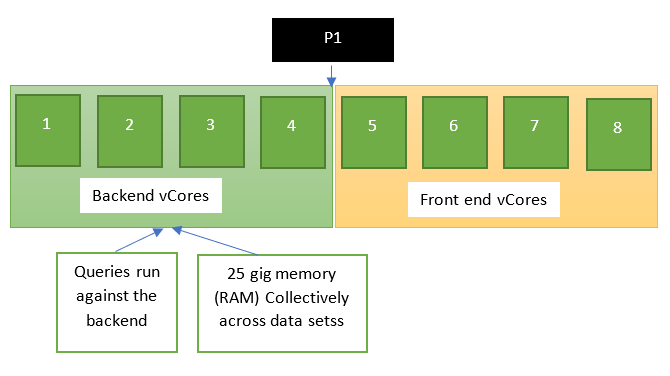
With Premium Gen 1 we are bound by the number of vCores and by the memory we have. Lets take the P1 SKU as an example

P1, P2 P3 P4 = Are all Premium SKUs. Each one has more vCores for better performance

SKU = Stock Keeping Unit

vCores = Virtual Cores is a puchasing model which gives you more control over compute and memory requirements.

When it comes to Premium, reports would slow down if there were two many queries running. And if people were using many models at the same time you would have to wait for your time slot.

As you can see, there is only 25 gig memory across the data sets Once a report isn’t being run and used any more, that memory gets dropped and is added back into the pool.

Report users and report developers are also fighting with report refreshes.

Premium Gen 2

Gen 2 is not in generally availability yet but if you have Premium you can switch to Gen 2 in preview.

In Power BI Admin (as the Power BI administrator or Global Admin)

Go to the Capacity Settings and switch Gen 2 from disabled to enabled.

You can also go back to Gen 1 if you need to but if you do make sure you flag up any issues you are having.

lets have a look at the model compared to Gen 1

Autoscaling

The end users encounter the throttling and performance issues with Gen1 because they physically only have 4 backend vCores. Now with Gen2, Autoscaling allows you to deal with spikes. This is not available yet but will be coming. This is helped by the fact that there are other vCores that can be called on.

If you do come up to the 4 core Limitation it will, or may lend you a vCore so you don’t see impact for your end users

Previously our admins had to deal with this kind of problem but this will really help automate these kind of issues

Memory

Data Sets can go over the 25 gig memory capacity. Previously Premium was 25 gig for all the data sets. Now Data sets are gated individually.

This is a fantastic update. We don’t have to worry about the collective size of all our data sets.

Refreshes

Previously there was a maximum of 6 refreshes at any one time. Otherwise you can get throttled.

With Gen 2, refreshes get spread out over a 24 hour period and don’t impact other queries from users. refreshes just run

The looks great. People are seeing refreshes of an hour and a half coming down to 10 minutes.

Capacity Usage Metrics

This is coming soon and will have a breakdown of items.

Its a little annoying when you have set up gen 2 and want to view the metrics to see how everything is working but currently can’t.

With Gen 2 we will also be able to work against a chargeback model. This means that we can spread the costs of Premium between distinct areas of an organisation dependant upon their usage.

Workloads

Again the workload settings aren’t fully functional at the moment but more will be coming.

For example for data set workloads we can specify minimun refresh intervals and execution intervals. we can detect changes in our metrics.

We don’t have settings for dataflows and AI yet.

Why go with Premium Gen 2 Checklist

  • Performance benefits
  • End users see faster reports
  • Refreshes, we now don’t have refresh bottlenecks and we remove refresh failures due to throttling
  • Premium per user
  • Improved metrics will be introduced soon
  • Autoscaling
  • Proactive admin notifications

Why it may be worth waiting until Preview becomes GA

It looks like people are having some issues with dataflows and there is already be a known issue about this

It looks like this might be fixed quickly, and once dataflows are OK, it seems like. A workaround is to move your dataflows out into another Workspace and then back in but hopefully this will get much better.

Questions

Is Premium Gen 2 going to be the same price as Gen 1?

Is there any way to find out how many dataflows you have if dataflows are an issue?

Will we still give great functionality to the Power BI Pro users?

Azure Built in Tagging Policy Resource Group to Inherit Subscription tags

Ensure your Azure Resource groups are tagged with the Tag from Subscription

In this example we have the following requirements

  • The costCentre tag has been manually added to the Subscription
  • The Resource Group inherits from the container they are in, but can be manually overridden

Costcentre Tag Configuration

  • Modify Resource Group to add the Costcentre tag from the parent Subscription

Go to Policy

And Click on Definitions

Search for Inherit a tag from the Subscription

Currently this only works for Resources. In order to set it to work for Subscriptions it needs updating.

click on the Subscription and then Duplicate definition

The Definition location has been set to a subscription but you can also set it to a Management Group

{  “mode”: “Indexed”,

In the Script, the mode is set to Indexed. this needs changing to All

{  “mode”: “All”,

And Save the new custom Policy

Once you have a New customer definition, we can assign it. Go back to the top of Policy and and click on Assignments

Time to assign a new Policy

No Need to select a Resource group because they haven’t been created yet and this applies to all resource groups that have yet to be created

Choose Inherit a tag from the subscription if missing (Resource Group) which is the new custom policy

The Assignment Name has been changed to include the tag

And the tag name is added as a parameter. Ensure that the Tag matches the tag in the subscription

We need a Managed Identity because this has a modify effect

Then go to Review + Create and Create

Test the New Modify Policy

This is the tag on the Subscription

Create a New Resource Group (And remember to apply any tags of Policies you have already set

And there is the CostCentre which has been inherited from the Subscription

PowerApps in Power BI – Simple Power App to Insert a record into a Table to be used for a report Filter

First of all I would like to big up guy in a Cube https://www.youtube.com/channel/UCFp1vaKzpfvoGai0vE5VJ0w

For being one of my go to’s for anything Power BI.

I had seen in the August power BI release that there was a new PowerApps visual in preview but its Guy in a Cube that gave me the confidence to try it out.

In the September 2019 release its become fully available and I have quite a lot of business logic that I could get off the ground and into my projects using PowerApps

My initial challenge to resolve for the business:

I have worst served customers in my Data

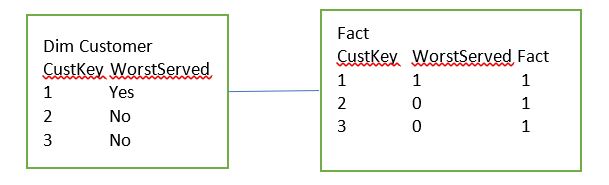
SELECT [Top 20 Worst Served] FROM [fact].[Fact]

  • Which is a 1 or 0

SELECT [Top 20 Worst Served]  FROM [dim].[Customer]

  • Which is a true or false flag

I can then have reports for worst served customers filtered by the above

However, in some cases there may have been an investigation and its been deemed that the customer shouldn’t be in worst served. Note that this information isn’t capturing in the source data set.

They want to be able to immediately say this customer is fine and the results will then update accordingly.

Every time the data is refreshed, these data items get fully refreshed in case they are not worst served any more.

In the current Reports, Filters are set on the page for both the above columns in the dim and the fact

  • Where Dim Customer WorstServed = Yes
  • Where Fact WorstServed = 1

Question 1

  • Do the users want to see an immediate change to the report?
  • Or are they happy for it to come through on the next refresh?

The users want to see the report metrics change immediately based on them adding in information

Quick Steps to adding the POWERAPP into Power BI From Guy in a Cube

  • The Tables that are to be updated need to be in Direct Query Mode
  • The tables connected to these tables  on the 1 side of the relationship, should be in Dual Mode (Which acts as Import or Direct Query)
  • Design your reports in the Desktop
  • Once designed DO NOT ADD THE POWER APP INTO THE PBIX FILE
  • Publish your report
  • In Power BI Service click on edit Report
  • Then in the Visualisations pane, If you don’t have already, Go to the Market Place and choose PowerApps
  • Add the POWERAPP into your report
  • Choose App (Or Create New App)
  • Add in the columns required to use the POWERAPP
  • In PowerApps give the people access who need to be able to update the data

Things to Consider

  • The users want to see the change immediately rather than on the next refresh
  • My report pages are already created and I have many tables (All Imported) and relationships in the model.
  • Dual Storage Mode, I have never used this before. How many tables would need this change in the data source?
  • The PowerApp will be a new enhancement to the reports
  • The PowerApp hasn’t been built yet
  • I am concerned about adding the visual into Power BI Service in Edit mode because the standard way to create reports is in Desktop. I have many more Updates to do after the power App has been added and I don’t know how adding visuals in Service only will work with the ongoing App amendments

Possible Data Solution 1

in the PowerApp, the User Adds in the CustID, (And an automatic date is assigned) these get inserted into the table Staging Worst Served Amendments

Then Dim Customer and the fact table are checked through using the custID and the items are set to ‘No’ and 0 as above (this is clearly the most difficult bits because it’s an update based on the CustID

The next refresh will again change 153 to Worst Served Yes, however an extra bit of script in the Stored Procedure that creates the table will Check the Worst served Amendments table and if there, reset to No.

The above Staging table is only used for the overnight data refresh

Changing Import to Direct Query

To develop against the above resolution, both the fact table and the property table need to be changed to direct import. What do we lose if we do this?

All my DAX functions for time will be lost against my fact table (Year to Date, This time last month etc).

Therefore I really don’t want to lost these DAX queries by changing to Direct Query

Also currently I cant seem to change the setting from Import to direct Query in Properties. Unless this is a bug, It seems you would have to start again with the tables and re import them as direct Query.

Is there another way that the new logic can be added without setting both these tables to Direct Query?

Possible Data Solution 2

Filters in Power BI

  • Where Dim Customer WorstServed = Yes
  • Where Fact WorstServed = 1
  • And Staging Worst Served Amendments CustID is NULL

Issues with the Above Solution

You cant have a Filter for an empty customer ID because this is a Left Outer Join.

There may be other issues. What happens if the user accidentally adds in Multiple custIDs and the relationship changes to Many to Many?

Normally I would deal with this by merging the tables in a left join in Power Query Editor

As a consequence I need to think about another Solution to this problem

Possible Solution 3

I have already checked that you can merge a direct query and and Imported Table. See https://debbiesmspowerbiazureblog.home.blog/2019/09/19/what-happens-when-you-merge-a-direct-query-and-an-imported-table-in-a-power-bi-composite-model/

This means that we can left join the table and filter out the none nulls in the report

Creating the Staging table for the Insert

Top tip is that within the Power APP your tables will need a Primary key or else the POWERAPP will fail

First I need an actual table in my Azure SQL database. In SQL Server Management Studio I created the table via SQL

CREATE TABLE [staging].[WorstServedAmendments](
	[CustID] [varchar](255) NOT NULL,
	[AmendmentDate] [datetime] NULL,
 CONSTRAINT [PK_WorstServedAmendments] PRIMARY KEY CLUSTERED 
(
	[CustID] ASC
)WITH (STATISTICS_NORECOMPUTE = OFF, IGNORE_DUP_KEY = OFF) ON [PRIMARY]
) ON [PRIMARY]

Creating the Power App

I work with such a great team. Thanks to Liam Chapman and Happy Wired for giving me a heads up on PowerApps and writing the code for me

Log into https://powerapps.microsoft.com/en-us/

I need an update button. A delete button and a text box to add the customer number into.

It would also be good to have a little message to say that the button has been successful

These objects can be added via Controls.

  • Timer1 Relates to a hidden Timer on the page
  • txtUpdateMsg relates to a hidden text box that will appear on update
  • btnDelete relates to the Delete Button
  • btnUpdate relates to the Update Button
  • txtCustID (hidden in image) relates to the textbox where the user will add the customer number
  • lblForTxtBox relates to the description label

Data Source (Start Amending from here)

I’ve connected to my Azure database and I’m connected to my new worst served table

The CustID is a varchar within the SQL Table

Update Button

Lets start with the basics and start with the Update button

OnSelect

Patch('[staging].[WorstServedAmendments]',Defaults('[staging].[WorstServedAmendments]'),{ProNumber:Value(txtProNumber.Text), AmendmentDate:Now()});
UpdateContext({TimerStart:true});

Code

Patch – Modifies or creates one more record in a data source, or merges records outside of a data source

Defaults – Use Patch with Defaults function to create records (Insert a new record into a table)

Value() – This is converting a text value to a number

UpdateContext – Create a context variable to temporarily hold a piece of information. In the above case we are calling it TimerStart and setting it to true. We are basically starting the timer when we click update because we have a timer hidden on the screen

Timer1

On Start we are going to use the Context Variable TimerStart

Hide the Timer because we don’t need to see it

Create a context variable called SuccessMessage and set to true

Create the context variable SuccessMessage and reset it to False

Create another Context variable called TimerStart and set to False. TimerStart was started on Update and now on Time its being turned off again

Delete Button

OnSelect

RemoveIf('[staging].[WorstServedAmendments]',ProNumber = txtProNumber.Text)
UpdateContext({TimerStart:true});

Code

RemoveIf – Remove a record if it exists

UpdateContext – Create a context variable to temporarily hold a piece of information. In the above case we are calling it TimerStart and setting it to true. We are basically starting the timer when we click Delete because we have a timer hidden on the screen in the same way as when we update

txtUpdateMsg

Visibility relates to SuccessMessage context variable. Its visible on timer start (true) and disappears on timer end (False)

What appears when the timer is ON

This is a very basic Power App that will now allow the user to add and remove customers from this table. Save and then Publish the App so it can be used in Power BI

Add the table into Power BI

The new worst served table needs to be Imported into Power BI as a Direct Import so any changes the User makes will reflect straight away in the reports

Just to make sure that everything is OK I’m going to add one Customer into the table before its added just to have a record to work with.

In your Power BI Desktop file, Edit Queries and Choose recent sources if you have already connected to your data source.

Select the Worst Served Table

We can now have composite models where some tables are import and others are direct query.  The new table is added in as a direct query

Close and Apply

Note the message regarding potential risks when you are querying data at source and have other tables imported in memory

Next go into Edit Queries and Merge Table

And merge the customer table with the direct Query table

Click OK.

this connect the table so grab customer ID

This will be added to your customer dimension

Note that so far, DimCustomer hasn’t been automatically changed to Dual Mode after being merged with the direct Query table so we dont need to worry about Dual mode in order to create our new logic.

Close and Apply

back in the desktop, go to Marketplace and grab the Power Apps Visual

The how to guide states to not add the Power App within your Desktop report so Publish the report and lets move to the Power BI Service

Power BI Service, Edit report and Add in PowerApps Visual

On the report you want to update Click Edit Report

The Power App visual will now be available in Visualisations because it was added in the desktop file

Add the Power App in power BI service

In order to test out the new service I’m adding in a blank page

Click on the power App visual and add it to the new blank page

I want to add the CustID and the Date from the worst served new staging table

Then I can choose App rather than create new because I have already published an App

Im choosing my Worst served App and click Add

Ive clicked go to power Apps Studio which opens the PowerApp in Studio and you also have the powerApp in Power BI Service

The very first issue I have is a formatting issue. My Power App is Tiny and unreadable. Time to go back to the power App Studio and change the Settings

PowerApps studio

App Settings – changing the App to Default size 16.9. For the time being Im not going to think about making the app look good. I just want to be able to see the text on the power BI page

  • Save and publish the PowerApp
  • Go back to the Power BI service

Power BI service

I had to delete and readd the PowerApp to get it to refresh.

Its also worth noting that if you dont create your visual to the right size before adding your App, the App will have scroll bars etc and you cant change the size of the PowerApp, only the size of the visual that holds it

The Power App doesn’t look great but it will do to test.

First of all we want to see if it works so add a table with the Worst served Data items

Add a CustID and click Update

It works. Now delete the item just added. Again it works.  This is part one done. Part 2 is that we want it to update worst served Customers from the customers table

How does the Updates Affect the pbix file?

Click Save in power BI service and go back to the power BI Desktop file

The new visuals aren’t there. This is as expected, because they were not created in Desktop.

Imagine that you have created your Power BI App Visual and you still have a list of updates, changes and bug fixes that you want to do within Power BI Desktop

If you update and rebublish you lose the PowerApp Visual

Currently this options is only viable if the PowerApp is the very last thing you do and you don’t need to update the pbix file at all.

As a consequence I don’t think that Editing your reports within Power BI Service is a good idea.

having chatted to a few people on the forums, Editing reports in service is normally done when you need something quickly and you intend to go back and update the pbix file with the amendment.

What happens when you add the PowerApp in Desktop

In Desktop Add the PowerApp and the table to check its working. Then Publish into the Service.

Note the change in how it works. If you Update or Delete, the table doesn’t change until you Click Refresh. If you add it in Service you don’t need to click refresh.

For the time being I’m going to accept this as it’s the only way to move forward and keep working with the pbix file.

I have created an idea on the power BI forum to deal with this issue https://community.powerbi.com/t5/Issues/PowerApp-with-DirectQuery-Mode-Need-to-be-able-to-have-correct/idi-p/791690#M48425

Omitting Worst Served Customers using the new Filter

I have Customer 1000000 and 1000001 in my Direct Query table and they have both been removed from the report

Great, I now have a Power App that can be used to omit records in a report without straight away.

There are some issues to be ironed out but this really opens up what you can do with Power BI

Design a site like this with WordPress.com
Get started