Microsoft Fabric Part 11. Taskmaster Project. New Fabric Feature, Task Flows

In Part 11 we created Power BI reporting and changed the usual PBIX to a PBIP Project file.

Before moving on, lets have a quick look at a new feature in Fabric. Task Flows

Back in the Fabric Workspace

We can now build a task flow. But what is it?

Its a new workspace feature to visualise the collection of processes for an end to end solution.

There are specific types of tasks that we will look at later

There are two ways of going about this.

  1. You have started a brand new project and you have your initial Task flow set up to start adding in tasks. This helps you work with your architecture,
  2. You have already created tasks (Like this project) and want to assign them to a task flow.

Lets begin

There are 8 flows available at the moment. Throughout the Fabric journey, the medallion architecture has been championed so lets go with this.

Colouring

  • Green Items are Get data
  • Blue Items are Store Data
  • Purple items are Prepare data
  • Yellow items are Visualise data
  • Red Items are Analyse and train Data

Creating new Tasks

If you haven’t yet started. When you set up your board. you need to assign items to each task.

There are no Data Engineering steps in this development project for getting data so lets start with the green tasks.

Click New Item

And we get options of what to create for Low Volume data. Great. We have recommended items (which we can change to all) So if you wanted to go Low code a Data Factory Dataflow Gen2 might be the way to go.

lets have a look at high volume data
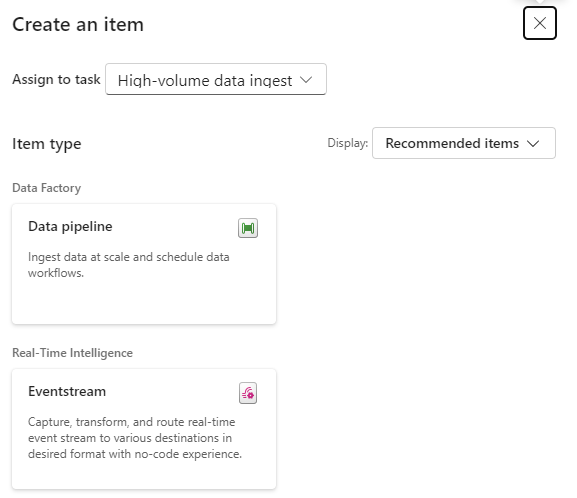
Here, a Data Pipeline would probably be used for this project.

Data Factory was previously the go to for copying files across into the Data lake so as the data engineer, I would possibly pick pipelines for both types of data processing.

Already this is a great way of working. We know we need to do all these processes but the amount of possibilities can be bewildering. So let Fabric give you recommendations every step of the way.

Assigning Items to a Task

Bronze Data

If we quickly click new item to check the recommendations

We have already set up a Lakehouse for Taskmaster.

Click the little paper clip icon to attach a task

And Select the Lakehouse

Now we have 3 items at Bronze Data Level

  • DebbiesFabricLakehouse Top Level
    • The SQL Analytics Endpoint
    • The semantic Model (default) This wasn’t used because there were issues with errors occurring whilst developing.

Selecting the Bronze data Task shows you the objects in that task.

Lets move on to

Initial process

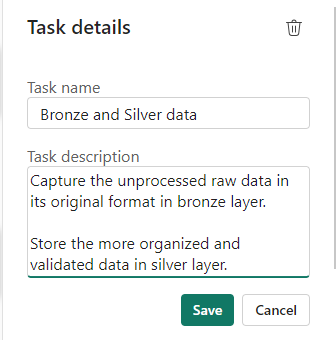
We have a Data Engineering notebook set up that Creates our initial transformed Silver layer. This can be added here

One current real issue for me is the vertical bar on Fabric and Power BI

You have to go to the end to scroll down. And you can’t see your items. Extremely annoying when working on smaller screens. This is actually a large screen but you cant make the box any bigger. You have to manually make the columns smaller each time .

I hope they sort this out soon

What happens when you accidentally assign an item to the wrong task flow

I have added the Lake house to the initial Process accidentally.

Hover over the tasks and select the ones you want to remove

And Unassign from all Tasks which appears

Silver Data

In this case the Lakehouse contains bronze and silver layer, so this is for both.

What happens when we assign the lakehouse to silver?

Well, you can’t do this. An item can only be for a single task. So how do we relate this to our medallion architecture above?

For the time being, go to Bronze Data and edit
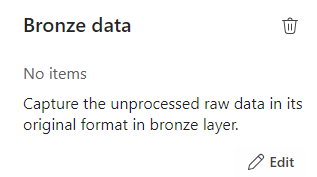
Assign the Lakehouse

Click on Silver Data

Delete. We don’t need this

This leaves a gap in our flow

Connecting Tasks

Click the edge of the starting task and join to the end task
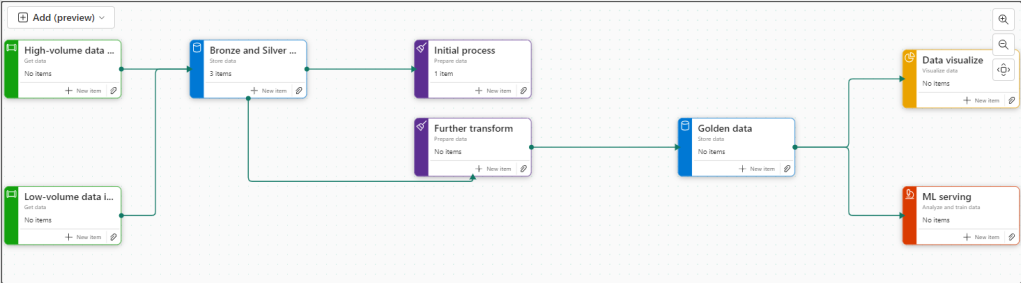
Further transformation

We have Notebooks that prep the dims and facts. Lets add them

Golden Data

Another Data Store and again our golden data is in Delta Parquet in the Lakehouse. Looks like we can edit the initial Store data again

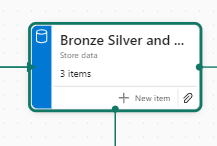
Mini gripe. You can’t see all of the information so you cant tell its bronze silver and gold.

Delete Golden Data
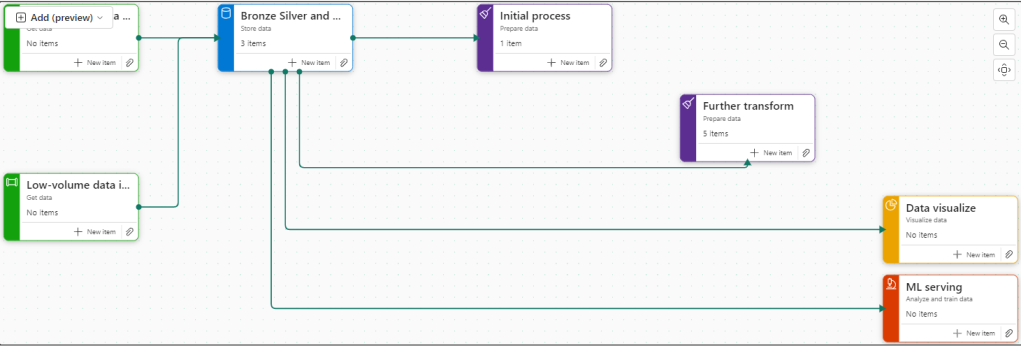
Personally I would prefer to have all three on the pane and share the Data lake between all three tasks.

But where do we add the semantic model?

The Semantic model comes before visualising the data. But we have nowhere for this.

Creating paginated reports and semantic models from a task isn’t supported.

https://learn.microsoft.com/en-us/fabric/get-started/task-flow-overview

Well this is a real shame. it feels like this needs to be added before its a really usable solution.

Data Visualise

Our report is in a PBIX File.

We don’t have any Dashboards

Lets publish the Content from Pbix to the Fabric Workspace.

Then go back to the workspace

Interestingly these are now uncommitted items and show up in source control.

In Part 10 we did a lot of work getting the PBIX file into source control. What will this do? we will look at this later.

Back to Data Visualize

We add the reporting

The Semantic Model has also been added here, Hopefully a new task will be added soon specifically for the semantic model, there are currently no items types for semantic modelling.

There is no ML Service so we could get rid of this task.

Old Notebooks not being used (Filters).

There are a few Notebooks from the old version not part of this, can we see them?

Another issue. Selecting Not Specific for Task doesn’t filter the Tasks without a Task Specified. Something else that needs to be ironed out.

Conclusion.

There are currently a fair few issues with this but it is new and hopefully they will get ironed out.

I still don’t like scrolling in any of the Power BI / Fabric Service solutions because it doesn’t automatically resize to page size. This has been an annoyance for a long time now. I really wish it would get sorted.

Semantic modelling needs to be added. Filtering needs to be much better,

And I genuinely wish you could have an item in multiple tasks, especially store data. But overall I really love this feature and can’t wait to see if get some more development

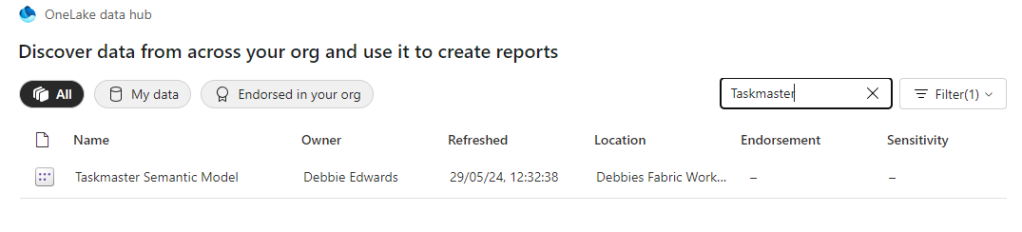
Microsoft Fabric Part 10. Taskmaster Project. Creating the Reporting and the Project File (PBIP)

So far we have created our Delta PARQUET files in the Delta Lake using Notebooks with Pyspark.

We have created a Semantic Model – Storage mode Direct Lake in fabric

Its time to create some visuals. but the question is. Do we create them in Fabric. or in a bpix file?

Reporting Fabric or Pbix File?

Fabric – Centrally managed

Pbix – offline Development and version controlling available for the files with .pbip (Project file)

For this project we are going to go for the hybrid approach. The semantic model in Fabric. And reports developed in Desktop with Devops Version controlling which are published into Fabric.

This gives us better opportunities for version control and collaboration.

Get Data

In Power BI Desktop

Power BI Reporting

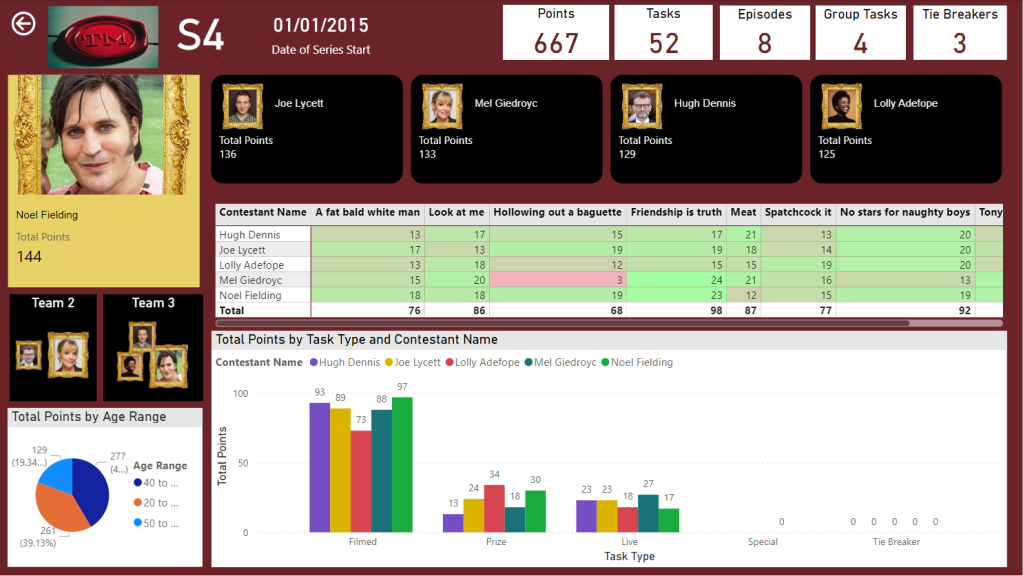
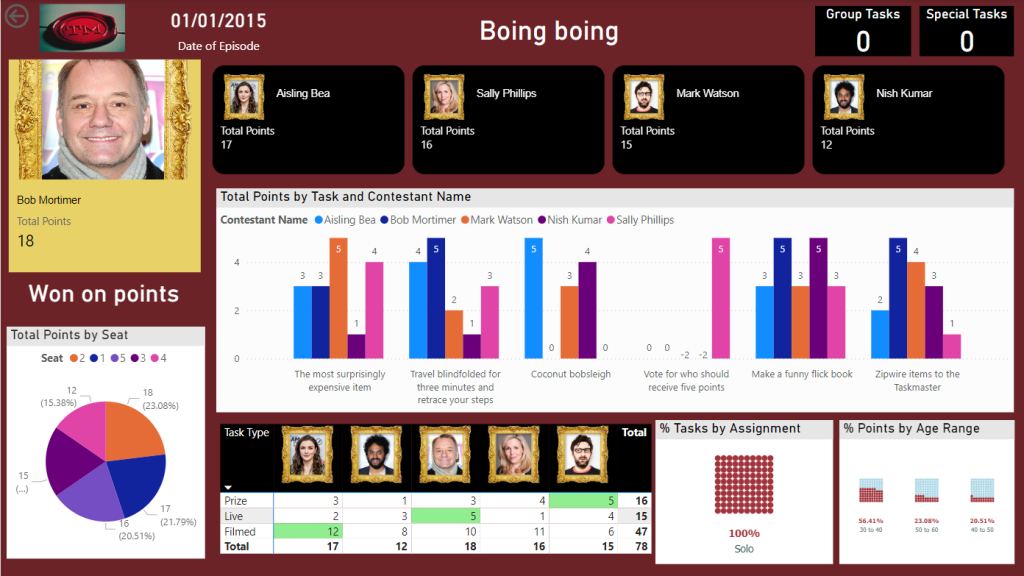
Our front end reporting wont be gone into too much detail here. We are more interested in other areas of Fabric. So here are the basic pages

Drill through to Series

And Drill through to Episode

We now have a pbix Report we can publish through to our Fabric Workspace

Create the Power BI Project (PBIP)

Instead of simply saving as a pbix (black box) file, lets save as a project file instead and see how this can really change how we work with others in Power BI. We should see benefits like:

  • Items are stored in JSON format instead of being unreadable in one file
  • JSON text files are readable and contain the semantic model and report meta data
  • Source Control. Finally real source control for Power BI
  • Amendable by more than one person at a time?
  • The possibility of using (CI/CD) Continuous Integration and Continuous Delivery with Power BI

Saving as a project is in preview so lets turn it on.

Options and Settings / Options

TMDL

This was mentioned in the Power BI June 2024 Updates.

TMDL is the improvement to PBIP as the semantic model file format for the Power BI Project files.

Our Semantic model has been created within Fabric. we might look at this in more detail later.

And now we can Save as

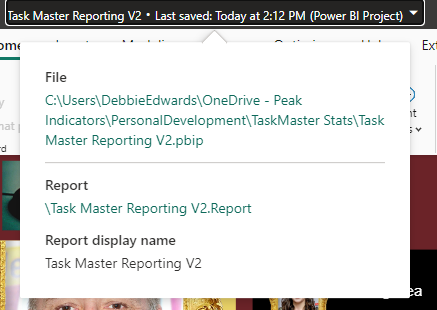
And we can see that its a project in the title.

Clicking on the title shows us file paths of the objects. we only have the report because the semantic model has been created within Fabric.

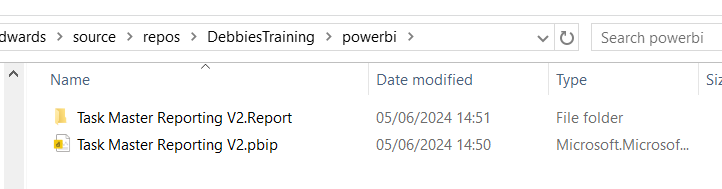
Lets have a look at what we have created in Explorer

The main project file

The reporting folder

Our objects within the reporting folder.

Currently this is in One Drive. We want to get this added into Devops and GIT so it can be added into our full source control process along with all the Fabric code.

Azure DevOps build pipelines for continuous integration

First of all we need to make sure Fabric is connected to Azure Devops which it is

And cloned to a local drive. This was done using Visual Studio but there are other ways you can clone.

It would have been better to have saved into this cloned local project, But we can create a folder and move instead.

Created a Power BI Folder.

And Moved all the objects mentioned above into this folder

Its in local but not yet in the cloud.

I have installed Git Bash to work with https://git-scm.com/downloads

In GIT Bash I change directory to the correct GIT Directory (Local) and us ls to list the information in there

cd source/repos/DebbiesTraining
ls
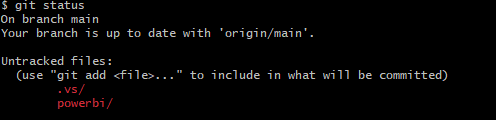
git status

We can see we have powerbi code that is uncommitted and needs pushing to the central GIT repository.

We don’t really want to work on the main branch. A better cleaner process is to create a feature branch. InitialPowerBIFile

git add .
The . in git add . is a wildcard that represents all files and directories. basically telling GIT to stage all changes.

git add powerbi

just adds the power BI folder. We dont really want to do anything with fabric as this is taken care of already.

git commit -m "InitialPowerBIFile"

-m flag is allowing you to provide a commit message in the command. And our command is committing changes

So far we have added the files to the staging area and committed them. Time to Push to the cloud

git push --set-upstream origin InitialPowerBIFile

You will initially get a log in screen to authenticate the push

And this is the line you want to see. We know that we have pushed it to devops

Back in DevOps

Remember to change to the correct branch. You wont see it in Main.

We can see the Power BI Items.

Create a Pull Request

Very simple. We are in Dev and don’t have any reviewers or work on Boards to connect to

Create and Complete

Power BI Files are now in Main

How do you now work with the power BI Project file?

Open the project file from your local source control

lets create a new quick report page for Demographics

And save

Back to GIT

git checkout -b "InitialPowerBIFileAllDemographicsPowerBIPage"
git status
We can see we have modifications
git add .
git commit -m "InitialPowerBIFileAllDemographicsPowerBIPage"
git push --set-upstream origin InitialPowerBIFileAllDemographicsPowerBIPage

Back in Devops

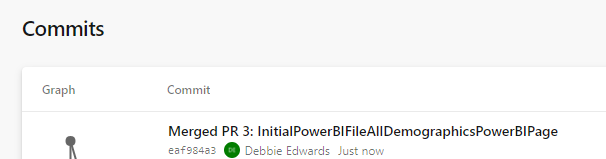
Create and Complete merge. (If you don’t use the reviewing process in Development)

We can see the page is in with lots of work added into this part of the JSON script.

Where is the Semantic Model?

The Semantic model has been created in Fabric.

It says synced on GIT Status.

And here is is in Devops.

Conclusion

The above can be done in Power BI Pro as well as Fabric. Which is good news.

However, my worry about this is that someone creating Pbix Reporting won’t take to the whole GIT process. I suspect that when it comes down to it, it simply wont be done properly.

If you were to go the pbix file route, this would need a lot of governance work to get people to use GIT. At Enterprise level this would be doable but I doubt this would become a real part of the process at self service level.

I did start to question the process. after doing some more reading. It feels like if you created the reporting inside of Fabric, The GIT Process would be simplified. Even though the documentation states that for full GIT control use PBIX. I will be really interested in creating a Power BI Report inside of Fabric to see how this would work in the process at some point.

In the next blogs we are going to look at some new features of Fabric. We can also look at using this feature along with with Devops Pipelines later. (Premium and Fabric only)

Design a site like this with WordPress.com
Get started