Microsoft Fabric Part 8. Taskmaster Project. Data checks using the SQL analytics Endpoint

SQL Analytics Endpoint

Lets switch to the SQL analytics endpoint
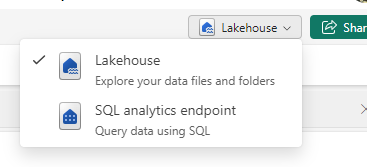
Only the Delta table are available with the SQL endpoint.

Lets try some options

New SQL Query

We can use SQL to check that we are happy with what has been created

SELECT e.Series, e.EpisodeName,t.Task, t.TaskType, c.ContestantName, f.Points 
FROM [DebbiesFabricLakehouse].[dbo].[facttaskmaster] f
inner join [DebbiesFabricLakehouse].[dbo].[dimepisode] e on f.EpisodeKey = e.EpisodeKey
inner join [DebbiesFabricLakehouse].[dbo].[dimtask] t on t.TaskKey = f.TaskKey
inner join [DebbiesFabricLakehouse].[dbo].[dimcontestant] c ON c.ContestantKey = f.ContestantKey
Where e.EpisodeName = 'The poet and the egg'
Order by t.Task

Immediately we can spot some problems.

Task 1 has 10 records and not 5. there should always be 5. 
We can write a query to see how many issues there are 

With CTEtm (Series, EpisodeName,Task, TaskType, ContestantName, Points)

AS 
(SELECT e.Series, e.EpisodeName,t.Task, t.TaskType, c.ContestantName, f.Points 
FROM [DebbiesFabricLakehouse].[dbo].[facttaskmaster] f
inner join [DebbiesFabricLakehouse].[dbo].[dimepisode] e on f.EpisodeKey = e.EpisodeKey
inner join [DebbiesFabricLakehouse].[dbo].[dimtask] t on t.TaskKey = f.TaskKey
inner join [DebbiesFabricLakehouse].[dbo].[dimcontestant] c ON c.ContestantKey = f.ContestantKey)

SELECT Series, EpisodeName, Task, count(*) AS TotalRows
FROM CTEtm 
GROUP BY Series, EpisodeName, Task
Having COUNT(*)>5

There are 146 issues.

You cant manipulate the data with UPDATE’s inserts etc.

New Visual Query

lets try and get an issue example using a visual query

Before merging with the contestant, the contestant needed to be dragged into the analytics pane.

This is very similar to the power Query Editor and could be of use to people who aren’t as proficient in SQL and prefer using visual tools

Personally I prefer SQL. So I will stick to this.

Back in SQL Query

SELECT e.Series, e.EpisodeName,t.Task, t.TaskType, c.ContestantName, f.Points 
FROM [DebbiesFabricLakehouse].[dbo].[facttaskmaster] f
inner join [DebbiesFabricLakehouse].[dbo].[dimepisode] e on f.EpisodeKey = e.EpisodeKey
inner join [DebbiesFabricLakehouse].[dbo].[dimtask] t on t.TaskKey = f.TaskKey
inner join [DebbiesFabricLakehouse].[dbo].[dimcontestant] c ON c.ContestantKey = f.ContestantKey
Where e.Series = 'S1'
AND t.Task = 'Buy a gift for the Taskmaster'
Order by c.ContestantName

Clearly we have an issue with Dim Contestant. We have two of every contestant. This has been super useful. We cant resolve in SQL so its time to go back to the contestant notebook.
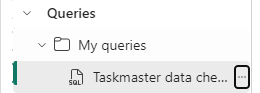
The SQL code is going to be kept here in Queries

You can also moved to Shared Queries to other developers can access your queries.

Back in the Contestants V2 Notebook

We have an issue in the Contestants Dim.

After we drop the records where Team is null we now need to add additional Pyspark to check for Duplicates

from pyspark.sql.functions import min, substring

# Group by "Contestant" and aggregate the minimum "Episode Date"
dfContfinalGrp = dfContfinal.groupBy("Contestant Name").count()
dfContfinalGrp = dfContfinalGrp.filter(col("count") > 1)

# Show the resulting DataFrame
dfContfinalGrp.show()

These will cause issues. Why is it happening?

filter_column = dfContfinal.filter(col("Contestant Name") == "Noel Fielding")

# Show the resulting DataFrame
filter_column.show()

Its seat causing the issues because these contestants have been on Taskmaster more than once.

This causes us an issue. This is fine, Because the granularity is the contestant and seat. We need to update the Fact table key accordingly. And it goes even further than this. What we really need to do is go back to the original transformation notebook to ensure we can join on Seat

Back to the Transformation Notebook

There is a query that merges Contestants and people together.

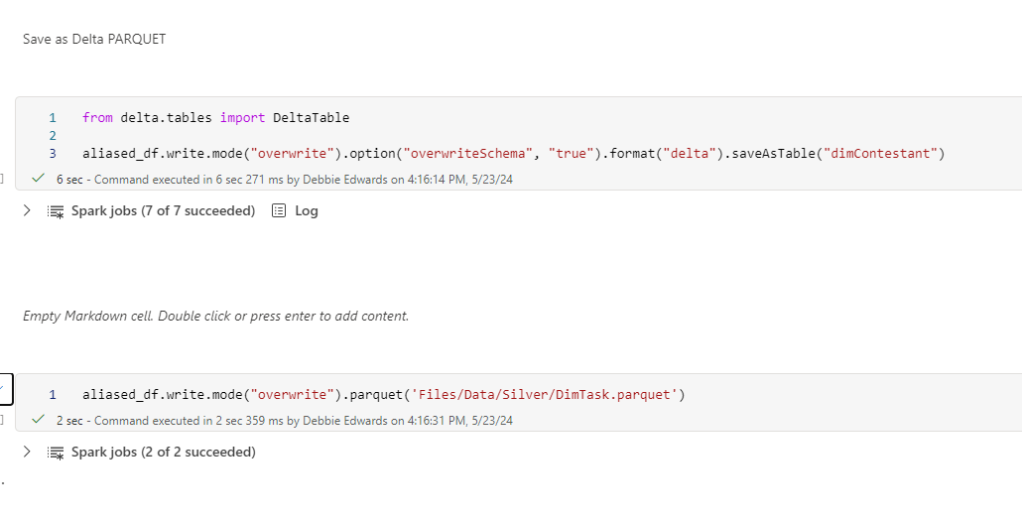
Instead of loosing this information. We need to load it into PARQUET for use later and we need to keep series in this dataframe

One tweak is to keep the series in the transformed contestant PARQUET file and then make sure it matches S1 S2 etc in the main file

# Join the extra contestant information
dfcont = dfc.join(dfp, dfc[“Name”] == dfp[“contestant”], “left_outer”).drop(dfp.contestantID)\
.drop(dfp.contestant).drop(dfp.team).drop(dfp.team_label).drop(dfp.champion)\
.drop(dfp.TMI)

# The resulting DataFrame ‘joined_df’ contains all rows from dftask and matching rows from dfob
display(dfcont)

series has been removed from .drop()

Create S1 instead of Series 1 etc in the transformed contestant file.

from pyspark.sql.functions import regexp_replace

# Assuming you have a PySpark DataFrame named dfcont
dfcont = dfcont.withColumn("series_label", regexp_replace("series_label", "Series ", "S"))

# Show the updated DataFrame
dfcont.show()

Back to the Fact Notebook

change to the code when adding in the contestant key

Before we continue. We want to add the seat into the main tm dataframe

#Join tm to contestants to get the seat
dftm = dftm.join(drctrans, (dftm["Contestant"] == drctrans["Name"])& (dftm["Series"] == drctrans["series_label"]), "left_outer")\
.drop(drctrans.Name).drop(drctrans.Image).drop(drctrans.From).drop(drctrans.Area).drop(drctrans.Country).drop(drctrans.series).drop(drctrans.series_label)\
.drop(drctrans.dob).drop(drctrans.gender)\
.drop(drctrans.hand).drop(drctrans.age).drop(drctrans.age_decimal).drop(drctrans.ageRange)

# The resulting DataFrame 'joined_df' contains all rows from dftask and matching rows from dfob
display(dftm)
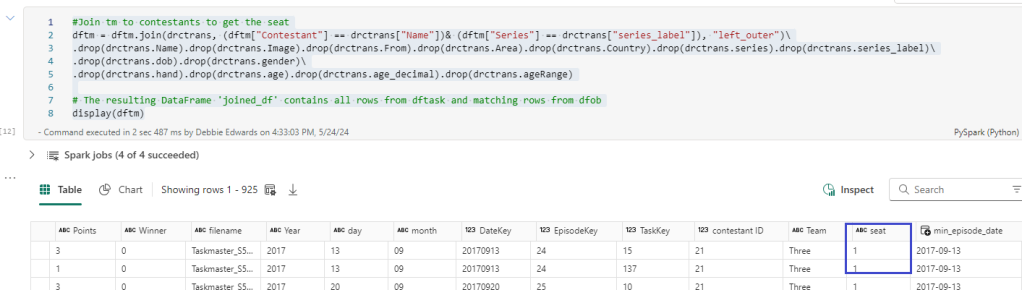
Here we add in seat from the transformed contestant data

#We want the seat in the main table
dftm = dftm.join(dfc, (dftm["Contestant"] == dfc["ContestantName"])& (dftm["Seat"] ==dfc["Seat"]), "left_outer")\
.drop(dfc.ContestantID).drop(dfc.ContestantName).drop(dfc.Team).drop(dfc.Image).drop(dfc.From).drop(dfc.Area).drop(dfc.Country).drop(dfc.Seat).drop(dfc.Gender)\
.drop(dfc.Hand).drop(dfc.Age).drop(dfc.AgeRange)

# The resulting DataFrame 'joined_df' contains all rows from dftask and matching rows from dfob
display(dftm)

And updated the above code to also join on Seat now we have seat in both the main table and the dim table to get the correct Key.

Back in the SQL endpoint

SELECT e.Series, e.EpisodeName,t.Task, t.TaskType, c.ContestantName, f.Points 
FROM [DebbiesFabricLakehouse].[dbo].[facttaskmaster] f
inner join [DebbiesFabricLakehouse].[dbo].[dimepisode] e on f.EpisodeKey = e.EpisodeKey
inner join [DebbiesFabricLakehouse].[dbo].[dimtask] t on t.TaskKey = f.TaskKey
inner join [DebbiesFabricLakehouse].[dbo].[dimcontestant] c ON c.ContestantKey = f.ContestantKey
Where e.Series = 'S1'
AND t.Task = 'Buy a gift for the Taskmaster'
Order by c.ContestantName

The fixes have removed a lot of issues but we are still left with 6 episodes causing issues. like the one above.
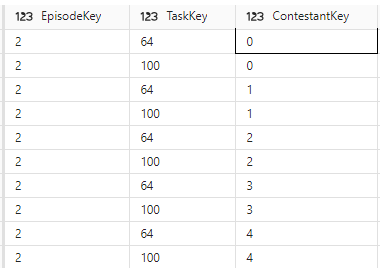
looking at the keys. its clearly the task key.

SELECT * FROM  [DebbiesFabricLakehouse].[dbo].[dimtask] Where TaskKey IN (64,100)

Back to the Episodes Notebook Attempt 2

The really good thing about the SQL Endpoint is that I can quickly check the work that has been done for issues like this before moving onto the semantic model

Now this issue is highly probable because some tasks across series may have the same Task Name. And its the order that gives it its uniqueness in the dimension

Again, we go back to the fact dataframe to add TaskOrder into the join

Back to the Episodes Notebook Attempt 3

Lets see how this fix has helped

Conclusion

The SQL endpoint has helped us fix

  • Contestants where a contestant has been on more than one series
  • Tasks, when a task has the same name

as a developer with a lot of experience in SQL this is a really great way of quickly creating code to check for errors. And you have the graphical functionality if you aren’t a SQL person.

I’ts a real win.

Next. We have our star schema and its been tested. Time to create the Semantic Model.

Microsoft Fabric Part 7. Taskmaster Project. Creating the fact table

For our Taskmaster Posts 1 2 3 and 4 we had a really good look at Pyspark using an online dataset. but abandoned it when we realised that the data wasn’t quite as we wanted it and some data sets were missing.

Parts 5 and 6 we got a new data set and created a transform layer and dimensions. Now its time to finally create the fact table

Lets create a new Notebook – Taskmaster Fact V2

Date Keys

Our Date Keys will be integer. if we take a quick look at our Delta PARQUET file

df = spark.sql("SELECT * FROM DebbiesFabricLakehouse.dimdate LIMIT 1000")
display(df)

Out date key is in the following Int Format 20240416
We want the Episode date Key to follow this trend.

At transformation level we created Year month and Day. We just need to merge these to create the date

Merge Date Key

from pyspark.sql.functions import col, concat_ws, expr

dftm = dftm.withColumn("DateKey", concat_ws("", col("year"), col("month"), col("day")).cast("int"))
display(dftm)

Bring through the Episode Key

Now we want to add the Delta PARQUET table to a dataframe. So we can add the key to the dataframe. Then we can create another dataframe with all the keys and the points metric to make the fact table.

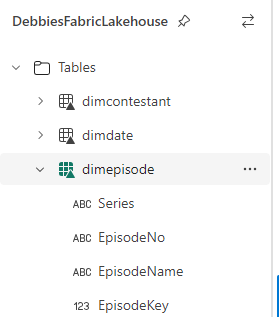
dfep = spark.sql("SELECT * FROM DebbiesFabricLakehouse.dimepisode")
display(dfep)
# Add Episode Key to the df
dftm = dftm.join(dfep, (dftm["Series"] == dfep["Series"]) & (dftm["Episode Name"] == dfep["EpisodeName"]), "left_outer")\
.drop(dfep.Series).drop(dfep.EpisodeNo).drop(dfep.EpisodeName)

# The resulting DataFrame 'joined_df' contains all rows from dftask and matching rows from dfob
display(dftm)

And set any null values to -1. Our default not known

dftm = dftm.fillna(-1, subset=[‘EpisodeKey’])

Bring through the Task Key

We can repeat the above to bring in the Task Key

dft = spark.sql("SELECT * FROM DebbiesFabricLakehouse.dimtask")
display(dft)
# Add Task Key to the df
dftm = dftm.join(dft, (dftm["Task"] == dft["Task"]), "left_outer")\
.drop(dft.Task).drop(dft.TaskType).drop(dft.Assignment).drop(dft.TaskOrder)

# The resulting DataFrame 'joined_df' contains all rows from dftask and matching rows from dfob
display(dftm)
dftm = dftm.fillna(-1, subset=['TaskKey'])

Bring in Contestant Key

dfc = spark.sql("SELECT * FROM DebbiesFabricLakehouse.dimtask")
display(dfc)
# Add Contestant Key to the df
dftm = dftm.join(dfc, (dftm["Contestant"] == dfc["ContestantName"]), "left_outer")\
.drop(dfc.ContestantID).drop(dfc.ContestantName).drop(dfc.Team).drop(dfc.Image).drop(dfc.From).drop(dfc.Area).drop(dfc.Country).drop(dfc.Seat).drop(dfc.Gender)\
.drop(dfc.Hand).drop(dfc.Age).drop(dfc.AgeRange)

# The resulting DataFrame 'joined_df' contains all rows from dftask and matching rows from dfob
display(dftm)
dftm = dftm.fillna(-1, subset=['ContestantKey'])

And now we have all of our keys

Partitioning

We want to Partition the fact table by Series date, However, We only have the individual task information.

Lets see if we can add another date Key for Series.

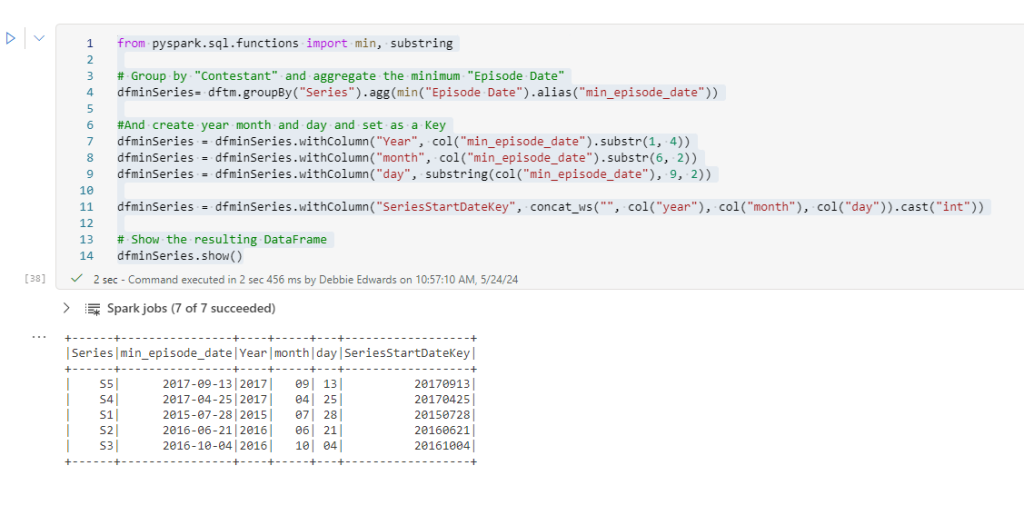
MIN and Group Episode date by Series

from pyspark.sql.functions import min, substring

# Group by "Contestant" and aggregate the minimum "Episode Date"
dfminSeries= dftm.groupBy("Series").agg(min("Episode Date").alias("min_episode_date"))

#And create year month and day and set as a Key
dfminSeries = dfminSeries.withColumn("Year", col("min_episode_date").substr(1, 4))
dfminSeries = dfminSeries.withColumn("month", col("min_episode_date").substr(6, 2))
dfminSeries = dfminSeries.withColumn("day", substring(col("min_episode_date"), 9, 2))

dfminSeries = dfminSeries.withColumn("SeriesStartDateKey", concat_ws("", col("year"), col("month"), col("day")).cast("int"))

# Show the resulting DataFrame
dfminSeries.show()

Merge the New Key into the main dataframe

# Add SeriesStartDateKey Key to the df
dftm = dftm.join(dfminSeries, (dftm["Series"] == dfminSeries["Series"]), "left_outer")\
.drop(dfminSeries.Series).drop(dfminSeries.min_episode_date).drop(dfminSeries.Year).drop(dfminSeries.month).drop(dfminSeries.day)

# The resulting DataFrame 'joined_df' contains all rows from dftask and matching rows from dfob
display(dftm)

Create the Fact table

dftmfact = dftm.select(
    col("EpisodeKey"),
    col("TaskKey"),
    col("ContestantKey"),
    col("SeriesStartDateKey"),
    col("DateKey").alias("EpisodeDateKey"),
    col("Points").cast("integer"),
    col("Winner").cast("integer")
)

dftmfact.show()

This can now be saved to our Delta PARQUET and PARQUET so we have our full set of data to create the star schema.

Delta PARQUET Partitioned.

We now want to Partition our fact table by the SeriesStartDateKey

from delta.tables import DeltaTable

dftmfact.write.mode("overwrite").option("overwriteSchema", "true")\
.partitionBy("SeriesStartDateKey").format("delta").saveAsTable("factTaskmaster")

So Why partition?

Partitioning the Parquet table gives you specific benefits

If we were to just look at one series. The execution engine can identify the partition and only read that partition. it significantly reduces the data scanned.

Faster query performance.

Delta Lake will automatically create the partitions for you when you append data, simplifying data management.

Partitioning is really useful for large datasets. Allowing you to skip partitions.

Lets see what this actually looks like once run.

At this level it looks no different to the unpartitioned Delta PARQUET File.

If we go to the Workspace

Click on the Semantic Model

Then the Lakehouse

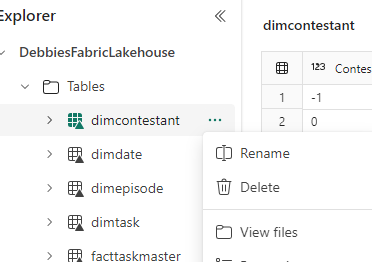
You can right click and View the underlying files.

Lets have a look at another way of doing this.

One Lake File Explorer

Its time to download the One Lake File Explorer which is a new app available with Fabric.

https://www.microsoft.com/en-us/download/details.aspx?id=105222

We can now see the One Lake in our File Explorer just like you can in One Drive, And you also get a local copy.

Lets have a look at the Taskmaster Partitioned Delta Table against a None Partitioned Table

None Partitioned

Partitioned

We have 3 parts at 4 kb each for this partition. What is the recommended size?

64 mb to 1 gb is around the file size we want achieve. Our file sizes are small because there isn’t much data at the moment.

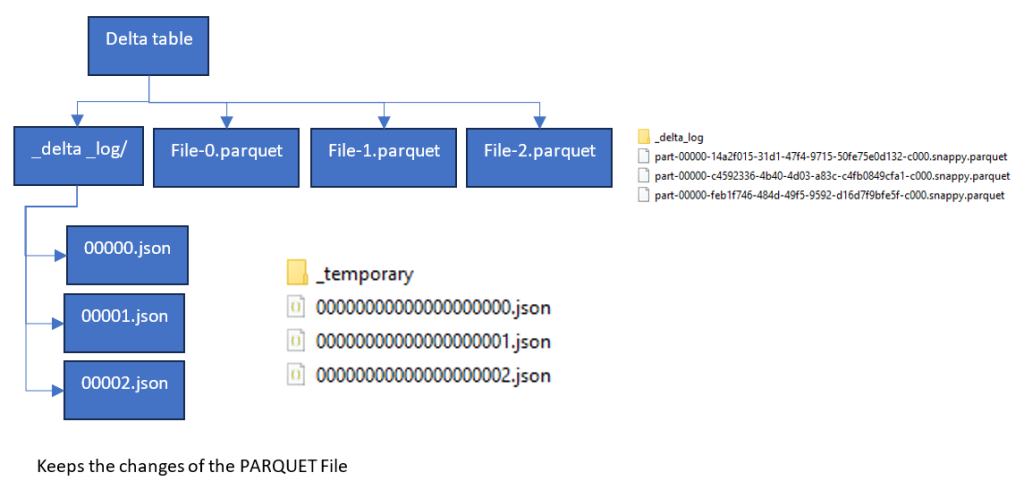
So we have 3 change files in the delta log which correspond to the 3 PARQUET Files. the Delta log lets Fabric know which file to go with when we are looking at our data.

So what do we do when we want to clean up old files?

Maintenance – Optimize and VACUUM

We can optimize our file sizes and also Vacuum old data outside of our retention threshold.

Creating the PARQUET Table.

Now its time to create the PARQUET table that is not delta. This is only happening to test functionality between the two.

In a previous post we learned that you couldn’t partition a PARQUET table. You need to update to Delta to do this,

dftmfact.write.mode("overwrite").parquet('Files/Data/Silver/factTaskmaster.parquet')

Conclusion

Its important to note that Delta PARQUET and PARQET have the same PARQUET files.

Delta just creates the extra delta log tables to hold the changes. The PARQUET is a columnar storage solution, in the same way as the power BI Columnar data store.

So we now have our gold layer of Facts and Dimensions. Both as PARQUET( unmanaged) and Delta PARQUET (Managed)

In the next post we will see what we can do with these files.

Microsoft Fabric Part 6. Taskmaster Project. Creating a Silver transformed layer and Finishing of the Dimensions

In part 4. A new Data source was used at task level and the first dimension was added. Lets quickly create the rest of the dims.

Then we are ready to move on to the next steps in Fabric.

Creating a Silver transformed layer

There are a few changes that would be good to make to the notebooks. The base data needs a level of transforming before we kick off with Dims and Facts.

It would be good to save the transformed data once in the Silver layer and then use this PARQUET file to work from. This means we never have to repeat any code for dims and facts.

We want

  • Silver Transformed data as PARQUET unmanaged files
  • Gold Dims and facts in Delta PARQUET Managed tables

Taskmaster Transformed Data

Create a new Notebook

##drop all rows with null values just in case
dftm = dftm.na.drop(how='all')

display(dftm)

Just in case. Get rid of Empty Rows

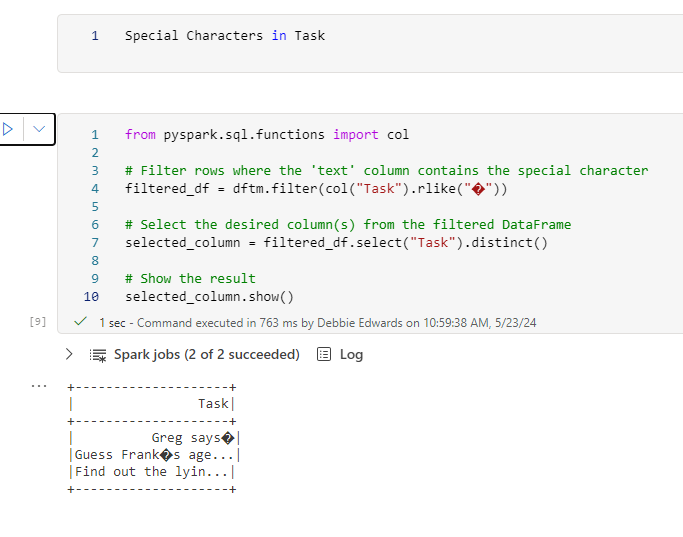
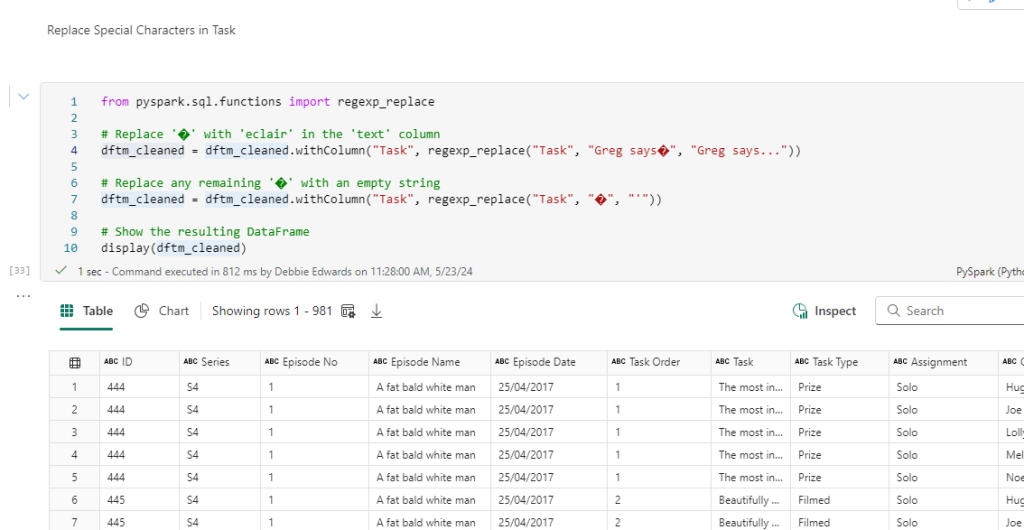
Clean Special Characters

Clean Special Characters in Task

The above was all from Part 5.

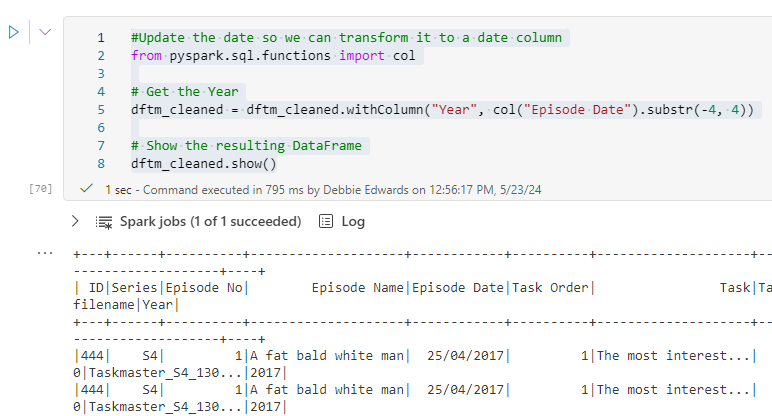
Resolve Episode date issues

Currently we have 28/07/2015 and when transforming to date the values are being lost. We need to change the date to 2015-07-28

#Update the date so we can transform it to a date column
from pyspark.sql.functions import col

# Get the Year
dftm_cleaned = dftm_cleaned.withColumn("Year", col("Episode Date").substr(-4, 4))

# Show the resulting DataFrame
dftm_cleaned.show()

Now add in Day

from pyspark.sql.functions import col, substring

# Assuming you have a DataFrame called 'df' with a column named 'Episode Date'
dftm_cleaned = dftm_cleaned.withColumn("day", substring(col("Episode Date"), 1, 2))

# Show the resulting DataFrame
dftm_cleaned.show()

And month

from pyspark.sql.functions import col, substring

# Assuming you have a DataFrame called 'df' with a column named 'Episode Date'
dftm_cleaned = dftm_cleaned.withColumn("month", col("Episode Date").substr(4, 2))

# Show the resulting DataFrame
dftm_cleaned.show()

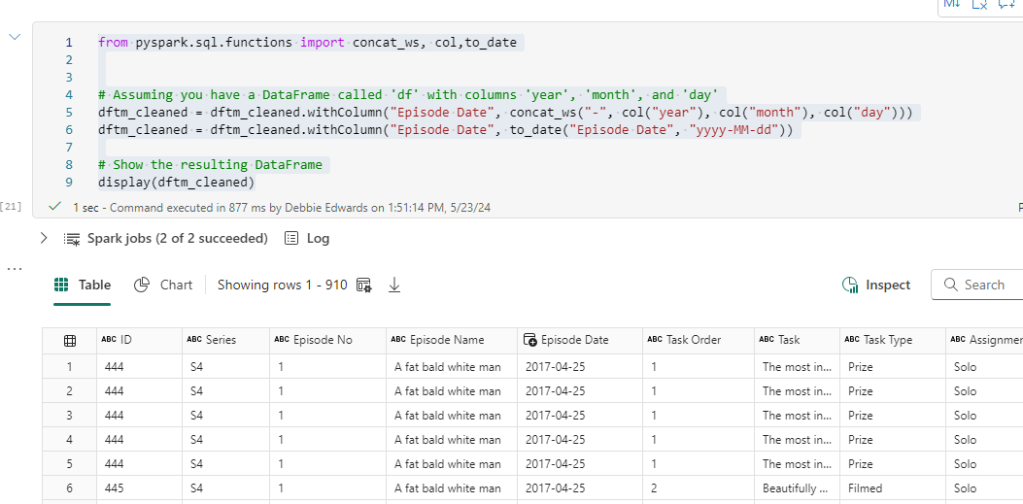
Merge together and convert to date

from pyspark.sql.functions import concat_ws, col,to_date


# Assuming you have a DataFrame called 'df' with columns 'year', 'month', and 'day'
dftm_cleaned = dftm_cleaned.withColumn("Episode Date", concat_ws("-", col("year"), col("month"), col("day")))
dftm_cleaned = dftm_cleaned.withColumn("Episode Date", to_date("Episode Date", "yyyy-MM-dd"))

# Show the resulting DataFrame
display(dftm_cleaned)

Contestant transformations

we also need to bring through the contestant data which we will join later. This is just one file.

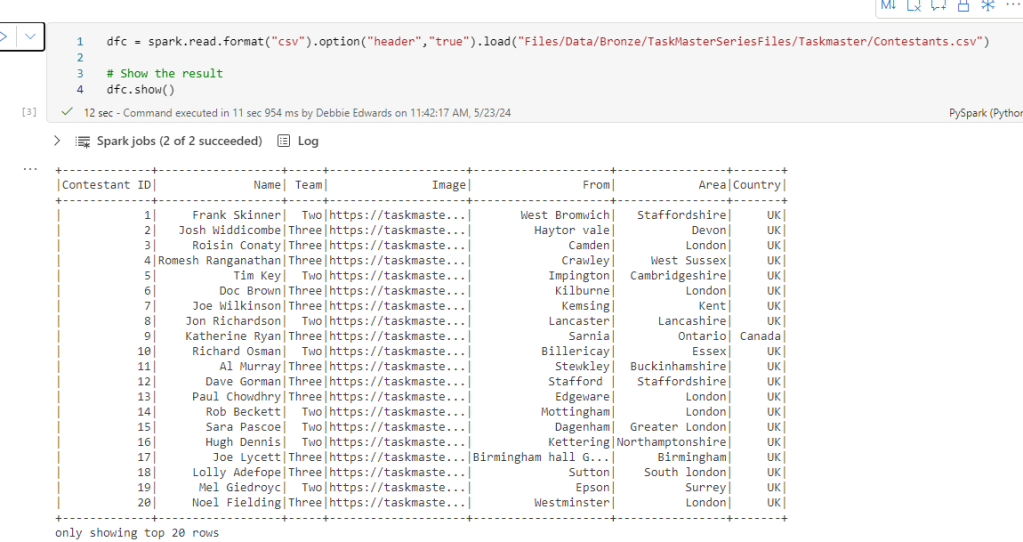
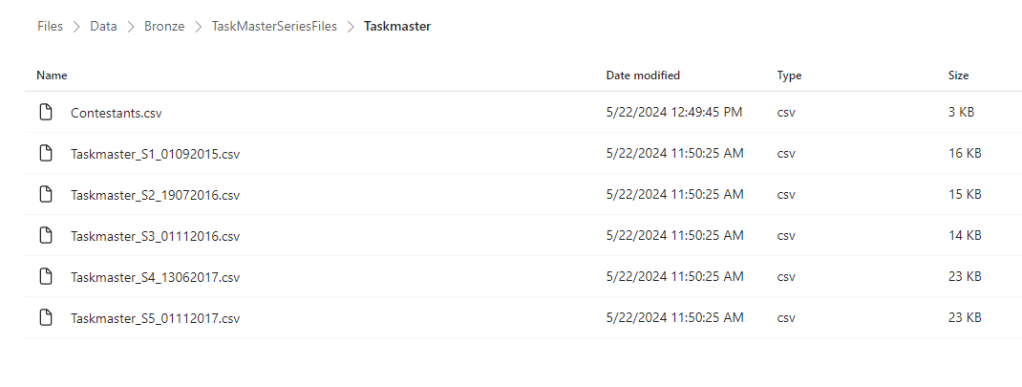
dfc = spark.read.format("csv").option("header","true").load("Files/Data/Bronze/TaskMasterSeriesFiles/Taskmaster/Contestants.csv")

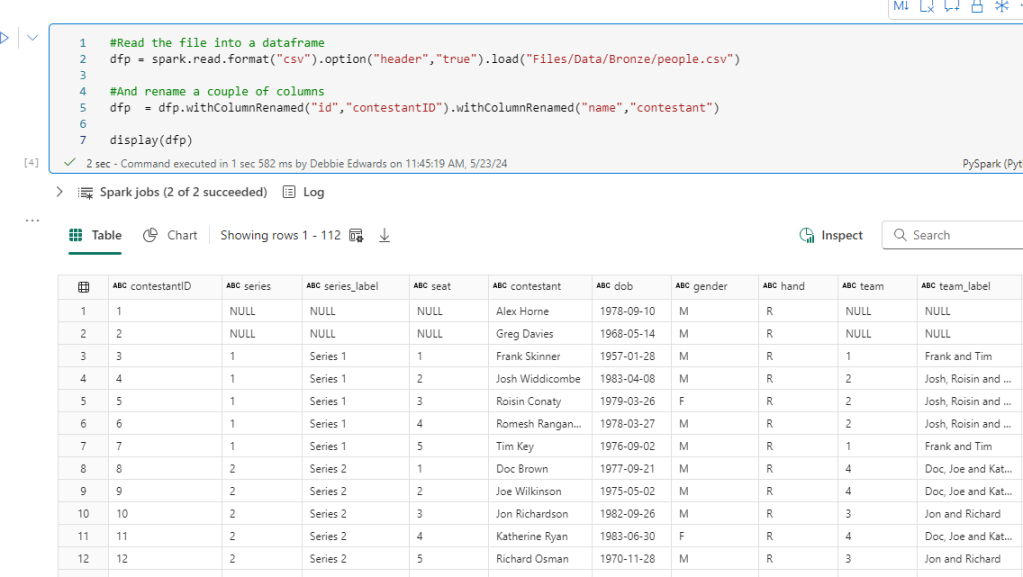
We have our old data set and although we couldn’t turn it into a star schema. there is data that we could use in there to create a more complete data set that can be joined to this data above.

People

#Read the file into a dataframe 
dfp = spark.read.format("csv").option("header","true").load("Files/Data/Bronze/people.csv")

#And rename a couple of columns
dfp  = dfp.withColumnRenamed("id","contestantID").withColumnRenamed("name","contestant")

display(dfp)

In our original people data We have some great stuff here, Age Hand, Seat. We can use these to create some great Power BI visuals. Lets see if we can merge it into our new data

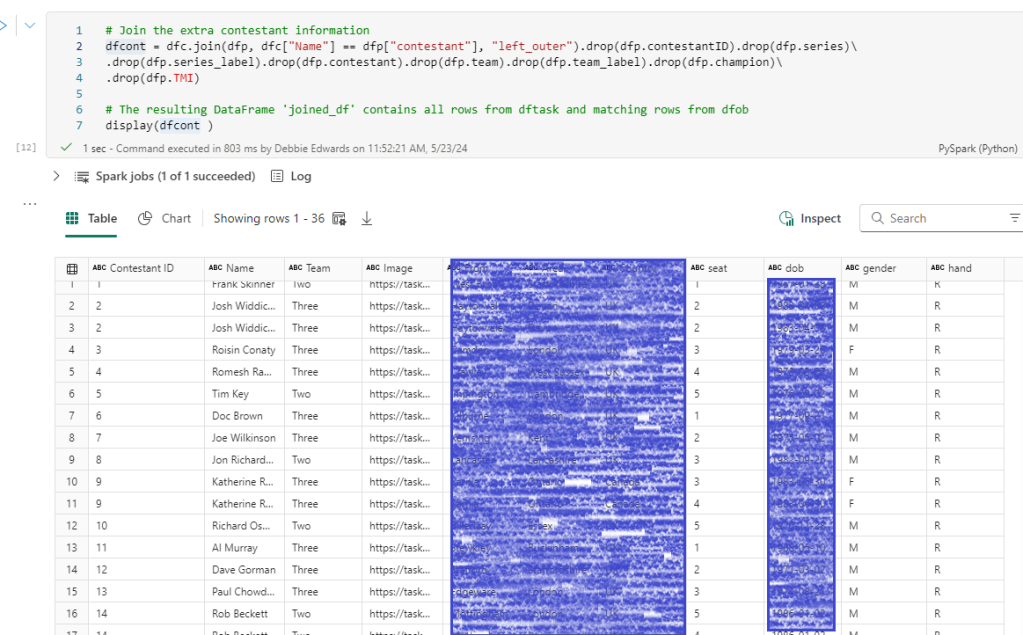
Join Contestant to people data

# Join the extra contestant information
dfcont = dfc.join(dfp, dfc["Name"] == dfp["contestant"], "left_outer").drop(dfp.contestantID).drop(dfp.series)\
.drop(dfp.series_label).drop(dfp.contestant).drop(dfp.team).drop(dfp.team_label).drop(dfp.champion)\
.drop(dfp.TMI)

# The resulting DataFrame 'joined_df' contains all rows from dftask and matching rows from dfob
display(dfcont )

And lets see if we have any nulls we need to add in.

filtered_df = dfcont.filter(dfcont['seat'].isNull()) 
display(filtered_df)

Just the one.

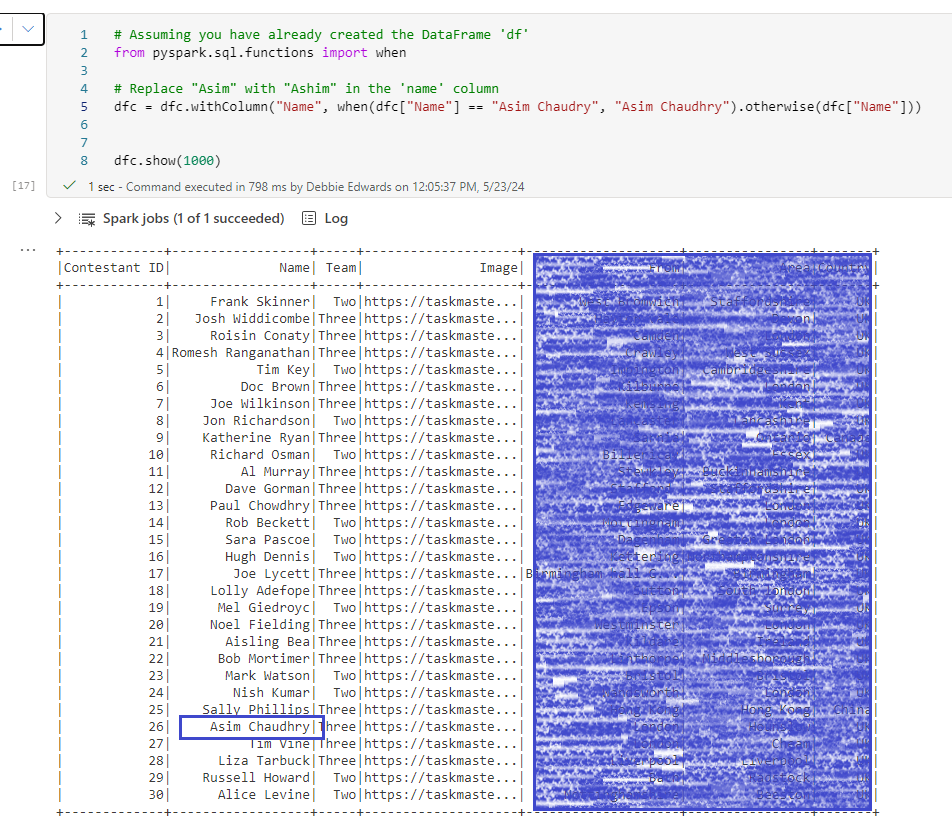
Name from new Dataset – Asim Chaudry name from old Data set – Asim Chaudhry

This is completely sortable before the join. The name is incorrect in the new data set so lets insert a code block to update before the join

# Assuming you have already created the DataFrame 'df'
from pyspark.sql.functions import when

# Replace "Asim" with "Ashim" in the 'name' column
dfc = dfc.withColumn("Name", when(dfc["Name"] == "Asim Chaudry", "Asim Chaudhry").otherwise(dfc["Name"]))


dfc.show(1000)

Now we can redo the join and have no null values

Create Age – Create Distinct Min Episode Date

Now this time we want to create the age as at the start of their task master series. Not current age.

So we need to create a new data frame consisting of just the contestant and min Series date

# Assuming you have already created the DataFrame 'dftm_cleaned'
from pyspark.sql.functions import min

# Group by "Contestant" and aggregate the minimum "Episode Date"
dfminSeriesCont = dftm_cleaned.groupBy("Contestant").agg(min("Episode Date").alias("min_episode_date"))

# Show the resulting DataFrame
dfminSeriesCont.show()

Note that we have already transformed the date and set as a date field in the dataframe.

Merge Episode Date with Contestant

Now we need to merge into our contestant file

# Join the min_episode_date into contestants
dfcont = dfcont.join(dfminSeriesCont,dfcont["Name"] == dfminSeriesCont["Contestant"], "left_outer").drop(dfminSeriesCont.Contestant)

# The resulting DataFrame 'joined_df' contains all rows from dftask and matching rows from dfob
display(dfcont)

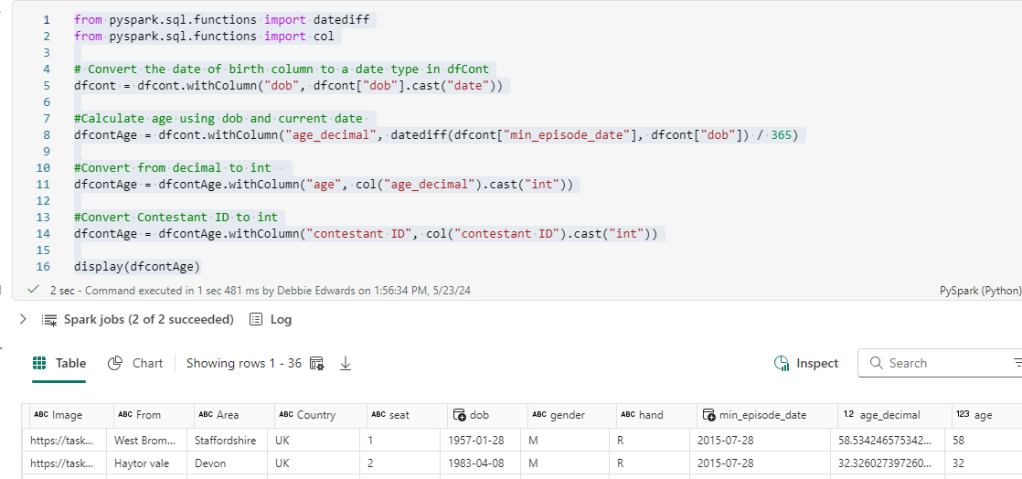
Add Age

from pyspark.sql.functions import datediff
from pyspark.sql.functions import col

# Convert the date of birth column to a date type in dfCont
dfcont = dfcont.withColumn("dob", dfcont["dob"].cast("date"))

#Calculate age using dob and current date 
dfcontAge = dfcont.withColumn("age_decimal", datediff(dfcont["min_episode_date"], dfcont["dob"]) / 365)

#Convert from decimal to int  
dfcontAge = dfcontAge.withColumn("age", col("age_decimal").cast("int"))

#Convert Contestant ID to int
dfcontAge = dfcontAge.withColumn("contestant ID", col("contestant ID").cast("int"))

display(dfcontAge)

Create an Age Group

from pyspark.sql import SparkSession
from pyspark.sql.functions import when, col

# Apply conditional logic
dfcontAge = dfcontAge.withColumn("ageRange", when(col("age") < 20, "0 to 20")
                               .when((col("age") >= 20) & (col("age") <= 30), "20 to 30")
                               .when((col("age") >= 30) & (col("age") <= 40), "30 to 40")
                               .when((col("age") >= 40) & (col("age") <= 50), "40 to 50")
                               .when((col("age") >= 50) & (col("age") <= 60), "50 to 60")
                               .otherwise("Over 60"))

# Show the result
dfcontAge.show()

Save as PARQUET

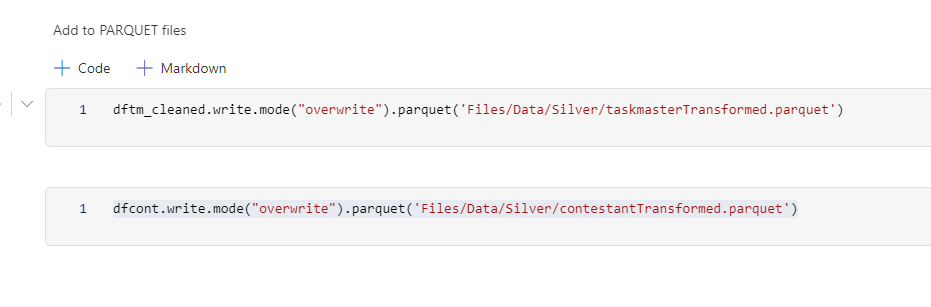
Save both files as unmanaged PARQUET Files

We don’t need to save as Delta PARQUET because this is the silver layer which will be used to create the Delta PARQUET dim and fact tables.

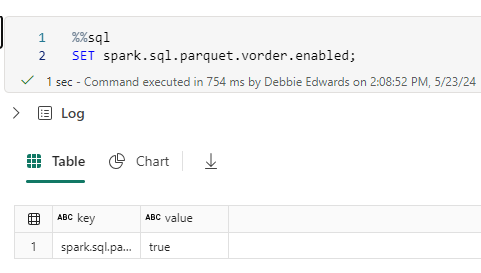
You can’t directly partition a non-Delta Parquet file, but you can optimize it using V-Order for better performance. V-Ordering is true as default but if you want to check you can always use this code

Save your Taskmaster transformed PARQUET Files

Dim Episode

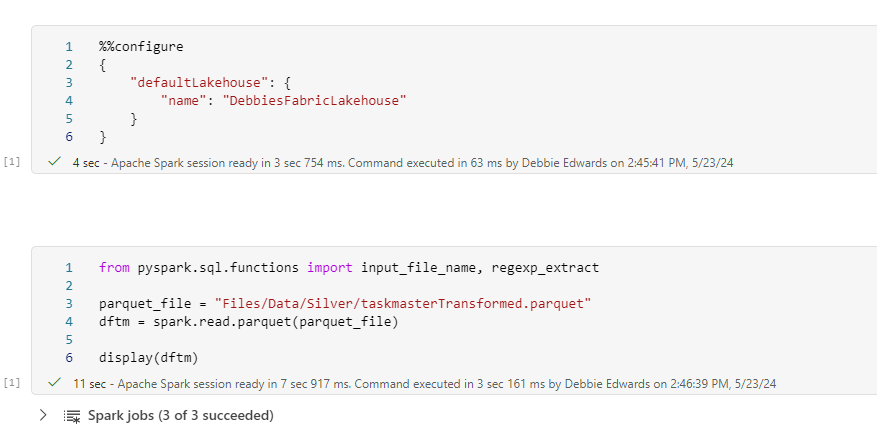
We can now update the original Notebook to use the transformed silver layer data, and remove all the cleaning that’s now in the notebook we have prepared

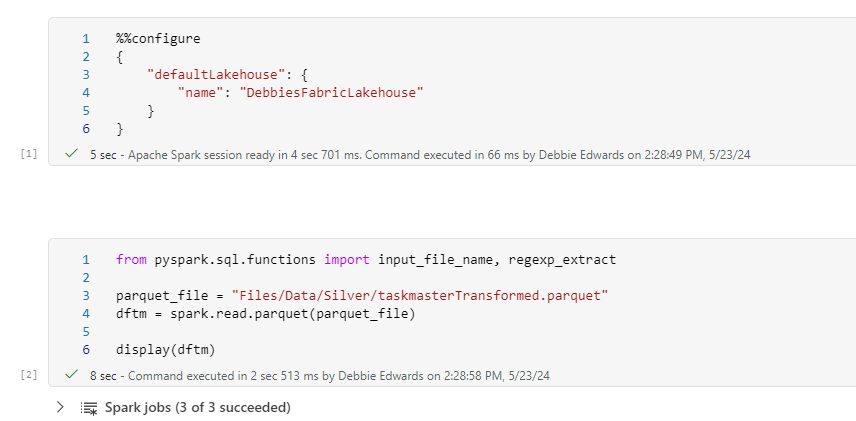
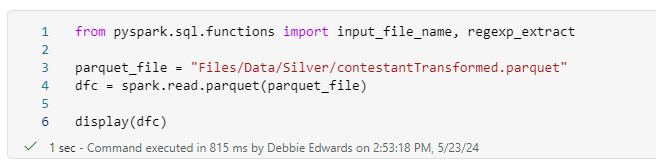
from pyspark.sql.functions import input_file_name, regexp_extract

parquet_file = "Files/Data/Silver/taskmasterTransformed.parquet"
dftm = spark.read.parquet(parquet_file)

display(dftm)

Notice the change to the code now we are reading a parquet file.

All the transformation code has been removed and we start at creating the episode Dim

##drop all rows with null values
dftmEp = dftmEp.na.drop(how='all')

display(dftmEp)

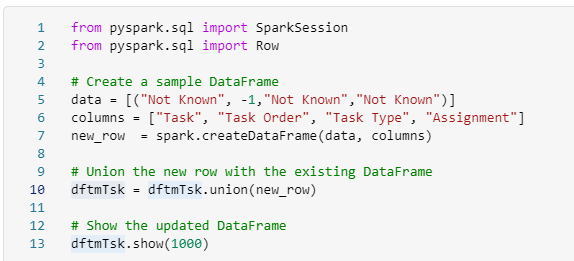
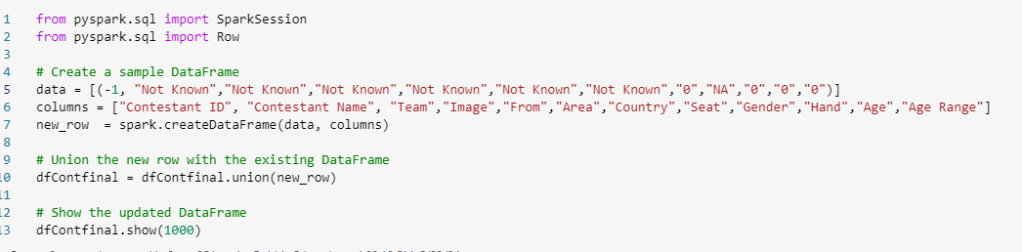
Create a Default Row

from pyspark.sql import SparkSession
from pyspark.sql import Row

# Create a sample DataFrame
data = [(-1, -1,"Not Known")]
columns = ["series", "episode No", "Episode Name"]
new_row  = spark.createDataFrame(data, columns)

# Union the new row with the existing DataFrame
dftmEp = dftmEp.union(new_row)

# Show the updated DataFrame
dftmEp.show(1000)

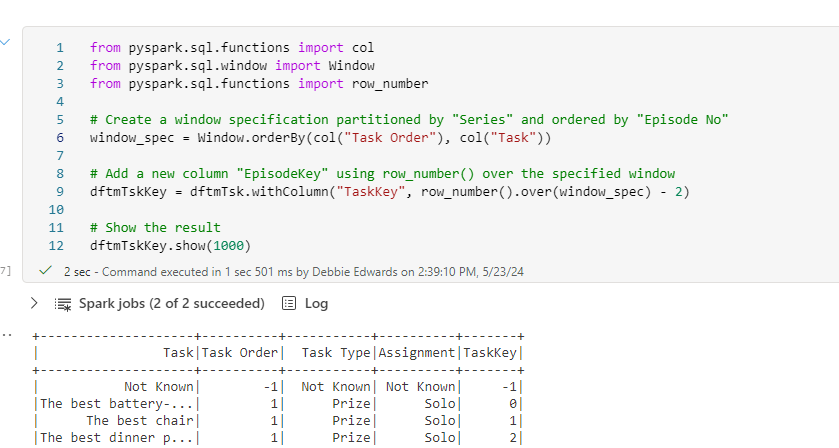
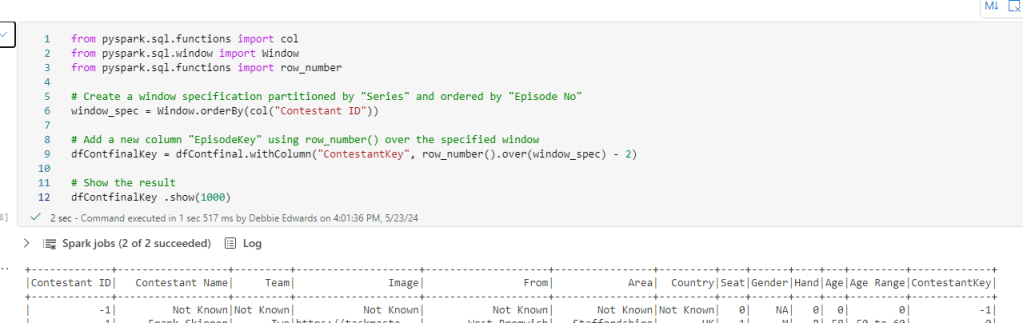
Create an Episode Key

from pyspark.sql.functions import col
from pyspark.sql.window import Window
from pyspark.sql.functions import row_number

# Create a window specification partitioned by "Series" and ordered by "Episode No"
window_spec = Window.orderBy(col("Series"), col("Episode No"))

# Add a new column "EpisodeKey" using row_number() over the specified window
dftmEpKey = dftmEp.withColumn("EpisodeKey", row_number().over(window_spec) - 2)

# Show the result
dftmEpKey.show(1000)

Clean the Column Names

import re

# Select columns with modified names (without special characters)
dftmEpKey_cleaned = dftmEpKey.select(*[col(c).alias(re.sub('[^0-9a-zA-Z]', '', c)) for c in dftmEpKey.columns])

# Show the result
dftmEpKey_cleaned.show(1000)

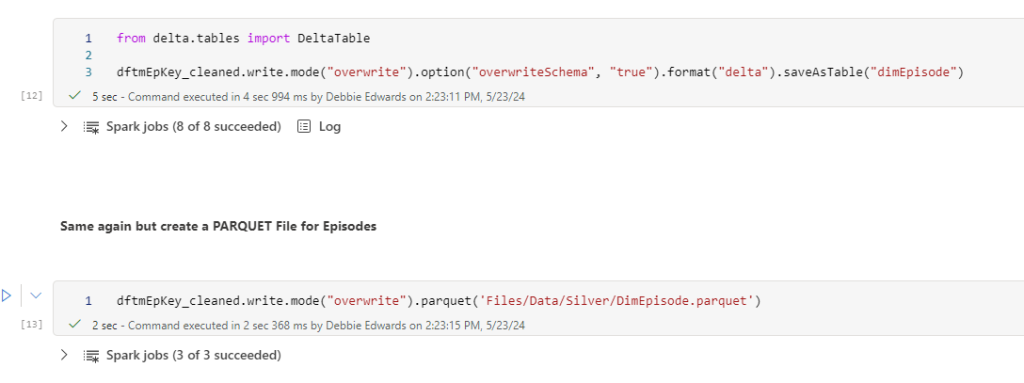
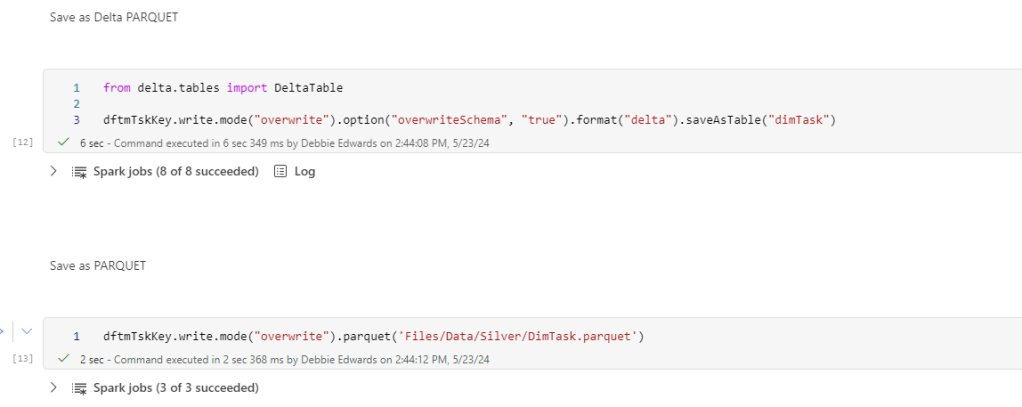
And save to Delta PARQUET and PARQUET (Just to give us the different examples to play with

Dim Task

In this dimension we want the Task, Task Type and Assignment (Solo or Group)

We can hopefully create this quite quickly in a new notebook

Create a new notebook Dim Task V2

The format is completely the same every time

Get the Task fields

Add a default row

Create the Key

Resolve invalid characters in the column names

Save as Delta PARQUET and PARQUET

Dim Contestant

We now get to the contestant. Create a new Notebook. Dim Contestant V2

Merge Contestant with the Taskmaster main file

from pyspark.sql.functions import col

# Perform the left join
merged_df = dftm.join(dfc, dftm["Contestant"] == dfc["Name"], "left_outer")\
                .select(
                    dfc["Contestant ID"],
                    dftm["Contestant"].alias("Contestant Name"),
                    dftm["Team"],
                    dfc["Image"],
                    dfc["From"],
                    dfc["Area"],
                    dfc["country"].alias("Country"),
                    dfc["seat"].alias("Seat"),
                    dfc["gender"].alias("Gender"),
                    dfc["hand"].alias("Hand"),
                    dfc["age"].alias("Age"),
                    dfc["ageRange"].alias("Age Range"),
                ).distinct()

# Show the resulting DataFrame
merged_df.show()

In the main file. Teams in only populated when its a group task.

Therefore we are getting two records. one with and one without a team so we need to remove rows

dfContfinal = merged_df.dropna(subset=["Team"])

# Show the resulting DataFrame
dfContfinal.show(1000)

Add a Default Row

Create a Contestant Key

Clean Column Names

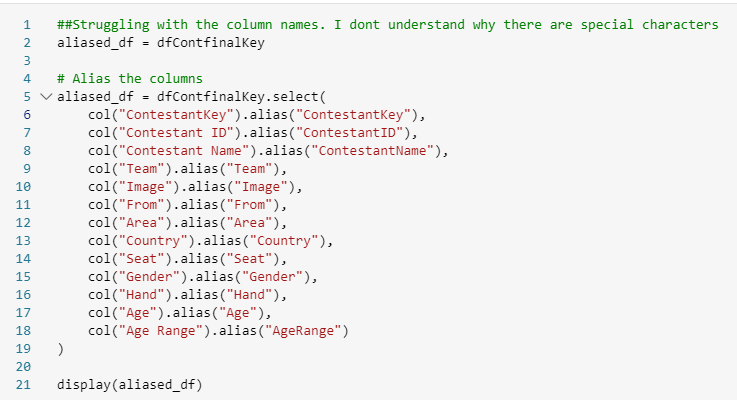
Alias Column Names

renaming all columns to get past the issues with special characters in columns

Save as Delta PARQUET and PARQUET

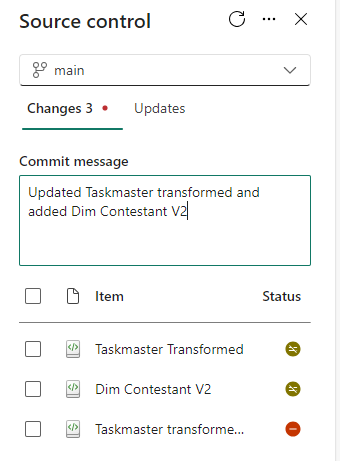
Save the File and ensure you have committed source control

At the end of this post, we have all our dimensions (Date was created in a previous blog).

Next post will be creating the central fact table

And better yet, we have had more of a chance to convert all our year of SQL knowledge across to pyspark.

Microsoft Fabric Part 5. Taskmaster Project. Creating and using Shortcuts from an Azure Data Lake and creating the first dimension

Parts 1 2 3 and 4 were attempting to transform data into a star schema for power BI using notebooks in fabric.

However there was missing data which meant we couldn’t go to the level of detail we wanted for the star (Episode level)

Now we have a new data set and the csv files have been transferred into a data lake manually.

We can attempt to set up a pipeline to import the data in another blog.

in Microsoft Fabric we go to data Engineering

And open up the Fabric Workspace.

We already have a Lakehouse and notebooks containing the work from the last few blog posts

Lets open the Lakehouse

Although we are using the medallion architecture, you may still wish to call your folders, for example raw and staging .

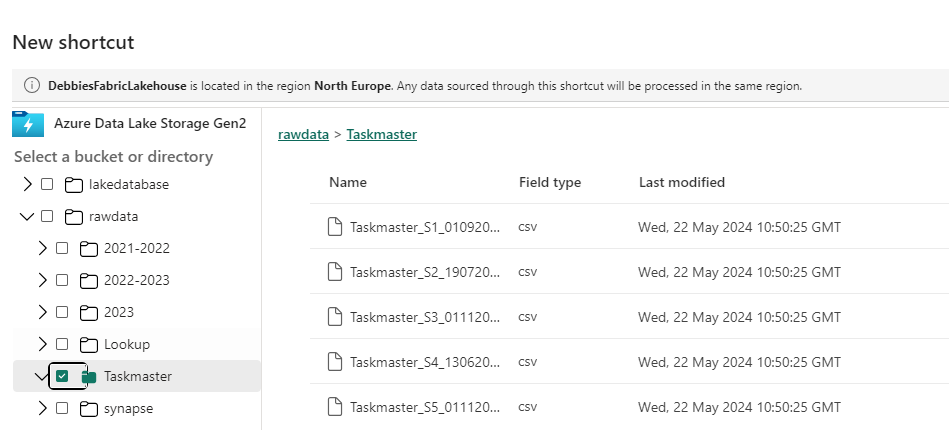
Create a Shortcut

For this exercise we are going to do something different and have the raw data in a datalake in Azure that we add a shortcut to.

the Files have been placed in a datalake and we want to shortcut to these files. Imagine that the process is already in place pre Fabric and we have decided to stick with this process.

This will be added to every time a series finishes.

We also have a Lookup contestants file in this folder that will be updated by having data appended to it

This new exercise will work with partitioning by series for the fact table. Back in Fabric.

Lets add a Shortcut to our new Taskmaster folder in the Bronze raw data area.

https://learn.microsoft.com/en-us/fabric/onelake/onelake-shortcuts

We need the connection settings. get this from the Data Lake. Endpoints Data lake Storage, Primary endpoint data lake storage and sign in.

Tip Make sure you have Storage Blog Data Contributor Role

You want the URL with dfs (Distributed File System), not blob.

However, note that the Data Lake is in North Europe.

Creating a shortcut to a data lake in a different geographical area can result in Egress charges

So we need to check that our Data Lake and Lakehouse are in the same area.

Go back to the Workspace and Workspace Settings

Thankfully both are in North Europe so this should be fine.

Note. To keep down Egress charges you can set up caching which keeps the files for 24 hours without needing to access the data in the shortcut. but this is only available for

  • GCS (Google Cloud Storage)
  • S3 (Amazon S3 Simple Storage Service)
  • S3 compatible shortcuts (Any Services using Amazon Simple Storage Service)

Back to our Shortcut. Click Next.

We want to create a Shortcut to the Taskmaster Folder in the raw Folder. Click Next

Click Create

We now have a shortcut set up to the Azure Data Lake. Later on we can add another file and see what happens.

Create a Notebook

Lets Create a New Notebook

%%configure
{
    "defaultLakehouse": {  
        "name": "DebbiesFabricLakehouse"
    }
}

First of all I’m going to configure to the current Lakehouse

Load in all the files in the Shortcut Folder

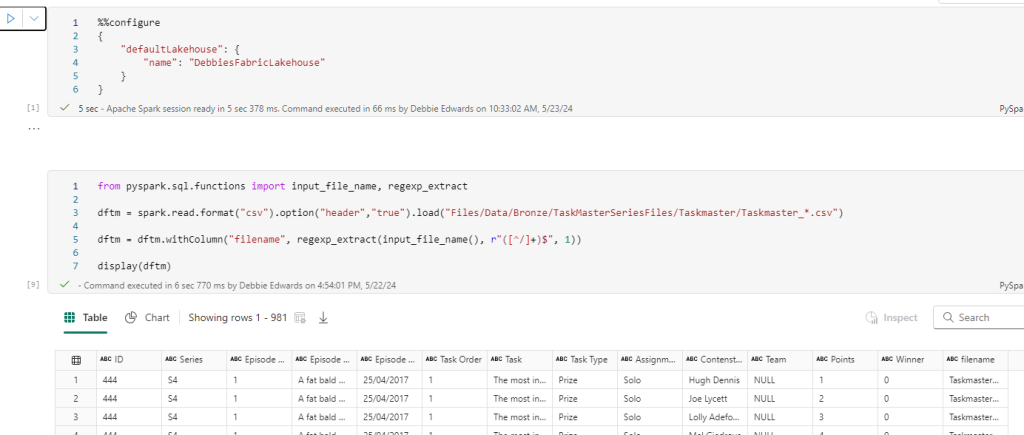
from pyspark.sql.functions import input_file_name, regexp_extract

dftm = spark.read.format("csv").option("header","true").load("Files/Data/Bronze/TaskMasterSeriesFiles/Taskmaster/Taskmaster_*.csv")

dftm = dftm.withColumn("filename", regexp_extract(input_file_name(), r"([^/]+)$", 1))

display(dftm)
  • * alias has been used to get all series files and Series End Dates, and Only csv files.
  • input_file_name() brings us back the file name
  • regexp_extract(, r”([^/]+)$”, 1)) allows us to remove the URL and just keep the filename.

The File name may be important later.

Remove empty records

We have some null rows come through that we want to remove from the data set

how=’all’

This parameter is used with dropna() to drop rows where ALL values are NULL

Removing Special characters

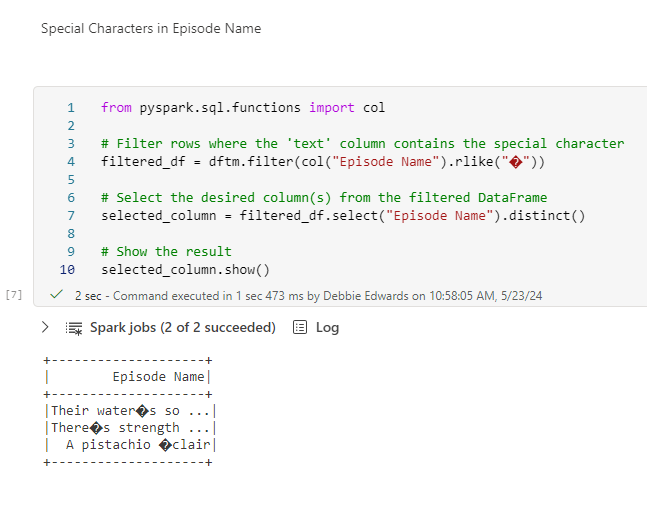
There are issues. We have some strange characters coming through in the data set.

We can use a filter function on the col Column episode name LIKE and bring through a distinct list.

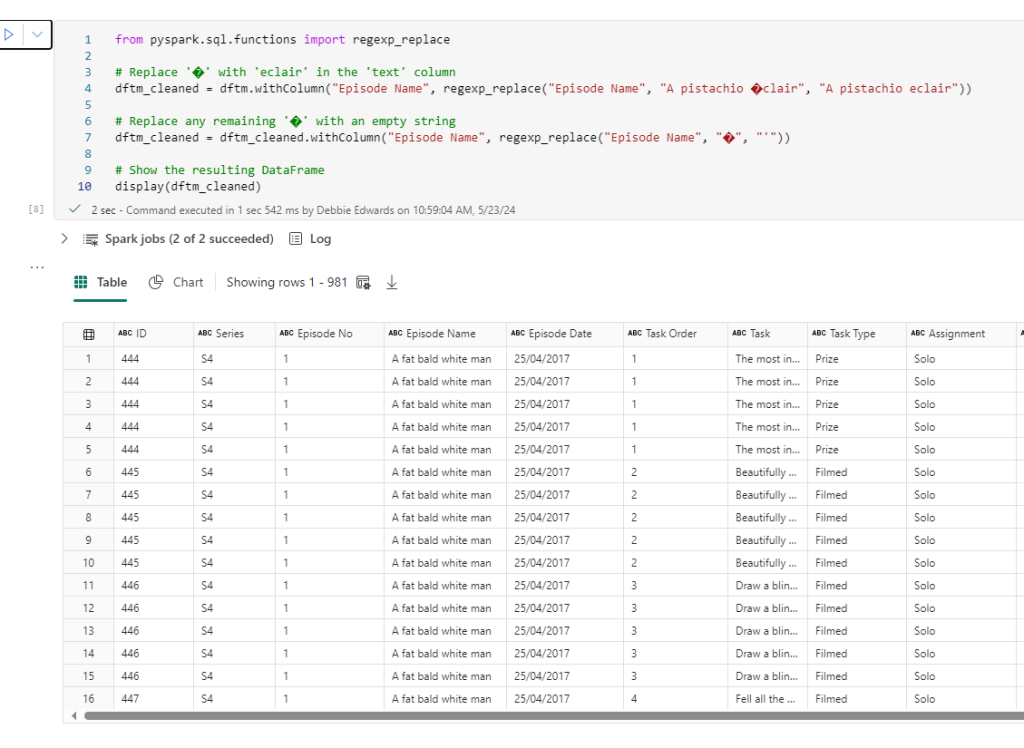
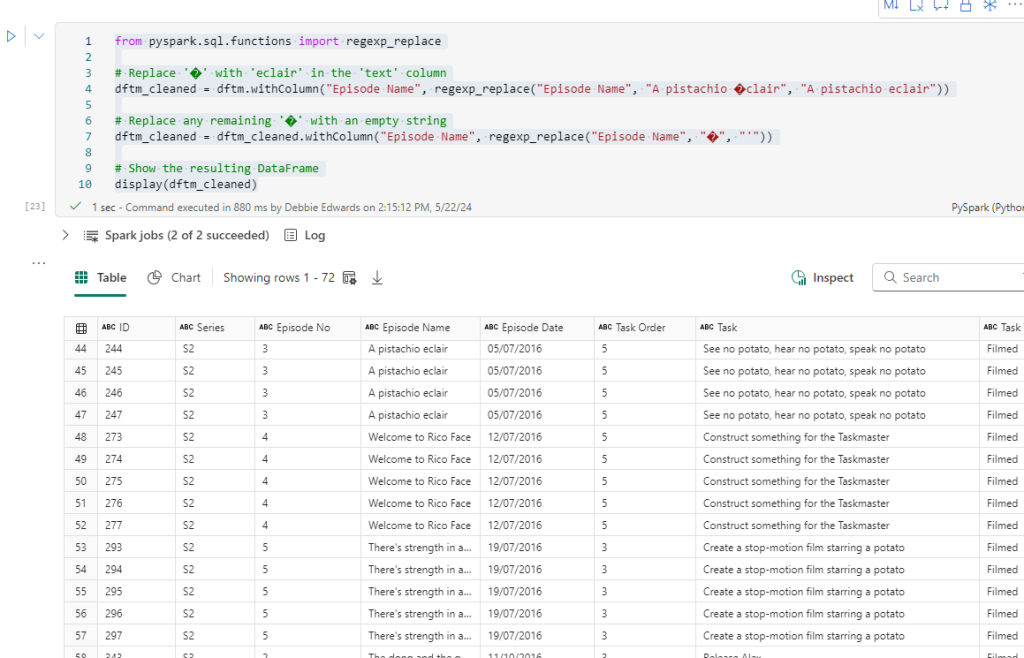
from pyspark.sql.functions import regexp_replace

# Replace '�' with 'eclair' in the 'text' column
dftm_cleaned = dftm.withColumn("Episode Name", regexp_replace("Episode Name", "A pistachio �clair", "A pistachio eclair"))

# Replace any remaining '�' with an empty string
dftm_cleaned = dftm_cleaned.withColumn("Episode Name", regexp_replace("Episode Name", "�", "'"))

# Show the resulting DataFrame
display(dftm_cleaned)

We have two.

é in eclair and any item with ‘

So we actually need to update based on Logic:

from pyspark.sql.functions import regexp_replace

# Replace '�' with 'eclair' in the 'text' column
dftm_cleaned = dftm.withColumn("Episode Name", regexp_replace("Episode Name", "�", "eclair"))

# Replace any remaining '�' with an empty string
dftm_cleaned = dftm_cleaned.withColumn("Episode Name", regexp_replace("Episode Name", "�", ""))

# Show the resulting DataFrame
dftm_cleaned.show(1000)

regexp_replace

This function replaces all substrings of a string that matches a specified pattern with a replacement string. Good for cleaning and transformation.

it might be best to check task name too by repeating the above filter and changing Episode name to Task.

we have Greg says…

and the rest are ‘

We can also deal with this

from pyspark.sql.functions import regexp_replace

# Replace '�' with 'eclair' in the 'text' column
dftm_cleaned = dftm_cleaned.withColumn("Task", regexp_replace("Task", "Greg says�", "Greg says..."))

# Replace any remaining '�' with an empty string
dftm_cleaned = dftm_cleaned.withColumn("Task", regexp_replace("Task", "�", "'"))

# Show the resulting DataFrame
display(dftm_cleaned)

Create Dim episode Dimension

Lets have a look at just S1. Does it have all the Episodes?

Yes it looks good. So the episode Dimension consists of Series and Episode.

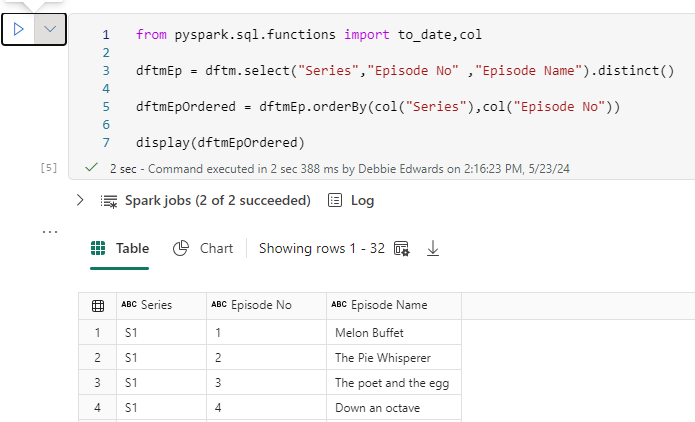
from pyspark.sql.functions import to_date

dftmEp = dftm_cleaned.select("Series","Episode No" ,"Episode Name").distinct()

dftmEpOrdered = dftmEp.orderBy(col("Series"),col("Episode No"))

display(dftmEpOrdered)

This is a Distinct List

And we have created an OrderBy Data Frame to display.

There is an empty row we need to remove

##drop all rows with null values

dftmEp = dftmEp.na.drop(how='all')

display(dftmEp)

We have used this code block before to remove the fully null rows.

Add A Default Row

from pyspark.sql import SparkSession
from pyspark.sql import Row

# Create a sample DataFrame
data = [(-1, -1,"Not Known")]
columns = ["series", "episode No", "Episode Name"]
new_row  = spark.createDataFrame(data, columns)

# Union the new row with the existing DataFrame
dftmEp = dftmEp.union(new_row)

# Show the updated DataFrame
dftmEp.show(1000)

Now we have the recommended Default row. It’s time to add a key

from pyspark.sql.functions import col

# Create a window specification partitioned by "Series" and ordered by "Episode No"
window_spec = Window.orderBy(col("Series"), col("Episode No"))

# Add a new column "EpisodeKey" using row_number() over the specified window
dftmEpKey = dftmEp.withColumn("EpisodeKey", row_number().over(window_spec) - 2)

# Show the result
dftmEpKey.show(1000)

Window.OrderBy

This function is used to define the ordering within a window specification. It allows you to specify the order in which rows are processed within a partition

row_number().over

The ROW_NUMBER() function, when used with the OVER() clause, assigns a sequential integer number to each row in the result set of an SQL query.

Create Delta PARQUET File

We have our first dimension. Lets add it to Silver folder in files as unmanaged and Tables as a managed Delta PARQUET table. that way we can see what we can do with both

We don’t want to partition the dimension. The Fact table will be partitioned

from delta.tables import DeltaTable

dftmEpKey.write.mode("overwrite").option("overwriteSchema", "true").format("delta").saveAsTable("dimEpisode")

However, There is an error coming up

AnalysisException: Found invalid character(s) among ‘ ,;{}()\n\t=’ in the column names of your schema. Please upgrade your Delta table to reader version 2 and writer version 5 and change the column mapping mode to ‘name’ mapping. You can use the following command:

Instead of upgrading. We want to remove the special characters. The columns are

|Series|Episode No| Episode Name|EpisodeKey|

Cleaning up Columns in a dataframe

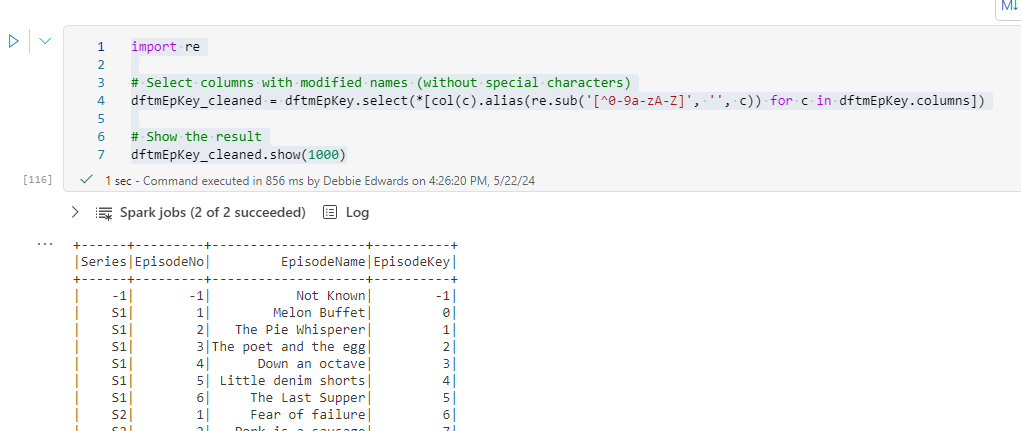
import re

# Select columns with modified names (without special characters)
dftmEpKey_cleaned = dftmEpKey.select(*[col(c).alias(re.sub('[^0-9a-zA-Z]', '', c)) for c in dftmEpKey.columns])

# Show the result
dftmEpKey_cleaned.show(1000)

It seems it may have been the spaces.

re.sub

In PySpark, the re.sub() function is used to replace substrings that match a specified regular expression pattern with a string of your choice.:

re.sub('[^0-9a-zA-Z]', '', c) removes any characters that are not alphanumeric (letters or digits) from the column name.

The expression [col(c).alias(re.sub('[^0-9a-zA-Z]', '', c)) for c in dftmEpKey.columns] is a list comprehension that performs the following steps for each column name (c):

  • col(c).alias(...) creates a new column with the modified name (without special characters) using the alias() method.
from delta.tables import DeltaTable

dftmEpKey_cleaned.write.mode("overwrite").option("overwriteSchema", "true").format("delta").saveAsTable("dimEpisode")

And we can save to delta PARQUET

from delta.tables import DeltaTable

So, we now have an episode dimension. lets save the Notebook as Dim Taskmaster Episode V2 (We already have the original one saved)

Remember to commit in Source Control.

We want to create Task and Contestant dimensions. We already have a date dimension to work with.

In the next post, these extra dimensions and fact table will be created. and then we can see how they can be used

Power BI Story Telling in PowerPoint. New Enhancements April 2024

A Previous Project we worked on had a specific requirement.

Project Requirement

Create reporting once a month and allow us to tell the story in narrative via text boxes. The narrative must show against the reports.

The narrative must be formattable. Bold, italic.

  • Bullet point, etc.

Our users don’t want to go to Power BI service. They want the information emailed as PowerPoint slides to the report viewers.

The License is Power BI Pro and we couldn’t use, for example SQL DB for the project to have the transformations before going to Power BI.

There are a lot of slicers in the reports, so there were numerous PowerPoint slides needed based on the specific slicers

There were immediate restrictions based on the requirements.

Restrictions

  1. With a SQL Database we could have used a visual that allowed us to add narrative to each page because it could have been recorded to a database but this was too complex and we didn’t have that option. Also the user might not have been able to format the text enough on the page.
  2. We tried to use the Storytelling in PowerPoint. But, at the time this was live only. You couldn’t snapshot the data. And there were issues in the amount of sub slicers and the users needing to have paginated reporting.

April 2024

As At April. It seems that there have been changes to Storytelling with PowerPoint. And its of interest to see if this could have worked with the above requirements. Based on very basic data.

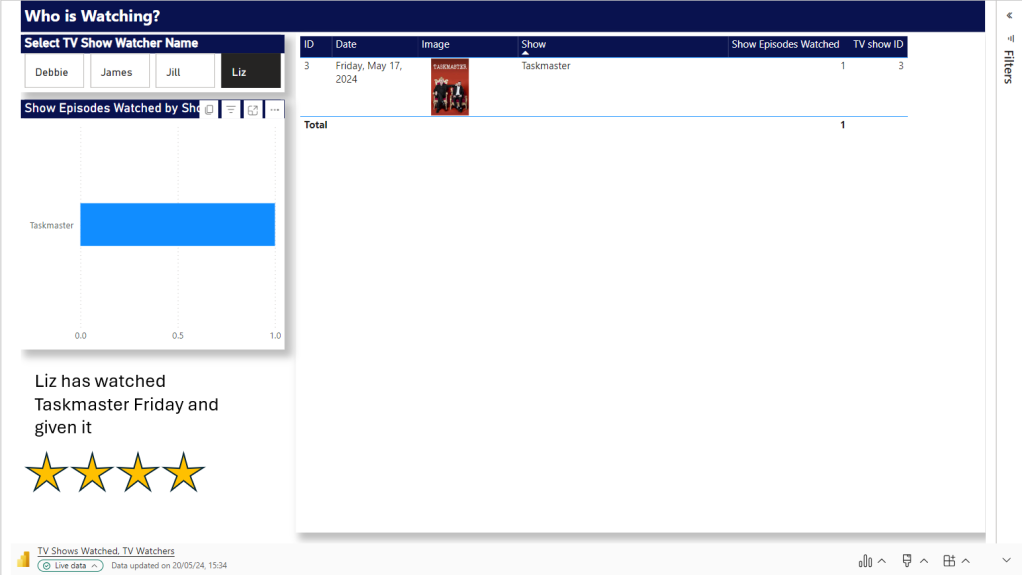
I am going to use TV shows watched as an example for this.

We start off with a couple of records in excel

Which is imported into Power BI.

A Couple of measures have been created.

Show Episodes Watched = COUNT(Shows[Show])

Total Shows Watched = DISTINCTCOUNT(Shows[Show])

And a Few Basic Visuals have been created

Just enough for us to play with

Lets publish to Service

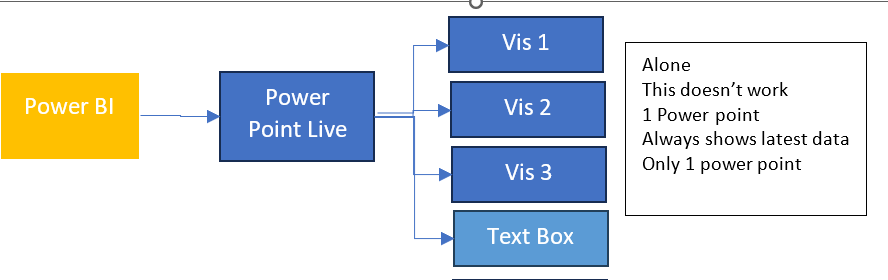
Then Click on the ellipses and Select Share and Open in PowerPoint

And Now. We go across to a new PowerPoint

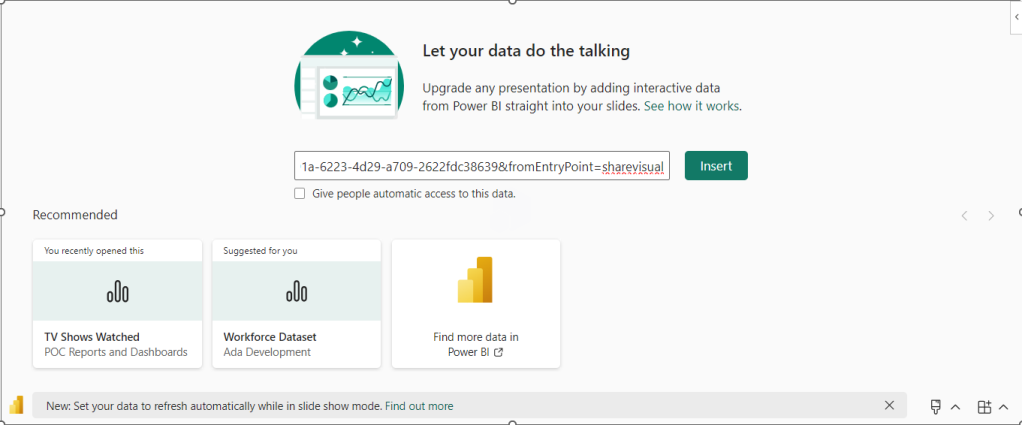
Click Insert

Lets choose a few more Visuals and add some text explaining that day.

Lets save this PowerPoint

Now we are moving into another day and adding more data.

Save and Close XLSX. Lets see how this looks in Power BI after a refresh.

So now lets open PowerPoint again.

What we are hoping for is a PowerPoint snapshot for each point in time

So What we have is Live Reporting which now doesn’t match the text added. What we need is to have Business Logic that allows us to Snapshot the Power point.

Each of the 3 Visuals has options and currently we are on Live data.

There are two other options.

Snapshot

Show and image of Power BI data to people with existing access.

so, these are people who can view the reporting in Power BI service,.

Public Snapshot.

Show an image of Power BI data for people with access to this deck

Essentially, a public snapshot allows you to share a static image representation of your Power BI data with a broader audience, even those who don’t have direct access to the report.

We can chose snapshot for this exercise but what will the business process be? How will this work?

The Business Logic

Essentially we want to have a template in place of Power BI visuals and Text.

We want to make a copy of the PowerPoint and send this to users.

The Next day after a Refresh we want to do the same thing and build up PowerPoint Snapshots where the text tells the story on that day

So what happens if we change all three to Snapshot in the slide deck?

Remember, this slide deck will have many visuals and be much more complex.

Lets make a copy of the PowerPoint slide deck and see.

The text has been updated for the current 2 day data source

Every Visual has had to be manually changed to Snapshot.

This could be really problematic if you had to do this every single time you want to create a snapshot.

lets add another days worth of data into Power BI and refresh

Our Live PowerPoint shows the latest.

Our Snapshot still shows

So now we have a problem. We could do this

BUT. Imagine we have a lot of pages and a lot of visuals. This involves manual updates for every PowerPoint snapshot to move each visual from Live to Snapshot.

Do you want to add this in as a process?

Could your team handle this as ongoing business logic?

This change is really great. But because there are manual aspects to it. its still not that efficient and could be error prone. So we are not quite there yet.

The test needs a manual update every month in the PowerPoint and it does need saving manually.

Changing from individual visuals to a full report

Could we simplify from individual visuals to a full report?

For this, the excel data will be taken back to day 1

There are two possibilities here.

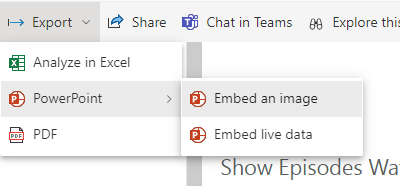
We don’t want to embed an image because that will be snapshot data and the users don’t want to go in and do this every month.

We want to try and Embed Live Data and then change to snapshot. After a few tweaks to the Power BI Page.

Embed live Data and copy the link.

You only need to move from Live to Snapshot once instead of three times for an entire report page.

You can leave gaps on the Power BI report to add in a textbox in PowerPoint.

The question is

Would the users be happy with the look of this?

If yes, we can we now have new manual business logic.

Complications in the Logic.

We have made the decision to do a whole page as one but lets complicate the logic and add some more data.

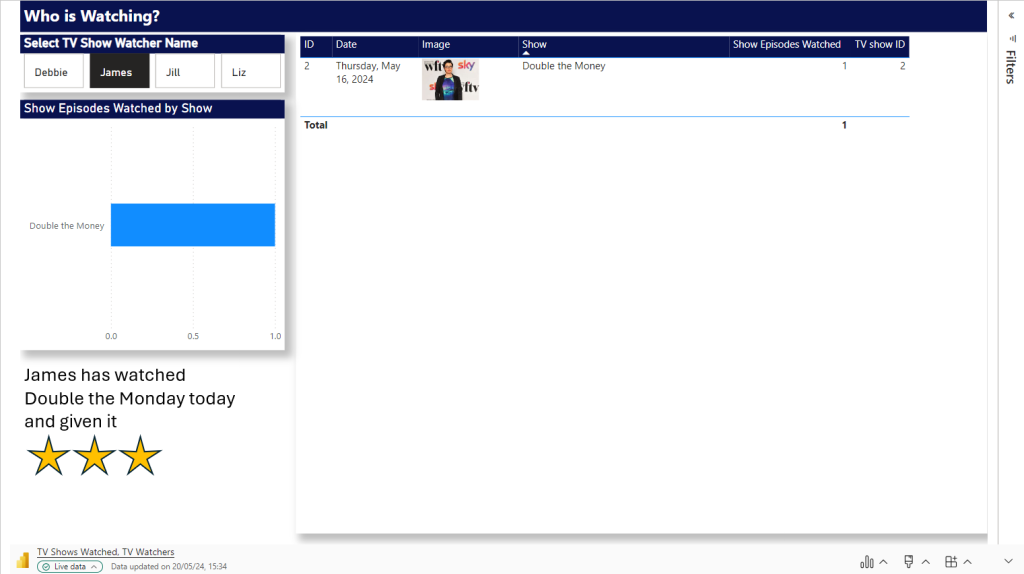
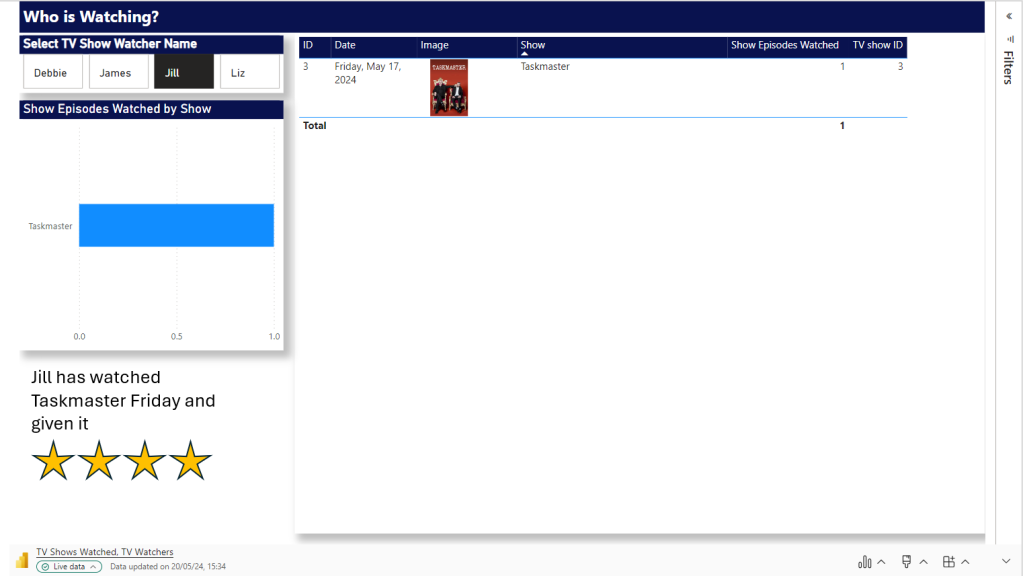
We want a page in PowerPoint for every TV Watcher

Shows

TV Watchers

We are on Day 1. Lets Update Power BI with a new page

First up all, Power Query is refreshed with the new data set and the updated data set.

Not a Star Schema but this is about the end product. the PowerPoint so we can relax on this point for the time being.

Logic – Pull in an entire report page. not just visuals.

After refreshing and publishing. we need to add the new page into our live PowerPoint Embed Live Data.

At this point in time there are only two TV watchers. So we can load in the data twice and set the Slicer. now we have a Page for each Person. including some personal text for the specific person.

Next Step.

To Load in more data. Which means more people could potentially be watching.

How would be logically deal with this?

And will the Slicers stay correct for each page?

So

  • Add in another days worth of data to the xlsx and refresh
  • In Power BI, we manually need to check if we have more watchers. Which we do. there are two. this means, manually another two pages need adding.
  • Open the Live PowerPoint. After A refresh. the good news is the filters have held.
  • Manually create two new Pages and filter to the two new people

Question. Why can’t we just have one page and allow the user to flick through TV watchers?

Because a manager will come and add unique text for each slicer. And without saving this text somewhere that can’t be added dynamically, we cannot do this.

Question. Will the Business Owners be able to add this into the process every snapshot because its a manual process to use the reports to see if there are new users and then add them as pages.

  • Set all pages to Snapshot and Save File as Snapshot. Keeping the Live File as the template.

After a Second test this works. there are certain Manual points to the process. But the user gets what they wanted an a template of Live visuals with room for text.

That can be Saved to Snapshot PPTX.

And have filters set for the sub reports. each watcher gets their own page. We just have to manually understand when we need to add new pages. So we couldn’t do this if we have thousands of watchers with new ones adding every snapshot at a great amount.

Report Builder

Another specific Rule for this project is that there will be alot of tables used and these tables will go over pages (1 to Many)

Because of this. As we go we have to go for the Paginated Option of report Builder.

Question. Would this work with Report Builder Objects?

Using Power BI Report Builder

Add the Data Source as the TV Show Semantic Model created above

Then a Data set

Really nothing fancy here. We just need a table that will go over Pages

The paginated report is saved to Service.

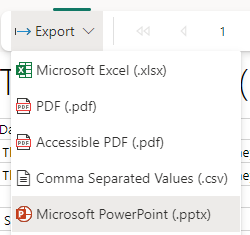
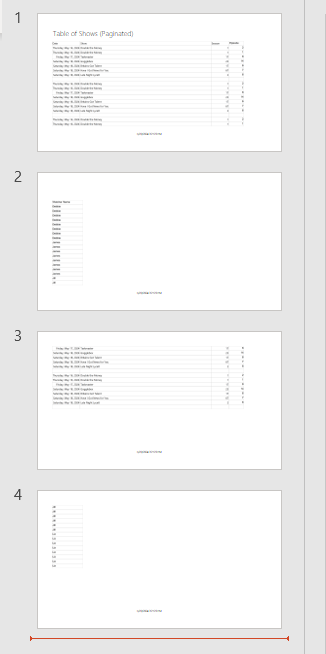
And you can see that immediately we have only Microsoft PowerPoint option. It opens in its own file so can’t be added to the PowerPoint containing Power BI visuals

This doesn’t appear to update. It seems to be a simple Snapshot.

Can we do this another way?

We have created and published the Paginated Report.

In Power BI Desktop

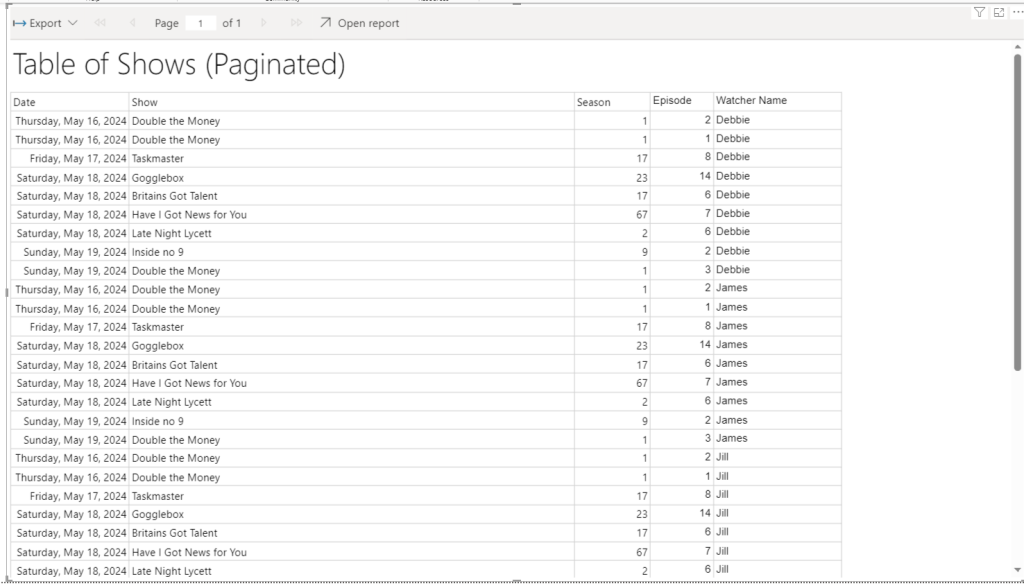
We now have the paginated reporting in Power BI. But its not doing the one thing we needed to use Report Builder for in the first place. Its not paginating the table.

We now can either connect to Live or Snapshot data which is good

But the table is not paginated. It is scrollable. So no need to add in Paginated reporting really. we could stick to the table in Power BI for this functionality

Conclusion

The new Snapshot functionality is super helpful when you don’t want your PowerPoint to simply be one object pointing to the latest data.

we can now create snapshots of information via a live PowerPoint quite quickly. The text manually added into each snapshot PowerPoint will always be specific to that point in time. It needs some manual intervention. But for those users who want to keep things simple. This could be just what is required for this kind of logic.

The PowerPoint even holds the slicer you select on a page.

The problem lies in the extra complexity, if the user requires large tables over many PowerPoint pages.

There are questions here of course. Why do you need large tables? If you do need tables. Would the user be happy to scroll through on a slide?

Note that if you select Public Snapshot. because you are sending out to people without licenses, all functionality is lost because you just get images, So if you have tables with sliders you will lose the additional records. Something to think about when setting up a project like this.

If so, Paginated report can be bypassed, and you have licenses for all viewers. Great. But, if this is a requirement. The new functionality will not work for you.

Lots to think about here. As always every month poses lots of questions for current and past projects.

Microsoft Fabric Part 4. Taskmaster Project. Adding the fact table

In parts 1 and 2 we created and updated DimContestant

In Part 3 we created DimTask, DimEpisode and DimDate

Its time to create the fact table. the first thing we need to do is to get an understanding of what Facts we have and how they would join to the data we have created in the dims so far.

Lets create a notebook.

%%configure
{
    "defaultLakehouse": {  
        "name": "DebbiesFabricLakehouse"
    }
}

Adding possible csvs into DataFrames

Attempts

#Read the first file into a dataframe
dfattempts = spark.read.format("csv").option("header","true").load("Files/Data/Bronze/attempts.csv")
# dfattempts now is a Spark DataFrame containing CSV data from "Files/Data/Bronze/attempts.csv".
display(dfattempts)

Contains points and ranks and appears to be at the episode and contestant level

episode_scores

#Read the file into a dataframe
dfepsc = spark.read.format("csv").option("header","true").load("Files/Data/Bronze/episode_scores.csv")

display(dfepsc)

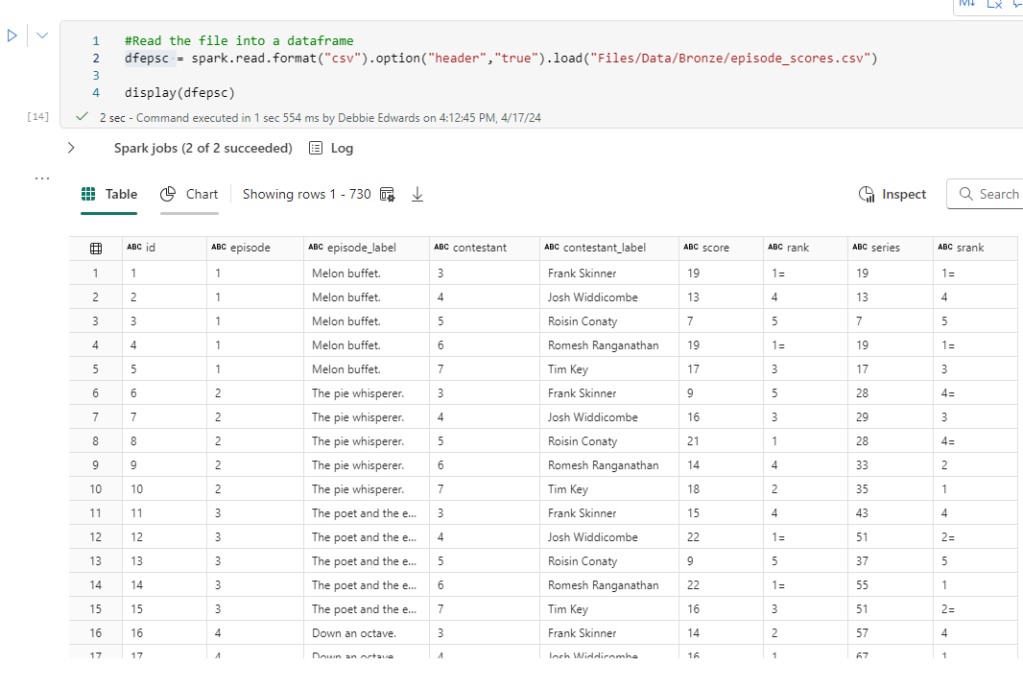
episode_scores is new to this project but seems a really good data set. Holds scores and Ranks at the episode and contestant level (but not at task level)

we actually don’t need this because its just aggregated data. We can remove this from our transformations. Power BI will aggregate for us

episodes

#Read the file into a dataframe
dfepis = spark.read.format("csv").option("header","true").load("Files/Data/Bronze/episodes (1).csv")

display(dfepis)

This contains Dates and points. However the Scores are at Episode Level. We will be able to get this information from DAX, summing the individual Scores so we don’t need the scores at all. All we are interested in is the air date.
Lets look at the row counts

ct = dfepsc.count()
print(f"dfepsc: {ct}")

ct = dfepis.count()
print(f"dfepis: {ct}")

ct = dfattempts.count()
print(f"dfattempts: {ct}")

the number of columns vary. We need to make sense of what we have

Create the data we need from attempts

# Select multiple columns with aliases
dfdfattemptsf = dfattempts.select(
    dfattempts.task.alias('attTaskID'), #Join to DimTask
    dfattempts.task_label.alias('attTask'),
    dfattempts.episode.alias('attEpisode'),
    dfattempts.series.alias('attSeries'),
    dfattempts.contestant_label.alias('attContestant'), #Join to DimContestant
    dfattempts.points.alias('attPoints')
).distinct()

# Show the resulting DataFrame
display(dfdfattemptsf)

The Points in Attempts are the best ones we have at the moment because the Task csv was empty.

we are clearly now hitting real data problems and in a normal project we would be going back to the team creating the data to get them to resolve the problems.

Filter attempts

the attempts is our main table but we could do with the episode and Series information working with our dimensions we have and we only have Ids for both

Are episode and series related with the correct IDs? Lets do some filter queries to look at series 1, episode 1.

After a few filtered queries, there is clearly a some data issues, or unknowns that I am not aware of. With attempts. The episode 1 and series 1 doesn’t match the contestants and tasks (I know because I watched it).

For episodes (1) (Above) we do have the correct information for episode and series. But we aren’t using these to get data.

More problems with Episode Scores. Episode appears to be correct. But the series ID is completely different so we cant match on this. But we aren’t using this data any more.

We need to look at our PARQUET file DImEpisode

The first thing we need to do is Load our DimContestant PARQUET data back into a dataframe and to to this, we have to update the code slightly as previously we have loaded in csv files.

# Read Parquet file using read.parquet()
dfdimep  = spark.read.parquet("Files/Data/Silver/DimEpisode.parquet")
display(dfdimep)

To Get the path, Click on you File in the Files Folder in the Lakehouse and Copy ABFS Path, Copy Relative path for spark gives you a more concise path

We are now using the silver layer of the medallion architecture in the path. All our bronze landing data has been transformed.

Are our IDs correct in the Dim for Attempts, or for the Tasks by Objective csv?

Now we have a real issue. Our Episodes cant join to attempts.

Join with one Condition

We can join episode Scores to Episode first via the episode name? This would be an issue if you have repeating episode names in Series, but we are lucky that this is not the case.

# condition
original_condition = dfepis["title"] == dfepscf["scEpisode"]

# Now perform the left outer join
dfEpScorej =  dfepis.join(dfepscf, on=original_condition, how="full").drop(dfepscf.scEpisode)

display(dfEpScorej)

Filter new transformed table for episode 1 series 1

import pyspark.sql.functions as F

filtered_df = dfEpScorej.filter((F.col('episode') == 1) & (F.col('series') ==1))
display(filtered_df)

Filtering on Task 1 Season 1 gives us all 5 contestants against the episode. There are lots of columns we can remove. For example, we don’t need to hard code the winner. This can be done via Power BI DAX. So, the above join will be slightly updated with .drop.

# condition
original_condition = dfepis["title"] == dfepscf["scEpisode"]

# Now perform the left outer join
dfEpScorej =  dfepis.join(dfepscf, on=original_condition, how="full").drop(dfepscf.scEpisode)\
.drop(dfepscf.scEpisodeID).drop(dfepis.winner).drop(dfepis.winner_label).drop(dfepis.studio_date).drop(dfepis.winner).drop(dfepis.finale).drop(dfepis.TMI)

display(dfEpScorej)


Full is being used as the join because we want each side even if they haven't been joined. 

Use dfEpScorej now instead of dfepis and dfepscf

We have the attempts (dfattemptsf) left

So how can we join this final table?

  • We can’t join by Task because Episodes doesn’t include task
  • We can’t join by Series because the Series IDs don’t match and neither does Episode.
  • We can match by Contestant but Contestants can take part in multiple series so the join doesnt work

As it stands we cant actually match in this table so we need to go with Episodes and Scores for the fact table.

Add the Dimension Keys into the transformed table

Join DimContestants Via Contestant Name

We Can’t use ID but we can use name.

Also when we join we only want the Key and we can immediately remove everything relating to Contestant.

# Original condition
original_condition = dfdimcont["contestant"] == dfEpScorej["sccontestant"]

# Adding another condition based on the 'name' column
#combined_condition = original_condition & (dfdimcont["contestant"] == dfEpScorej["sccontestant"])

# Now perform the left outer join
dfEpScorej = dfEpScorej.join(dfdimcont, on=original_condition, how="left")\
.drop(dfdimcont.TeamName).drop(dfdimcont.teamID).drop(dfdimcont.age).drop(dfdimcont.gender)\
.drop(dfdimcont.hand).drop(dfdimcont.ageRange).drop(dfdimcont.dob)\
.drop(dfdimcont.contestant).drop(dfdimcont.contestantID)\
.drop(dfEpScorej.sccontestant).drop(dfEpScorej.scContestantID)

display(dfEpScorej)

If we have any null values they can be replaced with -1

But first we can check if any exists

dfEpScorej.filter(dfEpScorej.ContestantKey.isNull()).show()

fillna to replace null with a value

Even though we have none at the moment, there could be some in the future so fillna allows us to replace with our Default keys

dfEpScorej = dfEpScorej.fillna(-1, subset=[“ContestantKey”])
dfEpScorej.show()

Add Episode Key

All is good. we can join it into the transformed table. Removing everything but the key using .drop

the data was checked that it was ok before adding all the .drop’s into the code,

# Original condition
original_condition = dfdimep["seriesID"] == dfEpScorej["series"]

# Adding another condition based on the 'name' column
combined_condition = original_condition & (dfdimep["episodeID"] == dfEpScorej["episode"])

# Now perform the left outer join
df = dfEpScorej.join(dfdimep, on=combined_condition, how="left")\
.drop(dfdimep.episodeTitle).drop(dfdimep.episodeID).drop(dfdimep.series).drop(dfdimep.seriesID)\
.drop(dfEpScorej.series_label).drop(dfEpScorej.series).drop(dfEpScorej.episode).drop(dfEpScorej.title)

display(df)

Set Key to -1 if NULL

dfdimtask = dfdimtask.fillna(-1, subset=["taskKey"])
dfdimtask.show()

Conclusion

This specific project has been abandoned because the data doesn’t give me what I need join wise to create the star schema. Mostly because there is clearly a main table with missing data.

But, I can’t wait to take what I have learned and try again with another data set.

Parts 1 to 4 have given me some great insight into analysis transforming and modelling with Pyspark.

Design a site like this with WordPress.com
Get started