After 14 years using Microsoft On Premise BI Tools (SQL Server, Reporting Services, Integration Services and Analysis Services) Its time to embrace Business Intelligence in the cloud.
But what are Dynamic M Query Parameters and what does this mean?
It feels like they have been upgraded to use with direct query data sources so you can restrict the amount of data being asked for at the lowest level.
Lets have a look at a simple example using Taxi data from a Microsoft learning path.
First of all you need to open Power BI – Options and Settings – Options
Its in Preview so make sure that is ticked before continuing
Get Data Azure SQL Database (The guidance mentions SQL Server but it seems that both can be used for this test)
Load
Then go to Transform data.
Right Click on trip fares to get to advanced editor
let
Source = Sql.Database("dataengineering-sqlserv.database.windows.net", "taxi-data-db"),    dbo_TripFares = Source{[Schema="dbo",Item="TripFares"]}[Data]
in
 dbo_TripFares
Its currently bound to a table but we need to bind it to a query for this process.
Click the cog against source.
Go into Advanced Options and add the SQL Statement
SELECT * FROM dbo.TripFares
And then go back and look at advanced editor
let
Source = Sql.Database("dataengineering-sqlserv.database.windows.net", "taxi-data-db", [Query="SELECT * FROM dbo.TripFares"]),
dbo_TripFares = Source{[Schema="dbo",Item="TripFares"]}[Data]
in
dbo_TripFares
So now, its nearly bound to a query but you will note that it looks like the table is erroring.
You can go back to Advanced Editor and change to
let
Source = Sql.Database("dataengineering-sqlserv.database.windows.net", "taxi-data-db",
[Query="SELECT * FROM dbo.TripFares"])in
 Source
We only need the query and not dbo_TripFares
Now we can add the Dynamic M Query parameters. I will go for an easy one first as a demo.
And then I change the advanced code again
let
Source = Sql.Database("dataengineering-sqlserv.database.windows.net", "taxi-data-db", [Query="SELECT * FROM dbo.TripFares Where payment_type = '" & paramPaymentType & "'"])
in
#"Source"
Note the new WHERE Clause that concatenates the value in our parameter
It will read in SQL SELECT * FROM dbo.TripFares Where payment_type = ‘CRD’
When it runs the first time you are asked to approve and you can actually see the SQL its going to use which is good. (Note I had to change to CSH to get the message up but I am running with CRD)
When it comes through its restricting to the selected payment type
We are going to change the code again
let
filterQueryPaymentType = "SELECT * FROM dbo.TripFares Where payment_type = '" & paramPaymentType & "'",
Source = Sql.Database("dataengineering-sqlserv.database.windows.net", "taxi-data-db",
[Query=filterQueryPaymentType])
in
#"Source"
This sets the SQL command first and we pass the Filter query into the data source
Now we know that the query works. Lets use it in Power BI Reporting and Assign to table.
This will need a lookup table of all the payment types to work
I am going to simply create the reference table in M
let
Source = Sql.Database("dataengineering-sqlserv.database.windows.net", "taxi-data-db",
[Query="SELECT DISTINCT payment_Type FROM dbo.TripFares"])
in    #"Source"
Close and Apply
Now bind the table to the parameter in Modelling tab
Click on Payment_Type column. Advanced. Bind to parameter
Click Continue
A multi select is not going to be used for this demo
I have added a quick table. the metrics have come through as strings and there will be lots of things you need to test in direct query mode but I will ignore for the time being.
I dragged in Payment type from the Payment Type lookup into a slicer.
Click the slicer and see your data change. every time you click the slicer a direct query will happen but only for the payment type selected, hopefully making things much quicker.
And there you go. You have set up a restricted direct query. This will help with any direct query reports you need to create based on real time data.
You are still hitting the SQL DB though a lot so this would need thinking out.
And remember, Direct query doesnt give you the full Power BI reporting suite so your reports may be more basic. And usually I like to work with Star schemas but here we have the extra complexity of lookup tables to work with the parameters.
I will be looking at a date time example soon hopefully. This is clearly an extremely important piece of the Direct query real time puzzle.
For being one of my go to’s for anything Power BI.
I had seen in the August power BI release that there was a new PowerApps visual in preview but its Guy in a Cube that gave me the confidence to try it out.
In the September 2019 release its become fully available and I have quite a lot of business logic that I could get off the ground and into my projects using PowerApps
My initial challenge to resolve for the business:
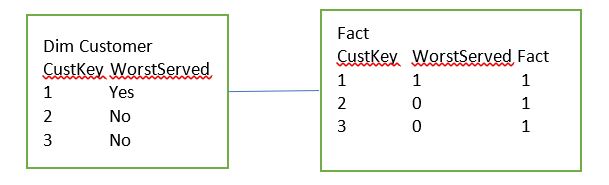
I have worst served customers in my Data
SELECT [Top 20 Worst Served] FROM [fact].[Fact]
Which is a 1 or 0
SELECT [Top 20 Worst Served] FROM [dim].[Customer]
Which is a true or false flag
I can then have reports for worst served customers filtered by the above
However, in some cases there may have been an investigation and its been deemed that the customer shouldn’t be in worst served. Note that this information isn’t capturing in the source data set.
They want to be able to immediately say this customer is
fine and the results will then update accordingly.
Every time the data is refreshed, these data items get fully
refreshed in case they are not worst served any more.
In the current Reports, Filters are set on the page for both the above columns in the dim and the fact
Where Dim Customer WorstServed = Yes
Where Fact WorstServed = 1
Question 1
Do the users want to see an immediate change to the report?
Or are they happy for it to come through on the next refresh?
The users want to see the report metrics change immediately based on them adding in information
Quick Steps to adding the POWERAPP into Power BI From Guy in a Cube
The Tables that are to be updated need to be in Direct Query Mode
The tables connected to these tables on the 1 side of the relationship, should be in Dual Mode (Which acts as Import or Direct Query)
Design your reports in the Desktop
Once designed DO NOT ADD THE POWER APP INTO THE PBIX FILE
Publish your report
In Power BI Service click on edit Report
Then in the Visualisations pane, If you don’t have already, Go to the Market Place and choose PowerApps
Add the POWERAPP into your report
Choose App (Or Create New App)
Add in the columns required to use the POWERAPP
In PowerApps give the people access who need to be able to update the data
Things to Consider
The users want to see the change immediately rather than on the next refresh
My report pages are already created and I have many tables (All Imported) and relationships in the model.
Dual Storage Mode, I have never used this before. How many tables would need this change in the data source?
The PowerApp will be a new enhancement to the reports
The PowerApp hasn’t been built yet
I am concerned about adding the visual into Power BI Service in Edit mode because the standard way to create reports is in Desktop. I have many more Updates to do after the power App has been added and I don’t know how adding visuals in Service only will work with the ongoing App amendments
Possible Data Solution 1
in the
PowerApp, the User Adds in the CustID, (And an automatic date is assigned)
these get inserted into the table Staging Worst Served Amendments
Then
Dim Customer and the fact table are checked through using the custID and the
items are set to ‘No’ and 0 as above (this is clearly the most difficult bits
because it’s an update based on the CustID
The next refresh will again change 153 to Worst Served Yes,
however an extra bit of script in the Stored Procedure that creates the table
will Check the Worst served Amendments table and if there, reset to No.
The above Staging table is only used for the overnight data refresh
Changing Import to Direct Query
To develop against the above resolution, both the fact table and the property table need to be changed to direct import. What do we lose if we do this?
All my DAX functions for time will be lost against my fact table (Year to Date, This time last month etc).
Therefore I really don’t want to lost these DAX queries by changing to Direct Query
Also currently I cant seem to change the setting from Import to direct Query in Properties. Unless this is a bug, It seems you would have to start again with the tables and re import them as direct Query.
Is there another way that the new logic can be added without setting both these tables to Direct Query?
Possible Data Solution 2
Filters in Power BI
Where Dim Customer WorstServed = Yes
Where Fact WorstServed = 1
And Staging Worst Served Amendments CustID is NULL
Issues with the Above Solution
You cant have a Filter for an empty customer ID because this is a Left Outer Join.
There may be other issues. What happens if the user accidentally adds in Multiple custIDs and the relationship changes to Many to Many?
Normally I would deal with this by merging the tables in a left join in Power Query Editor
As a consequence I need to think about another Solution to this problem
Patch – Modifies or creates one more record in a data
source, or merges records outside of a data source
Defaults – Use Patch with Defaults function to create
records (Insert a new record into a table)
Value() – This is converting a text value to a number
UpdateContext – Create a context variable to
temporarily hold a piece of information. In the above case we are calling it TimerStart
and setting it to true. We are basically starting the timer when we click
update because we have a timer hidden on the screen
Timer1
On Start we are going to use the Context Variable TimerStart
Hide the Timer because we don’t need to see it
Create a context variable called SuccessMessage and
set to true
Create the context variable SuccessMessage and reset it to False
Create another Context variable called TimerStart and set to False. TimerStart was started on Update and now on Time its being turned off again
UpdateContext – Create a context variable to
temporarily hold a piece of information. In the above case we are calling it TimerStart
and setting it to true. We are basically starting the timer when we click Delete
because we have a timer hidden on the screen in the same way as when we update
txtUpdateMsg
Visibility relates to SuccessMessage context variable. Its
visible on timer start (true) and disappears on timer end (False)
What appears when the timer is ON
This is a very basic Power App that will now allow the user to add and remove customers from this table. Save and then Publish the App so it can be used in Power BI
Add the table into Power BI
The new worst served table needs to be Imported into Power
BI as a Direct Import so any changes the User makes will reflect straight away
in the reports
Just to make sure that everything is OK I’m going to add one
Customer into the table before its added just to have a record to work with.
In your Power BI Desktop file, Edit Queries and Choose
recent sources if you have already connected to your data source.
Select the Worst Served Table
We can now have composite models where some tables are
import and others are direct query. The
new table is added in as a direct query
Close and Apply
Note the message regarding potential risks when you are
querying data at source and have other tables imported in memory
Next go into Edit Queries and Merge Table
And merge the customer table with the direct Query table
Click OK.
this connect the table so grab customer ID
This will be added to your customer dimension
Note that so far, DimCustomer hasn’t been automatically changed to Dual Mode after being merged with the direct Query table so we dont need to worry about Dual mode in order to create our new logic.
Close and Apply
back in the desktop, go to Marketplace and grab the Power Apps Visual
The how to guide states to not add the Power App within your Desktop report so Publish the report and lets move to the Power BI Service
Power BI Service, Edit report and Add in PowerApps Visual
On the report you want to update Click Edit Report
The Power App visual will now be available in Visualisations because it was added in the desktop file
Add the Power App in power BI service
In order to test out the new service I’m adding in a blank page
Click on the power App visual and add it to the new blank
page
I want to add the CustID and the Date from the worst served
new staging table
Then I can choose App rather than create new because I have
already published an App
Im choosing my Worst served App and click Add
Ive clicked go to power Apps Studio which opens the PowerApp
in Studio and you also have the powerApp in Power BI Service
The very first issue I have is a formatting issue. My Power App is Tiny and unreadable. Time to go back to the power App Studio and change the Settings
PowerApps studio
App Settings – changing the App to Default size 16.9. For
the time being Im not going to think about making the app look good. I just
want to be able to see the text on the power BI page
Save and publish the PowerApp
Go back to the Power BI service
Power BI service
I had to delete and readd the PowerApp to get it to refresh.
Its also worth noting that if you dont create your visual to the right size before adding your App, the App will have scroll bars etc and you cant change the size of the PowerApp, only the size of the visual that holds it
The Power App doesn’t look great but it will do to test.
First of all we want to see if it works so add a table with the Worst served Data items
Add a CustID and click Update
It works. Now delete the item just added. Again it works. This is part one done. Part 2 is that we want
it to update worst served Customers from the customers table
How does the Updates Affect the pbix file?
Click Save in power BI service and go back to the power BI
Desktop file
The new visuals aren’t there. This is as expected, because
they were not created in Desktop.
Imagine that you have created your Power BI App Visual and
you still have a list of updates, changes and bug fixes that you want to do within
Power BI Desktop
If you update and rebublish you lose the PowerApp Visual
Currently this options is only viable if the PowerApp is the
very last thing you do and you don’t need to update the pbix file at all.
As a consequence I don’t think that Editing your reports within Power BI Service is a good idea.
having chatted to a few people on the forums, Editing reports in service is normally done when you need something quickly and you intend to go back and update the pbix file with the amendment.
What happens when you add the PowerApp in Desktop
In Desktop Add the PowerApp and the table to check its
working. Then Publish into the Service.
Note the change in how it works. If you Update or Delete, the table doesn’t change until you Click Refresh. If you add it in Service you don’t need to click refresh.
For the time being I’m going to accept this as it’s the only
way to move forward and keep working with the pbix file.
I have a Direct Query table in a composite model, all the other tables are Imported into Power BI
The whole reason for the Direct Query table is to use it
with a PowerApp. The PowerApp can be used to update the data in this table from
the PowerApp and the update should appear in the report straight away
However, I need to use it against an imported table, so the
report will remove records that are in the Direct Import table. Here is the
example
I need to join the tables together to ensure that the customer
in the direct Query table is not only updated here, but pulls out the record
from the Customer Table
Joining doesn’t work because it needs to be a left outer
join. You can’t filter for a NULL value in the staging table if you join the
tables.
Therefore, one of the best way of dealing with this would be to merge the tables in Power Query Editor using a Left outer Join
This blog post is to look at what happens when you merge a direct
query and an Imported table
Only one way to find out. Go into Edit Queries Mode
First of all, I click
on the main Customer table, Then merge Queries
Straight away, I notice that the record I have just added isn’t in the direct query table within Merge Query
Now add in the customer number of the direct query table and there it is, with the latest Customer ID linked to the Imported Data set
the CustomerID is back and we also have our Null values because a left join has been used
Could this work? Back in my test page (After closing and
applying)
It certainly seems to. Adding the filter removes this
customer from the table.
If I remove another using the PowerApp, will it work?
I have to refresh in the desktop to see what happens.
Well this is good news. You can have a direct Query table working with a PowerApp and use it to Merge with another table so you can manipulate this without it being in Direct Query mode





 Debbies Microsoft Power BI, SQL Fabric and Azure Blog