After 14 years using Microsoft On Premise BI Tools (SQL Server, Reporting Services, Integration Services and Analysis Services) Its time to embrace Business Intelligence in the cloud.
You need Premium or Premium Per user to work with Deployment Pipelines
This happens right at the beginning of the Deployment Pipeline process when you have just added Dev to the Pipeline and you need to deploy Test and Prod
Tip – Changing Data source Rules for Dataflow
You now need to deploy your dev dataflow which is connected to the dev database into Test. You cant change the data source rule until you have a data source to work with.
After deploy, the test dataflow is still against the dev data source (Azure SQL database)
Click Test Deployment Settings
Deployment Rules – Click on your dataflow
Data Source Rules – Change This (Your Dev Details) to this (Select and choose your Test SQL Server and Database)
And Save
The tip here is to then deploy your dataflow Dev to Test again. Only then will it use the new settings.
To check go back to the workspace and go to settings for the dataflow
Deploying Datasets that contain multiple data sets
This is specific to setting up Power BI With the Following Option
With this option set you can create smaller data sets, probably based on a star schema. Then if required you can connect to another data set. And then connect to more data sets and data. Without this option you can only connect to one data set.
This has changed from a Direct Query Connection (The standard way. 1 Data Set Only) to Live Query Connection (Analysis Services and Multiple data sets)
Tip- Move your hybrid data set after the original data sets
So here, what we can do is move the dataflows, and datasets A B and C at the same time.
Once completed move Star A B and C so it goes after the schemas its based on
Then do the report.
If you try and do them all together you will get errors.
So these are just a couple of tips to look out for when setting up your Pipelines for the first time. And if you use the setting that allows you to connect to multiple data sets.
I wanted to have a look at a specific set up we have in regards to our Power BI Workspaces and apps
We have Power BI Premium P1 Node
We use dataflows
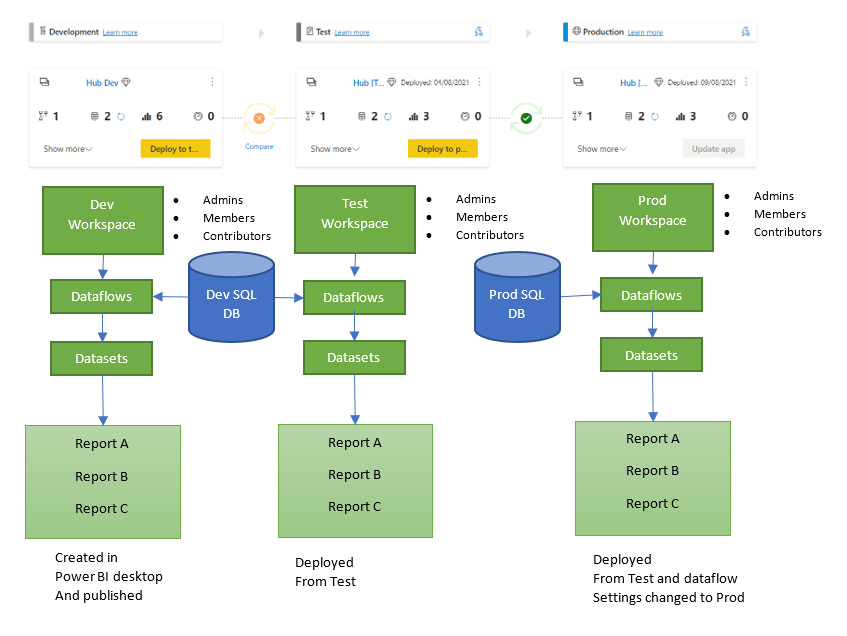
We use a Deployment Pipeline for Dev Test and Production Premium Workspaces
We have a scenario where we have a sub workspace with a smaller number of reports than the main reports
Deployment Pipelines
Lets have a look at the master Workspace that contains all our dataflows, datasets and reports live connected to the dataset
And for all three areas there is also an app to test usability for Viewers (and for the viewers of all the reports in Prod
Current issues with Deployment Pipelines and dataflows
The great thing about pipelines is that we don’t have to keep copies of Test and Prod reports. There are just Dev Pbix files. However, for Production. How do you know that your Production reports are using the dataflows connected to the Production SQL database?
The issue at the moment is that there is a bug that leaves the development data source in with the Production data source for the data flow. You can see this if you go into Lineage View
In the Prod Pipeline we have set the reports to use Prod dataflow and updated the user and password but from here how do you know that this has worked?
The best way I have found to do this is to export the dataflow Json … Export to Json
And look at the file in Notepad and check the source Source = Sql.Database(\”prd-
Its showing as production so I can be happy that the production reports are against the production database
The Sub Workspace
So we have a model for a production app to sit on where users can view all the reports.
However we have another cohort who can only see the reports B and not report A or C.
We can only have one app per workspace so we cant create another app with just one report.
The answer here is to create a sub workspace and republish the Production report across to this new workspace.
The question here is….. Can the sub workspace be a none premium workspace if we are live connected to a dataset in a Premium workspace?
Lets find out by first assessing the situation we want to set up
Process to move the production reports in the deployment pipeline to another workspace
We want to publish the production report to a new workspace (With just the one report in it)
And as a further complication, We want to live connect to a dataset in a Premium workspace and recreate a report in a Pro Workspace.
Not only that, but the Pbix file is set to dev not Prod and there is no production pbix file.
First of all in your Production Workspace go to your report (content) Click … and Save a copy
And Here is the Lineage in Power BI
So how do we check that this report is connected to Dev data flow not prod dataflow
At this point I would probably recommend having something in SQL to connect to like a view or a table containing the datasource name to test with. This would be really handy.
We have to assume that this is the case because it comes from Production workspace which is definitely connected to Prod its good. Also, You could check the data between dev and Prod at this point too.
To test, an app was published and the data was exactly the same as the report in the master workspace.
The good thing about this set up, you only have one copy of the data in master. You don’t have to have the same data duplicated in another workspace, taking up more space in the Power BI Premium Node.
And because its such a small workspace, we don’t have to create it in Premium so we don’t need our Power BI Admin to set it up as a Premium workspace
Licensing
Now you have to think about Licensing. Everyone who needs access to the report in the Pro workspace now needs a Pro account themselves. Great if you have a P3 License which gives everyone free Pro accounts.
But what if you don’t have everyone on Power BI Pro licenses. Or you have external users and you haven’t given them a Pro license?
Lots to think about here with this Mix of Premium and Pro. this might then be a case of going to your Power BI Admin and asking them to switch the Workspace to Premium simply due to the Licenses against the report viewers.





 Debbies Microsoft Power BI, SQL Fabric and Azure Blog