Azure Data Factory Moving from development and Production – Part 2. Using Key vault for Linked Services

In Azure Data Factory Moving from development and Production We looked at how we can use Azure DevOps to move the Json Code for Development Data Factory from development to Production.

Its going well, I have however been left with an issue. every time I move into Production details for the Linked Services have to be re added. Lets have a look at the SQL Server and the Data Lake gen 2 account.

Development

Notice that the information has been entered manually including the Storage account Key.

Again, in this instance the information has been entered manually. SQL Server Authentication is being used because we have a user in the SQL DB with all the privileges that Data Factory Needs.

DevOps Data Factory release Pipeline

Go into Edit of the Release Pipeline

Within Prod Stage we have an Agent Process

We are looking for the Section Override Template Parameters

Note that currently Account Key and SQL Database Connection String are null.

Provisioning Azure Key vault to hold the Secrets

Managed Identity for Data Factory

Copy your Azure Data Factory Name from Data Factory in Azure

You need to have a Key vault set up in Development

GET and LIST allows Data Factory to get information from the Key Vault for secrets

Paste the data factory name into Select Principal

Key Vault, create a Secret for the Azure Data Lake Storage

For the Key Vault Secret. I gave it the Secret value by copying across the Access Key from the Azure Storage Account Keys Section

The Content type was simply set as the name of the Storage Account for this excercise

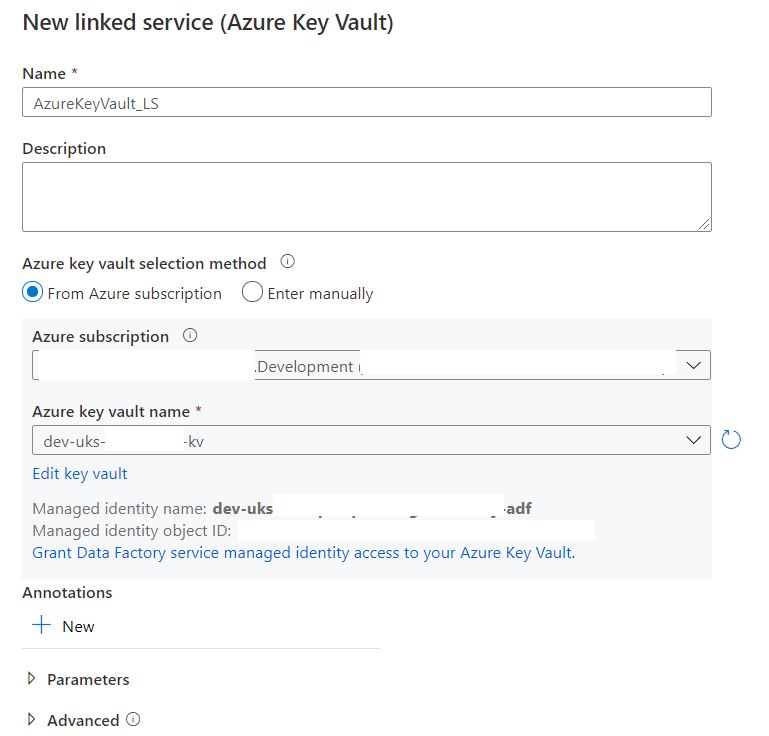
In Data Factory Create a Linked Service to the Key Vault

Test and ensure it successfully connects

Use the New Key Vault to reset the data Lake Linked Service

How does this Data Lake Linked Service change the DevOps Release Pipeline?

Its time to release our new Data factory settings into Production. Make sure you have Published Data Factory into Devops Git.

Production Key vault Updates

We need to update Production in the same way as Development

  1. In Production Key vault add the Production data factory name to Access Policies (as an Application) With Get and List on the Secret
  2. Ensure that there is a Secret for the Production Data Lake Key AzureDataLakeStorageGen2_LS_accountKey
  3. Check your Key vault connection works in Production before the next step

Azure DevOps Repos

In Azure Devops go to your Data Factory Repos

Notice that your Linked Service information for the Data Lake now mentions the Key Vault Secret. its not hardcoded anymore which is exactly what we want

Azure DevOps Release Pipeline

Go to Edit in the Data Factory release pipeline

When the job in Prod is clicked on, you can go to the Override Parameters Section. And notice there is now an error

AzureKeyVault1_properties_typeProperties_baseUrl is the missing Parameter. Basically at this point you need to delete the code in the Override template Parameters box and then click the button to regenerate the new parameters

Override with production information (I saved the code so I could re copy the bits I need.

Once done, notice that the -AzureDataLakeStorageGen2_LS_accountKey “” parameter is now gone because its being handled by the key vault.

Lets Save and Create a Release

New failures in the Release

2021-02-08T13:45:13.7321486Z ##[error]ResourceNotFound: The Resource ‘Microsoft.DataFactory/factories/prod-uks-Project-adf’ under resource group ‘prd-uks-Project-rg’ was not found. For more details please go to https://aka.ms/ARMResourceNotFoundFix

Make sure that your override parameters are ok. I updated:

  • Data Factory name from Data Factory
  • Primary endpoint data Lake Storage from Properties
  • Vault URI from Key vault Properties

Repeat the Process for SQL Database

With everything in place we need to introduce a connection string into Key Vault

I have a user set up in my SQL database. the user has GRANT SELECT, INSERT, UPDATE, DELETE, EXEC, ALTER on all Schemas

I want to include the user name and password in the Connection string and use SQL authentication

Secret Name

AzureSQLDatabase-project-ConnectionString

Secret

 Server=tcp:dev-uks-project-sql.database.windows.net,1433; Database= dev-uks-project-sqldb; User Id= projectDBowner;Password= Password1;

the connection string has been set as above. For more information on connection strings see SQL Server connection Strings

Go back to Data factory and set up the new secret for SQL Server

This is successful

Data Factory and DevOps

  1. back in Data Factory Publish the new linked Service Code
  2. go into Dev Repos and check in Linked Service code you are happy with the new Key vault information
  3. Go to Prod Key vault and make sure you are the Secret is set with the Connection String for SQL DB
  4. Test the Key vault secret works in Prod
  5. Back in DevOps Go to Release pipelines and Edit for the adf Release CD pipeline (Release Pipelines are Continuous Delivery. Build pipelines are CI for Continuous Integration)
  6. Edit Prod Stage (I only have Prod) Arm Template Deployment Task, Copy Overwrite Template Parameters code into a file for later
  7. Delete the code and click the … to get the latest parameter information
  8. Re add your production parameters, most can be taken from the code you just copied.
  9. Create a new Release
  10. go to Linked Services in Data Factory and check they are still Production. They still use Key vault and they still work

Now this is all in place, Development Data factory can be published up to production. there is no need to reset Linked Services and all your information about Keys and passwords are hidden in the Key Vault

Data Factory to move daily snapshot data in Azure SQL DB to files in a Gen2 Data Lake

I have the following problem to resolve (And this was my initial attempt at figuring out a solution)

I have a data source with data that contains a date. the data contains daily snapshot of a record. this means that a record will be in the data set once per day. This will amount to a lot of data and we would rather hold it as files in Azure Data Lake Gen2 Storage

The logic is to pull daily files from the source database into dated files within the Azure data Lake

Once running this will probably pick up a days data because the rest are already created. However on the initial run I want it to pick up all the days that have been loading.

At the minute I have about 6 months of data to load

Tables in Azure SQL Database (destination)

CREATE TABLE [audit].[MemberDailyMetricsDates](
     [DATEUTC] datetime2 NULL
 ) ON [PRIMARY]

This table collects all the dates from the source snapshot table

Remember, the table records the same record every day with any changes to the record.

CREATE TABLE [audit].[IdWatermarks](
     [TableName] nvarchar NOT NULL,
     [WatermarkValue] [bigint] NOT NULL,
     [WatermarkDate] [datetime] NULL,
     [WatermarkDate2] datetime2 NULL
 ) ON [PRIMARY]
 GO

this is where I add the dates from the tables to show where we are.

For example if we add the last lot of data from 02/01/2020 then this value will be stored in the watermark table. I record them in different formats just in case.

CREATE TABLE [audit].[ProcessingMetrics](
     [ID] [int] IDENTITY(1,1) NOT NULL,
     [TableName] varchar NULL,
     [DateProcessed] [datetime] NULL,
     [DateUTC] datetime2 NOT NULL,
     [Duration] [int] NOT NULL,
     [NoRows] [int] NULL,
 PRIMARY KEY CLUSTERED 
 (
     [ID] ASC
 )WITH (STATISTICS_NORECOMPUTE = OFF, IGNORE_DUP_KEY = OFF) ON [PRIMARY]
 ) ON [PRIMARY]
 GO
 ALTER TABLE [audit].[ProcessingMetrics] ADD  DEFAULT (getdate()) FOR [DateProcessed]
 GO

We can record meta data from the data factory Pipeline as it runs

Stored Procedures in SQL Database (destination)

/*Debbie Edwards
 17/12/2019 Created initial SP
 Create a watermark table
 EXEC [audit].[audit].[USP_Watermark]    '2014-12-31 00:00:00.000'
 */

 ALTER PROCEDURE [audit].[USP_Watermark] @NullDate datetime2

 AS   

 BEGIN

 IF EXISTS (Select * FROM [audit].[IdWatermarks]  
 WHERE TableName = 'DailyMetrics')

 DELETE FROM [audit].[IdWatermarks]  
 WHERE TableName = 'DailyMetrics';

 --DECLARE @NullDate datetime2 SET @NullDate = '2014-12-31 00:00:00.000'

 WITH CTEDailyMetricsDates (DATEUTC)
 AS
 (SELECT ISNULL(MAX(DATEUTC),@NullDate) FROM [audit].[DailyMetricsDates]) 

 INSERT INTO [audit].[IdWatermarks] 
 (TableName, WatermarkValue, WatermarkDate, WatermarkDate2)
 SELECT 'DailyMetrics',CONVERT(bigint,CONVERT(datetime, MAX(DATEUTC))), MAX(DATEUTC), MAX(DATEUTC)
 FROM CTEDailyMetricsDates
 END 

This is the Stored procedure that you run to create the watermark

Currently I’m just running this for one table. You could redesign to run this SP for different tables.

Also note, If there is nothing in the table I am setting a default date to work from @NullDate

/*Debbie Edwards
 18/12/2019 Created initial SP
 Update Processing details
 EXEC [audit].[USP_UpdateMetrics]
 */
 ALTER PROCEDURE [audit].[USP_UpdateMetrics] @TableName varchar(100),   @DateUTC datetime2, 
 @Duration int,  @NoRows int

 AS   

 BEGIN

 INSERT INTO [audit].[ProcessingMetrics]
 (TableName, DateUTC, Duration, NoRows)
 VALUES

 (@TableName, @DateUTC, @Duration, @NoRows)

 END

the Pipeline will run this stored Procedure to add meta data to the ProcessingMetrics table

Data Lake Gen2 Storage Account

Along with the Destination SQL Database you need to have an Azure Data Lake

Quick Set up for the Azure Data Lake. Setting up an Azure Data Lake V2 to use with power BI dataflows in Service (As a data source) …. and Setting up a service principal will give you information on how to:

  • Set up the Storage Account
  • Ensure Hierarchical name space is enabled
  • Create a file system
  • Grant reader Role to power BI service
  • Set up the Service Principal (Set up the App Registration)

Set up Data Factory

Now we are ready to set up everything with a Data Factory

create your data Factory and then go to author and monitor

Connections

AzureSQLDatabasereportingdb is the Source Azure SQL Database

Our Destination is a Destination Azure SQL Database AzureSQLDatabase[destination]reportingdb

And we have a gen 2 Data Lake Storage Account AzureDataLakeStorageGen2 (Which will need the Service Principal account setting up in order to use) See setting up a service principal….

DataSets

the Linked Services are in place. Now we can add Data sets

Source Data Set – Azure SQL database

Add an Azure SQL Server Dataset. the first thing we need are two parameters for the TableName and Table Schema

Connect this up to the Source Linked Service and use the parameters to create a table with schema

The Schema will change when ever you use different table parameters so no need to set at this point

Destination Data Set – Azure SQL database

Destination Data Set – Azure data Lake Gen2

First of all, create a FileName parameter. Because we are creating multiple files, each file needs to be renamed to the UTCDate from the Foreach loop later. We need to set this up within the For each rather than here. Therefore will just set the name as a parameter at this point.

What we want to do is add the file into our file system created in the data lake. and we want to add a date to every single file because these will be the snapshots

In add dynamic content

@dataset().FileName

This is where the actual information for Filename from the data set will be added within the copy activity later.

I imported a schema from a test file I already created.

Pipeline 1 Create Member Daily Metric Dates into destination database

Our first part of the process is to create a list of dates in the source data that we dont yet have in the Data Lake. The first time we run it, thats literally every date we have so far in the source data base

Lets have a look at the Activities in the Pipeline

LookupWatermarkOld

I know that my dates are in datetime2 format so I’m using this and changing it to WatermarkValue so all the steps always use WatermarkValue no matter what the format. Here is the query in full

SELECT MAX(WatermarkDate2) AS WatermarkValue From [audit].[IdWatermarks]
WHERE WatermarkDate2 IS NOT NULL
AND TableName = 'DailyMetrics'

We record the table name of the source in the Watermark table. Basically this will tell us what the date we need to use to work from. remember, we set up a default if there is nothing in the dataset to work with which will run everything into the data lake

CopyDailyMetricsDateUTC

This is where we get to the Copy part of the activity. We are simply copying the dates into the table of the snapshots that we haven’t done yet.

Here we add the parameters of the table we want to use from Source. These parameters were set up in the data set section.

Add a Query. We want the Distinct Date from the source table Where the DATEUTC (The column in the table) is greater than WatermarkValue from the Previous Watermark Activity

SELECT DISTINCT DateUTC FROM [dbo].[DailyMetrics]
WHERE DateUTC > ‘@{activity(‘LookupWatermarkOld’).output.firstRow.WaterMarkValue}’

Now we are at the destination data set

The only item in here is DateUTC

USP.Watermark

This will trigger the Watermark Stored procedure and uses the Azure SQL database destination Linked Service

This is everything required for Section 1 that will run all the dates into our table based on snapshots we haven’t yet prepared

Pipeline 2 CopyMemberDailyMetricsDateUTC

Again, lets have a look at these Activities in more detail

LookupDates

this is the Lookup Activity that takes the full record set of Dates from the destination SQL Server

Note that we haven’t ticked First row only because the entire data set is required

CopyDailyFilesIntoDL (ForEach Activity)

We are taking the output.value from our activity LookupDates

Because it only has one column we don’t need to specify anything further. output.value means the entire record set

Sequential – The Items will be read one by one from the data set

there are 2 activities within this foreach loop. Doubly click on the activity to see what is happening in the loop

Again Lets have a look at this in more detail

CopyDailyMetrics

The source is the table in the source database because we want to store everything in daily snapshot files.

The Query is a SELECT FROM WHERE Statement. Select all the columns from the DailyMetric table where the DateUTC in the source data is Equal to DateUTC in @Item which is generated by the ForEach activity 

the sink uses the Data Lake. Remember, in the data set we set the Filename parameter and here is where is gets set. Click on the Filename to view Dynamic content

This is Concatenating a file name, the Item UTC Date and .csv


Use @item() to iterate over a single enumeration in ForEach activity . This value is generated by the ForEach activity (In the Pipeline)

We are setting the date as a string in order to use within the file name. Because the For each loop is setting the item for us and we are inside this activity we can create the filename in this copy activity rather than in the data set its self.

We can then simply Import schemas to view the mappings between the source and sink

SPUpdateDetails

Finally, we want to keep a record of everything we are going to be doing in the loop so we can run our stored Procedure to add the meta data into a table in our source database

We can use out SQL destination Linked Service for this

the Stored procedure contains 4 parameters.

We can take the Date from the Item in the foreach loop.

Duration, and NoRows can be added from metadata. See https://docs.microsoft.com/en-gb/azure/data-factory/copy-activity-overview Monitor programmatically

  • Duration @activity(‘CopyDailyMetrics’).output.copyDuration
  • No Rows @activity(‘CopyDailyMetrics’).output.rowsRead

the table name is simple DailyMetrics

USP_TruncateMemberDailyMetricsDates

Finally, now that everything is complete we can truncate the date table. Outside of the foreachloop

the max date is held in Watermark which will be used to create the new files Next time (Set in Pipeline 1)

Test your solution

Now we have everything in place we can test each pipeline. By Clicking debug

You can see the files coming in via Azure Table Storage

If you get errors, a great way of debugging is to go into the code. I had an error and after a file nam it had /n/n.

I simply removed this empty row and it worked.

Pipeline 3

There is now a Pipeline 1 to create the dates. And pipeline 2 to create the files. This is good because they can be tested separately.

We need a top level Pipeline to run them

And this is the new model for the flow of this Data factory

Add a trigger

now we have successfully tested the Pipelines we can set them up in a trigger by adding a parent pipeline that runs all the Pipelines in order

Another Post will be created on Adding Triggers

Considerations

You need to make sure that the last file (When you run it is complete) In our case the snapshot table is run at 12 AM and takes around 20 minutes so we need to set this pipeline off at 1 AM

Add Alerts to Monitor the Pipeline

https://azure.microsoft.com/en-gb/blog/create-alerts-to-proactively-monitor-your-data-factory-pipelines/

Another Post will be created on Adding Monitors

Incremental Processing in Data Factory using Watermark Table

I am pulling tweets into an Azure Table Storage area and then processing them into a Warehouse

The following shows the very basic Data factory set up

Connections

I have created a Linked Service for the Azure Storage Table PowerBIMentions

And another Linked Service for my Azure SQL Server Table PowerBIMentions

Datasets

the Storage Table was set up in Logic Apps. I wont go into detail about the schema here

I have created a SQL Table to Mirror the Azure Table Storage

Watermark Table in SQL

The Watermark Table is as follows

CREATE TABLE [staging].[watermarktable](
[TableName] varchar NOT NULL,
[WaterMarkDate] [datetime] NULL,
[WaterMarkValue] varchar NULL,
[WaterMarkOffSetDate] datetimeoffset NULL
) ON [PRIMARY]

For the time being, the Watermark value is to set the Date in the same format as is in the Azure Table storage.

Ignore the offest date for the time being

I have then created a stored Procedure to add the table name storage.PowerBIMentions, the maximum created Date from what is in the table and then some extra script to format that date into the correct format in Azure Table storage.

To understand how this should be formatted you can look at the Azure Table using Microsoft Azure Storage Explorer

https://azure.microsoft.com/en-gb/features/storage-explorer/

As you can see the format is YYYY-MM-DDHH:MM:SS.000Z

I haven’t included the code for the SP here but it is fairly straightforward. You take the max date from the table you are interested in and also include code for format the value to the correct value

Pipeline

Added a Pipeline called CopyPowerBIMentionsIncremental

The Source is the Storage mentions table

the Sink (destination) is the Azure SQL Table

And then we can easily import the schemas and map

Then run the very simple Pipeline which just moved the data. Then Runs the Watermark Stored procedure to recreate the MAX Date time

Change Pipeline to include a lookup activity

Now the next time we want to process we have to only process new records into the table.

the Query to select the correct date from the Watermark table

SELECT MAX(WatermarkValue) AS WatermarkValue From [staging].[watermarktable]
WHERE WatermarkValue IS NOT NULL
AND TableName = ‘staging.PowerBImentions’

You can test this in SQL Server Management Studio

CreatedAt gt ‘@{activity(‘LookupWatermarkOld’).output.firstRow.WaterMarkValue}’

CreatedAt is the column in the source Azure SQL Table table which has the following date format

OperatorURI expression
Equaleq
GreaterThangt
GreaterThanOrEqualge
LessThanlt
LessThanOrEqualle
NotEqualne

Then it uses the Lookup activity and the WaterMarkValue from the SQL Table

Test the New Watermark Logic

in SSMS

SELECT COUNT(*) FROM [staging].[PowerBImentions]

there are 16 records and the max date is 2019-11-01T16:00:55.000Z

Run the new data Factory (Debug)

The new record count is 21

The new Max Date is 2019-11-01T17:01:52.000Z

And Lets to a quick check to make sure there are no duplicates

SELECT TweetText , COUNT() FROM [staging].[PowerBImentions] GROUP BY TweetText HAVING COUNT() > 1

its all working. We have no duplicates and this will ultimately help keep the processing down

There is another way to do incremental processing by using change tracking. Ill be looking at that in a later post

Design a site like this with WordPress.com
Get started